
1. Overview
QClaw (nicknamed “Little Lobster AI”) is a local AI Agent assistant built by Tencent PC Manager on top of the open-source OpenClaw ecosystem, built around the idea of “anytime, anywhere — one WeChat message gets it done”: no programming or environment setup required — once installed, you can use natural language to have your computer organize files, process spreadsheets, edit documents, generate code, and more. After linking WeChat / QQ via QR code, you can send instructions remotely from your phone even when away from your computer; all tasks run locally and your data never leaves your machine. QClaw ships with domestic models such as Kimi, GLM, MiniMax, and DeepSeek, and also supports connecting any third-party model service speaking the OpenAI-compatible protocol under Model Settings. With GravitexAI you get:2. Requirements
- A Windows or macOS desktop system (see the official download page for detailed version requirements)
- A stable internet connection (for model API calls and WeChat remote commands)
3. Prerequisites
- QClaw installed on your computer (download from the official site qclaw.qq.com)
- An API key (format
sk-xxxxxxxxxx) created in the GravitexAI Console
4. Quick Start
Step 1: Install QClaw
Visit the official site qclaw.qq.com, download the Windows or macOS installer, and double-click to install — no command line needed. After installation, open QClaw and follow the prompts to log in and link WeChat via QR code for remote commands.Step 2: Get a GravitexAI API Key
- Open the GravitexAI Console
- Click “Create Token”, name it, and save
- Copy the key starting with
sk-
Step 3: Open the custom model entry
Launch QClaw and, below the chat box:- Select the Cloud models (云端模型) tab
- Click the model selector on the right (the dropdown showing the current model name, e.g.
Auto) - At the bottom of the model list, click “Custom model” (自定义大模型)
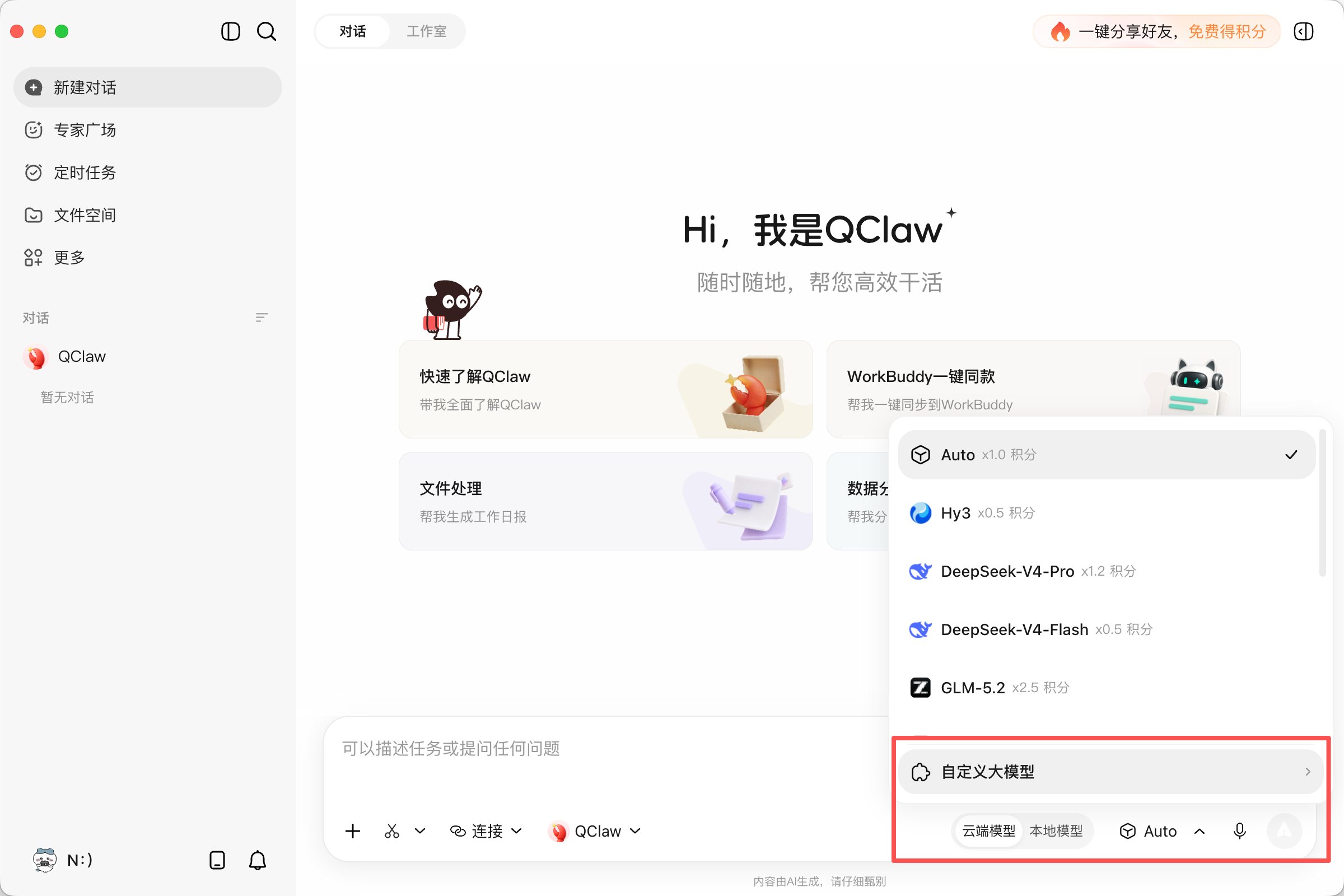
Step 4: Fill in the GravitexAI connection details
Fill in the fields below and click “OK”, then wait for the configuration to take effect: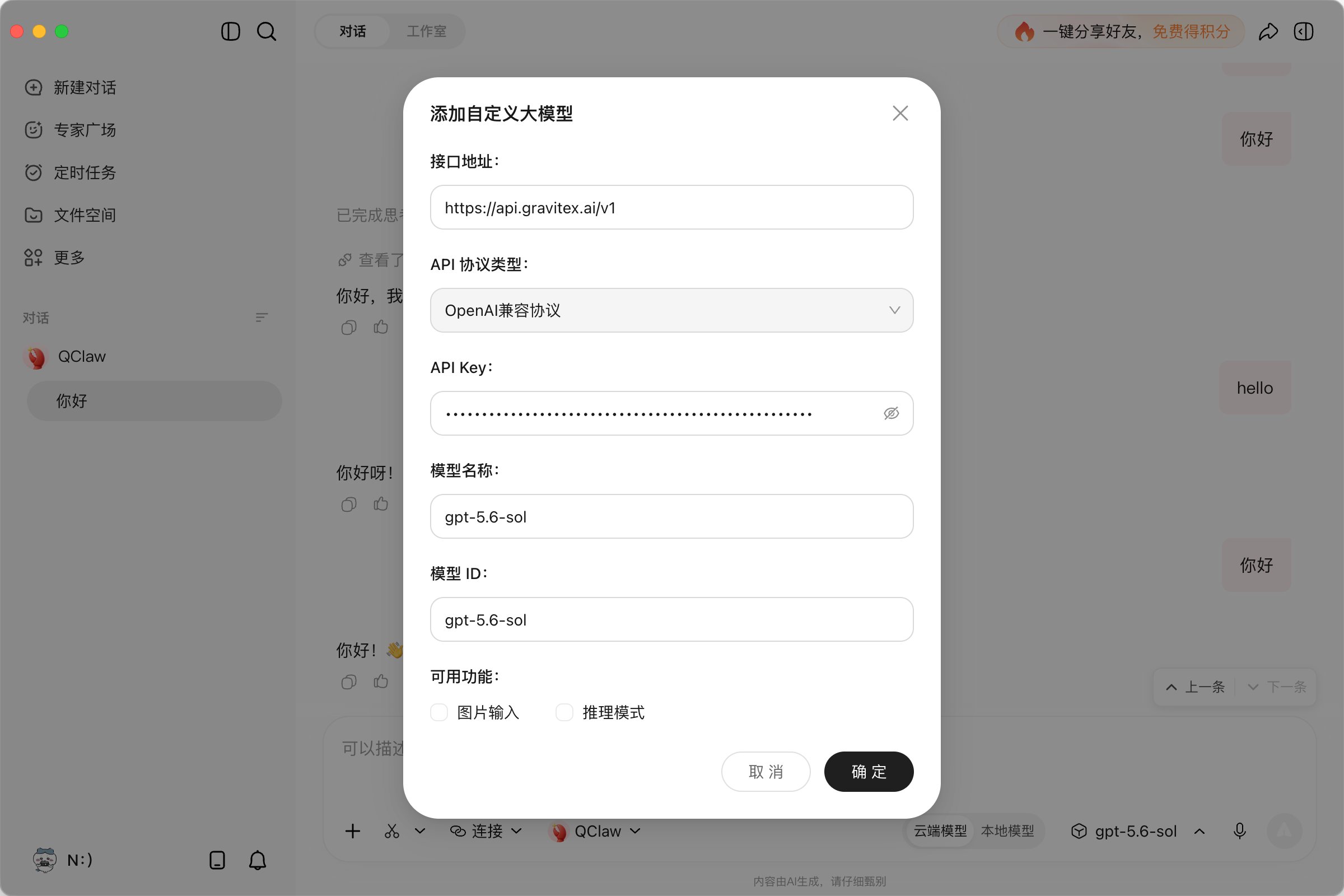
Each model must be configured individually — endpoint, API key, and model name — and saved separately. To add multiple models, repeat the “Custom configuration” step for each one.
Step 5: Switch to the custom model
Return to the chat view and switch to the custom model you just configured in the model selector (as shown — selectgpt-5.6-sol from the model dropdown at the bottom-right of the chat box), then start chatting or running tasks:
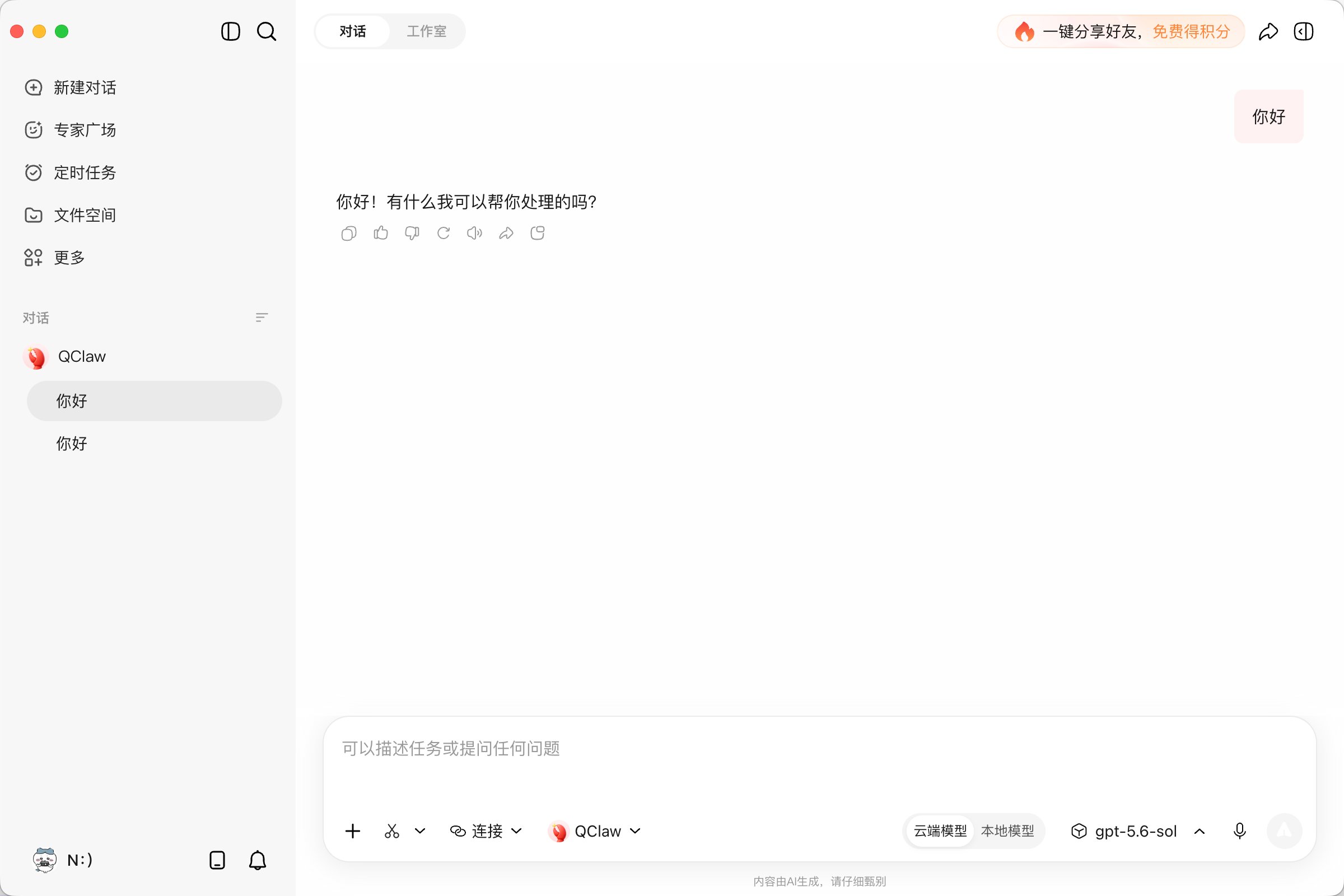
5. Feature Quick Reference
6. FAQ
What should I enter as the API endpoint?
What should I enter as the API endpoint?
It depends on the protocol: for the OpenAI-compatible protocol, enter
https://api.gravitex.ai/v1 (must include /v1); for the Anthropic-compatible protocol, enter https://api.gravitex.ai (no /v1). If the configuration screen asks for the full request path, append it as prompted — e.g. https://api.gravitex.ai/v1/chat/completions for the OpenAI protocol.How should I configure Claude-family models?
How should I configure Claude-family models?
For Claude-family models (e.g.
claude-sonnet-5), set “API protocol” to Anthropic-compatible and the endpoint to https://api.gravitex.ai (no /v1). All other models — GPT, DeepSeek, Gemini, Kimi, etc. — use OpenAI-compatible with https://api.gravitex.ai/v1.How do I troubleshoot 401 / authentication failures?
How do I troubleshoot 401 / authentication failures?
- Confirm the API key starts with
sk-, is copied completely, and has no extra spaces - Confirm the endpoint is spelled correctly (
https://api.gravitex.ai/v1) - In the GravitexAI Console, check that the token is enabled and your balance is sufficient (insufficient balance also returns 401)
- If needed, disable the old key and create a new one
How do I fix Invalid 'max_output_tokens': integer below minimum value?
How do I fix Invalid 'max_output_tokens': integer below minimum value?
The full error looks like
Invalid 'max_output_tokens': integer below minimum value. Expected a value >= 16, but got 1 instead. — the request’s max output tokens was set to a value that is too small (e.g. 1), while the upstream API requires at least 16. Fix: check whether this custom model’s configuration has a “max output” setting — leave it empty (use the default) or set a reasonable value (e.g. 8192), save, and retry. If no such option exists in the UI, delete the model and add it again without entering overly small values.What if it says the model doesn't exist?
What if it says the model doesn't exist?
Confirm the Model ID field exactly matches a model ID listed in the GravitexAI Model Plaza, including capitalization and spelling — copy the ID directly from the plaza to avoid typos. The “Model name” field is display-only and doesn’t affect requests.
How do I configure multiple models?
How do I configure multiple models?
QClaw requires each model to be configured and saved individually. Repeat the “Custom configuration” step on the Model API tab for each model — the endpoint and API key can be reused.
How is GravitexAI usage billed? Does it affect QClaw's built-in models?
How is GravitexAI usage billed? Does it affect QClaw's built-in models?
All custom model usage (token consumption, etc.) is billed directly by GravitexAI and is independent of QClaw’s built-in model quotas. Keep an eye on your GravitexAI balance and usage to avoid unexpected charges.
Will my API key and task data be uploaded?
Will my API key and task data be uploaded?
No. QClaw is a local AI Agent — tasks run on your own computer and data never leaves your machine. With GravitexAI connected, QClaw only acts as the communication link, sending requests directly to the endpoint you configured; responses come straight back from the model.
7. Related Resources
- QClaw official site: qclaw.qq.com
- API key management: https://maas.gravitex.ai/#/api-keys
- Model plaza: https://maas.gravitex.ai/#/api-models