
This guide explains how to use the AI code editor Cursor together with the open-source configuration manager CC Switch for unified management and one-click switching across model providers.
1. What is Cursor
Cursor is a code editor built for AI-assisted programming. With Cursor you can do:- Code completion
- Code generation
- Code editing
- Code explanation
- Project analysis
- Bug troubleshooting
- Agentic coding
2. What is CC Switch
CC Switch is an open-source local GUI tool for AI service configuration management and reverse proxying. It solves two problems:- Unified configuration: centralizes the API keys and base URLs scattered across Claude Code, Cursor, OpenCode, and other AI coding tools, so multiple config files no longer conflict.
- Protocol relay: lets apps that only speak a specific native protocol (such as Cursor’s Codex plugin) call more third-party compatible APIs through a standard interface.
3. Why use Cursor with CC Switch
Day-to-day development often requires switching between model providers — the official Anthropic API, various relay services, self-hosted gateways, and so on. Traditionally every switch means hand-editing each tool’s config file, which is tedious and error-prone. CC Switch brings:- Configure once, apply everywhere: maintain one set of provider configs on the desktop; Cursor and other tools follow automatically.
- One-click switching: changing providers usually takes under 10 seconds, with no need to re-enter keys.
- Reuse resources without migrating: when your Claude quota runs out, switch smoothly to Codex, DeepSeek, and others without moving project files.
- Isolated configurations: keep independent configs for different projects or compliance requirements.
4. Prerequisites
- Cursor and CC Switch installed on your machine
- An API key created in the GravitexAI console (format:
sk-xxxxxxxxxx)
5. Installing Cursor and CC Switch
- Install Cursor
- Install CC Switch
Download from https://cursor.com/download. macOS and Windows are supported.
6. Configuring CC Switch in Cursor
Step 1: Configure a provider in CC Switch
- Configure your provider in CC Switch (API key + base URL).
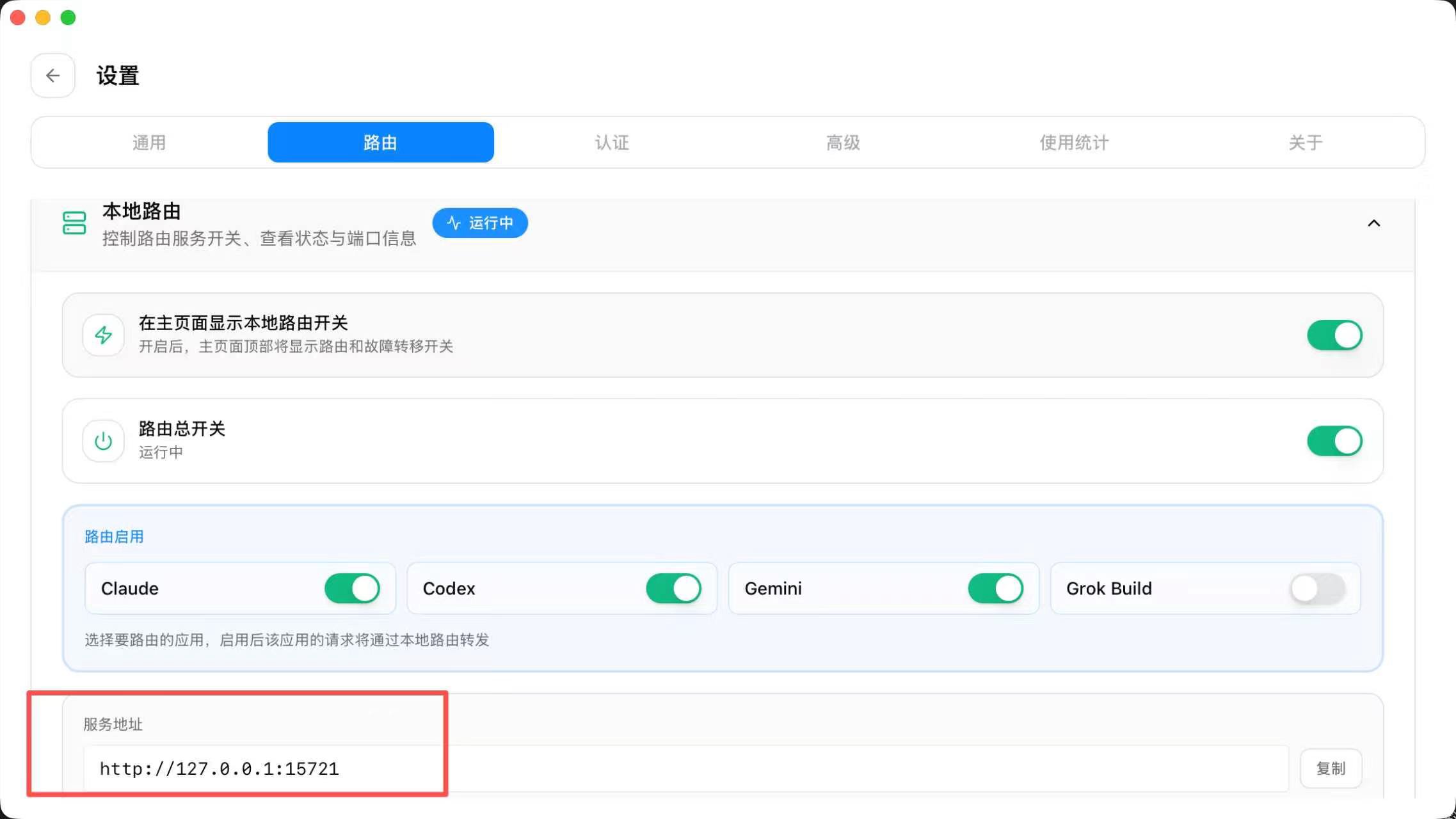
- Launch CC Switch, go to Settings → Routing, turn on the main routing switch, and select the apps you want to route.
- Confirm the local proxy is listening, then copy the service address shown at the bottom of the page (the exact port is whatever the app displays, for example
http://127.0.0.1:15721).
Step 2: Configure Cursor
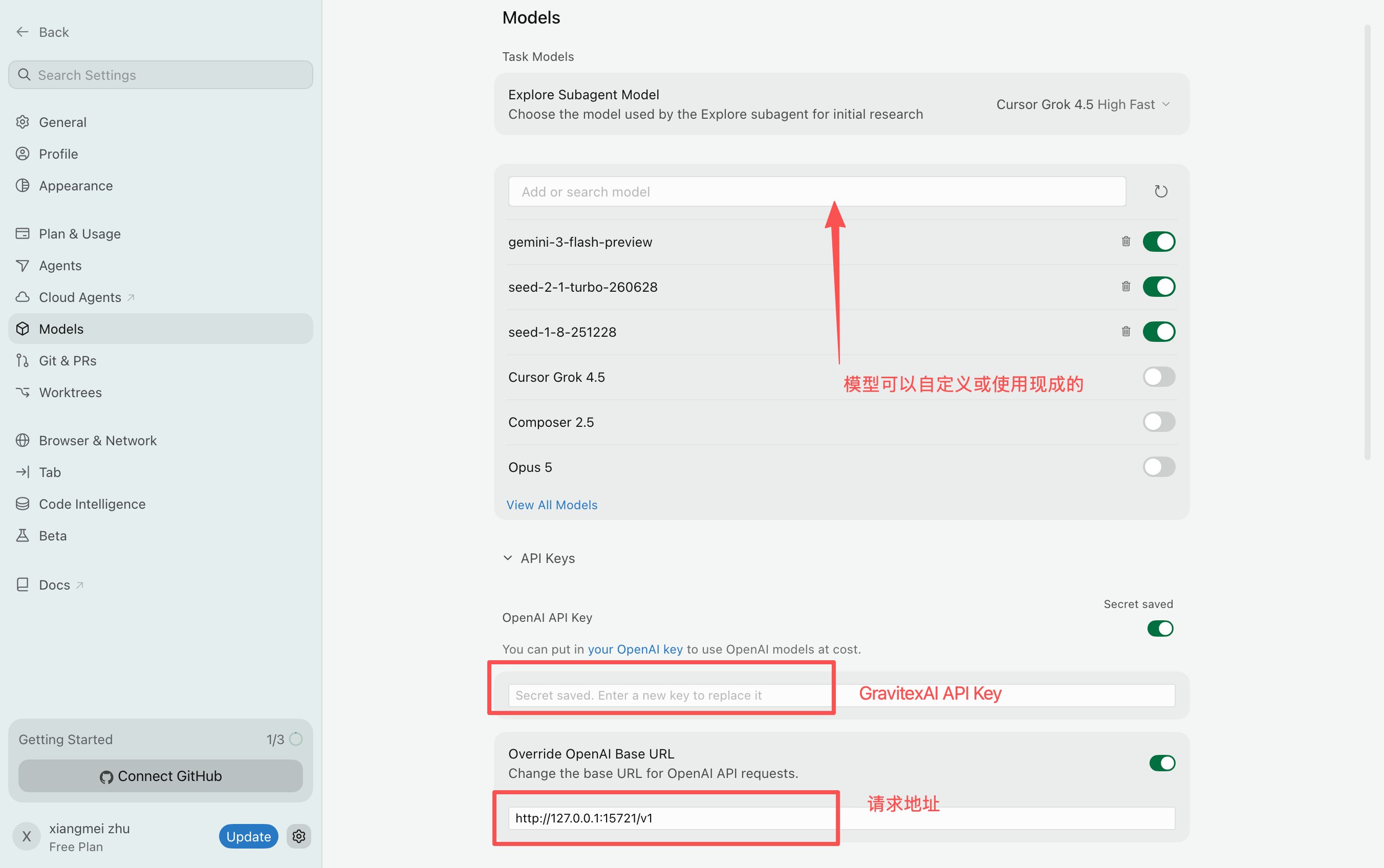
- Open Cursor and press Cmd + , (macOS) or Ctrl + , (Windows / Linux) to open Settings. You can also click the gear icon ⚙️ in the bottom-left corner and choose Models.
- Go to the Models panel in the left navigation.
- Enter your GravitexAI key in the OpenAI API Key field.
- Find the OpenAI API settings section:
- Turn on Override OpenAI Base URL.
- Enter the local endpoint provided by CC Switch, for example
http://127.0.0.1:15721/v1(the/v1suffix is required; no trailing slash).
Step 3: Add model IDs
- Enter the model ID you want to use in the Add or search model box at the top of the Models list.
- Model IDs follow the convention of the provider configured in CC Switch, for example
gemini-3-flash-preview,seed-2-1-turbo-260628, orclaude-sonnet-4-6.
7. Supported models
Through GravitexAI, Cursor supports 100+ mainstream AI models, including OpenAI, Google Gemini, Claude, DeepSeek, and leading Chinese models.See currently recommended models
Browse the latest model recommendations, performance comparisons, and scenario-based advice — covering writing, coding, fast responses, image generation, video generation, and more.
Why aren’t specific models listed here?AI models iterate very quickly. To make sure you get the most accurate recommendations, we maintain the up-to-date model list, performance data, and usage advice on the model recommendation page.
8. Common configuration issues
Incorrect API key
Incorrect API key
If you see:Check the following first:
- Is the API key correct?
- Did you copy extra whitespace?
- Has the API key expired?
- Did you accidentally use a key from another platform?
Model not found
Model not found
If you see something like:Check the model name. Common causes:
- The model name is misspelled
- The current key has no access to that model
- The model has been retired or renamed
- You used another user’s model name
The API works, but Cursor doesn't
The API works, but Cursor doesn't
This usually points to API compatibility.Requests sent by Cursor must match the API protocol supported by CC Switch. If the request format, model name, or response structure doesn’t match what the client expects, you may see:
- A successful request with no content
- The model failing to return anything
- Cursor unable to parse the response
- Conversations breaking off mid-stream
curl or another API tool to confirm it returns normally.Cursor AI is unresponsive or stuck loading
Cursor AI is unresponsive or stuck loading
- Check whether the CC Switch node has dropped, and reconnect to a low-latency node;
- Confirm the proxy settings in
settings.jsonare saved and the port is correct; - Fully quit Cursor (including background processes) and restart it;
- Disable strict SSL verification and switch to a stable overseas node.
Occasional model call timeouts
Occasional model call timeouts
Usually caused by node network fluctuation. Switch to a backup node, or restart CC Switch to reconnect.
More help: contact technical support at bd@gravitex.ai, or call 13603055233.