
A browser-extension AI client for side-by-side multi-model answers, with 100+ models via GravitexAI
1. Overview
ChatHub is a Chrome / Edge browser extension that lets you use multiple AI models at once. One prompt can return answers from up to six models side by side, so you can quickly see which model fits the task. With GravitexAI you can connect OpenAI, Claude, Gemini, DeepSeek, Qwen, and 100+ other mainstream models in ChatHub.2. Core capability: side-by-side comparison
ChatHub’s main differentiator is parallel multi-model Q&A:- Send the same question to 2–6 models in one tab
- Compare answers in side-by-side or table views
- Mix any models: GPT-5.5 + Claude Opus 4.7 + Gemini 3 Pro + DeepSeek V4 together
- Comparison views support Markdown, code highlighting, and image preview
3. Install
- Browser extension
- Desktop
Option A: Install from the store (recommended)
- Search the Chrome Web Store for: ChatHub‑All‑in‑One Chatbot (publisher: chathub.gg)
- Click Add to Chrome → Add extension
- Open the puzzle icon (Extensions) in the toolbar, find ChatHub, and pin it
- Download the Release zip from GitHub
- Open
chrome://extensions/and enable Developer mode - Load unpacked extension and select the unzipped
distfolder
4. Quick setup (OpenAI-compatible)
This is the most common path and works with all 100+ GravitexAI models.Step 1: Get a GravitexAI API Key
- Open the GravitexAI Console
- Click Create API Key, name it, and save
- Copy the key starting with
sk-for later
Step 2: Open ChatHub settings
- Click the ChatHub icon in the browser extensions menu to open the app
- Click Settings (gear) at the bottom left to open full settings
- Scroll to Custom Bots and click Add
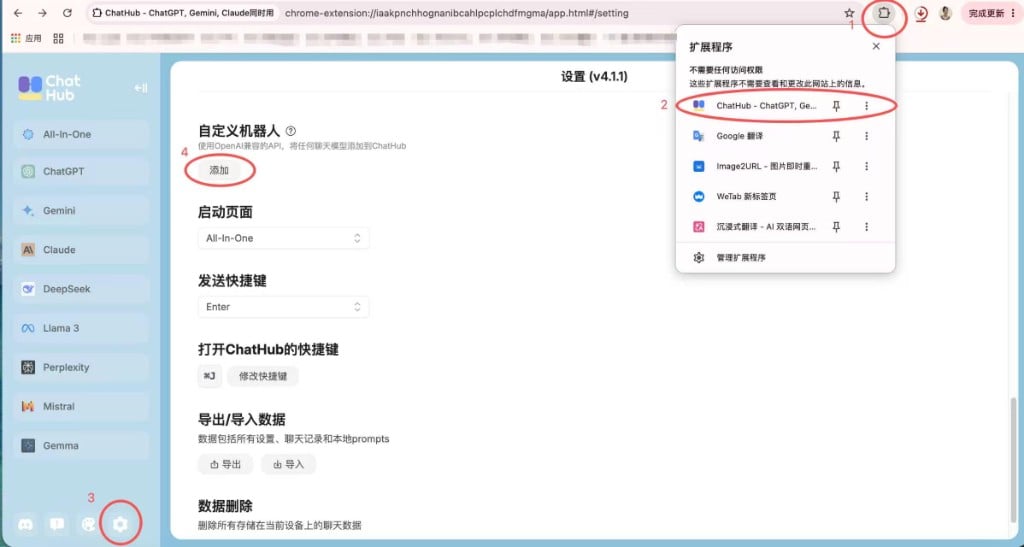
Step 3: Add GravitexAI as a provider
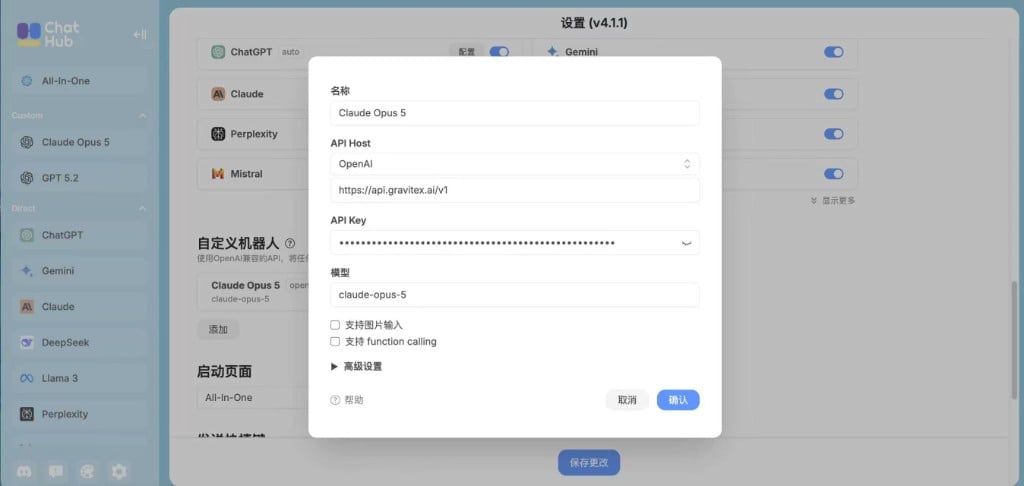
Optional advanced options:
- Support image input:
- When checked, ChatHub shows an upload button so you can paste/upload images to this model
- When unchecked, the upload UI is hidden even if the model supports vision
- Support function calling: check when the model supports tool calling
- Advanced settings: collapsed by default; expand as needed
Step 4: Select the model
After saving, return to the ChatHub main UI. Your custom models appear in the dropdown and are ready to use.5. Three usage modes
6. Advanced: strongest multi-vendor compare
ChatHub’s killer feature is running multiple vendors at once. One GravitexAI setup lets you mix any vendor models in compare mode.Recommended combinations
7. Supported models
Via GravitexAI, ChatHub supports 100+ mainstream models including OpenAI, Google Gemini, Claude, DeepSeek, and Chinese models.View popular model recommendations
Latest model recommendations, performance comparisons, and scenario guides — covering text, coding, low-latency, image, and video.
Why not list models here?Models change quickly. We keep the latest list, benchmarks, and usage tips on the model recommendations page.
8. Troubleshooting
Connection failed
Connection failed
- Confirm the API key starts with
sk-and has no extra spaces - Check API Base URL:
https://api.gravitex.ai/v1 - In the GravitexAI Console, verify the key is enabled and balance is sufficient
- Insufficient balance can also return 401 — check account balance
Model not showing
Model not showing
- Wait for the model list to refresh
- Click Refresh models manually
- Check API key permissions
Compare mode shows only one model
Compare mode shows only one model
- Confirm multiple models are checked on the right of the input
- Ensure all models are from the same provider (or different providers that are each configured)
Slow responses
Slow responses
- Switch to a faster model
- Check network latency
- Reduce context length
9. Best practices
Performance
-
Choose models wisely
- Match model complexity to the task
- See model recommendations for current guidance
-
Compare strategy
- Comparing near-identical models (e.g. two GPTs) is low value
- Pick models with different strengths: coding, writing, reasoning, translation
- Avoid comparing more than 4 models at once — token cost scales quickly
-
Resource management
- Monitor API usage
- Set spending / quota alerts
- Keep the extension updated
Security
- Do not share API keys
- Rotate keys regularly
- Protect the browser with a strong password
- Handle sensitive content carefully
Team collaboration
ChatHub is mainly for individuals, but teams can:- Share prompt templates
- Export and share chat history
- Standardize API configuration
10. Why ChatHub
vs other clients
Reasons to choose ChatHub
- Model selection: running many models at once is hard to replace
- Mixed vendors: OpenAI / Claude / Gemini / Chinese models in any combo
- In-page workflow: as an extension, it works on any webpage
- Privacy-first: chats stored locally; the extension does not harvest your data
- Actively maintained: ongoing updates
More help: contact bd@gravitex.ai or call 13603055233.