
Open-source AI chat client integration guide with custom providers and local knowledge base
1. Overview
LobeHub is an open-source, cross-platform AI chat client (formerly Lobe Chat) supporting multiple models, multimodal interactions, a plugin system, and local knowledge bases. With GravitexAI, you can access 100+ mainstream AI models using a single API key in LobeHub, without needing to register and pay for each provider separately.Open-source & self-hostable
Desktop, web, Docker, and Vercel deployments — full data control
Plugins & multimodal
Built-in web search, code interpreter, image understanding, video generation plugins
Local knowledge base
Upload PDF / Markdown for RAG — reference private documents in conversations
2. Quick start
Step 1: Get a GravitexAI API Key
- Visit the GravitexAI Console
- Click Create API Key, name it, and save
- Copy the key starting with
sk-for later
Step 2: Install LobeHub
LobeHub offers three ways to use it:- Desktop
- Web (official)
- Self-hosted
Option A: Download from the official site
- Visit https://app.lobehub.com/downloads to download the installer
- Open https://github.com/lobehub/lobe-chat/releases
- Find the latest version and download the installer for your system:
- Windows: .exe
- macOS: .dmg
- Linux: .AppImage / .deb / .rpm
Step 3: Open LobeHub settings
- Click Personal Avatar → App Settings in the top-left to enter the settings page
- Select Agent → AI Provider from the left navigation
- Click the
+button in the top-right to add a custom provider
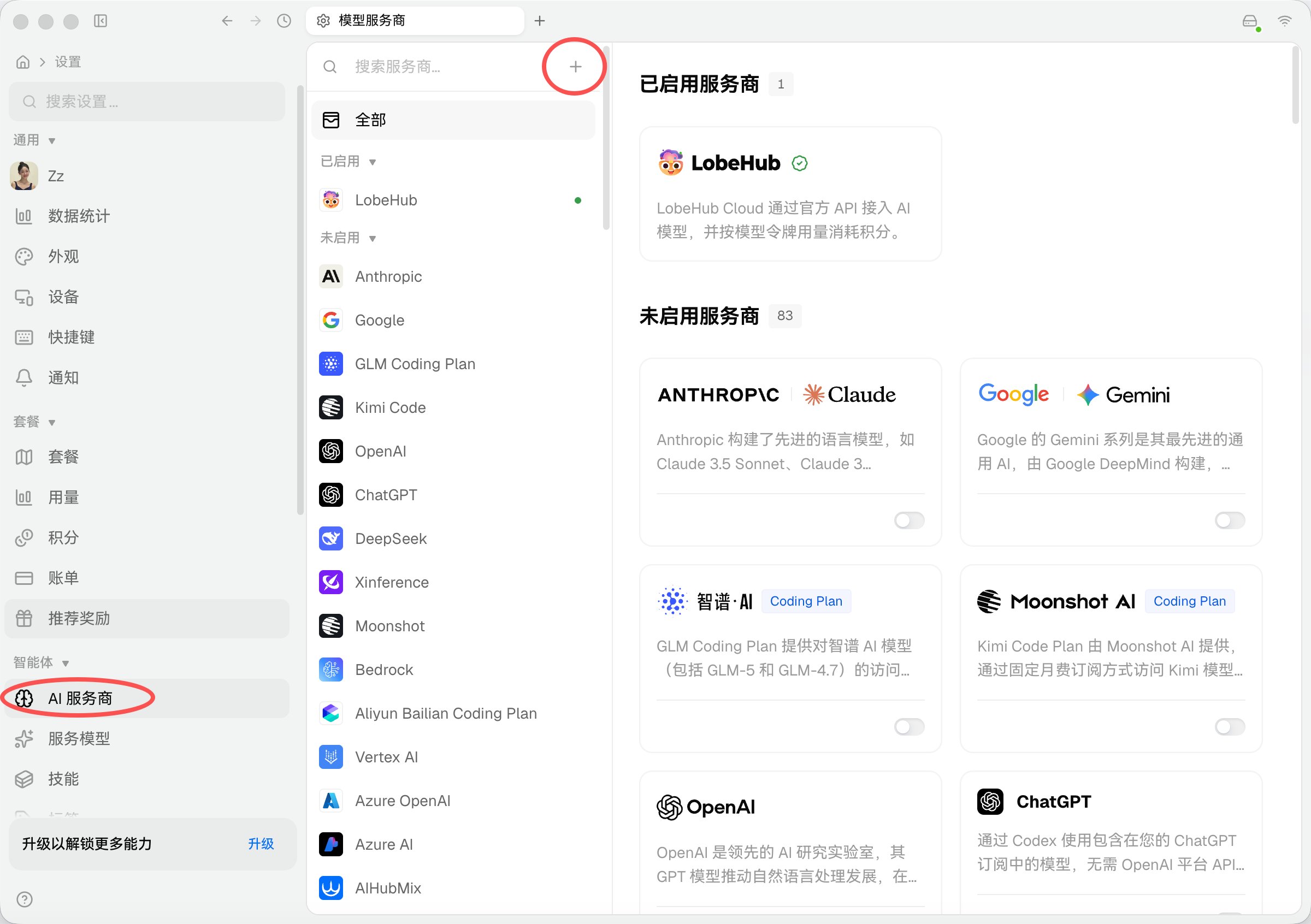
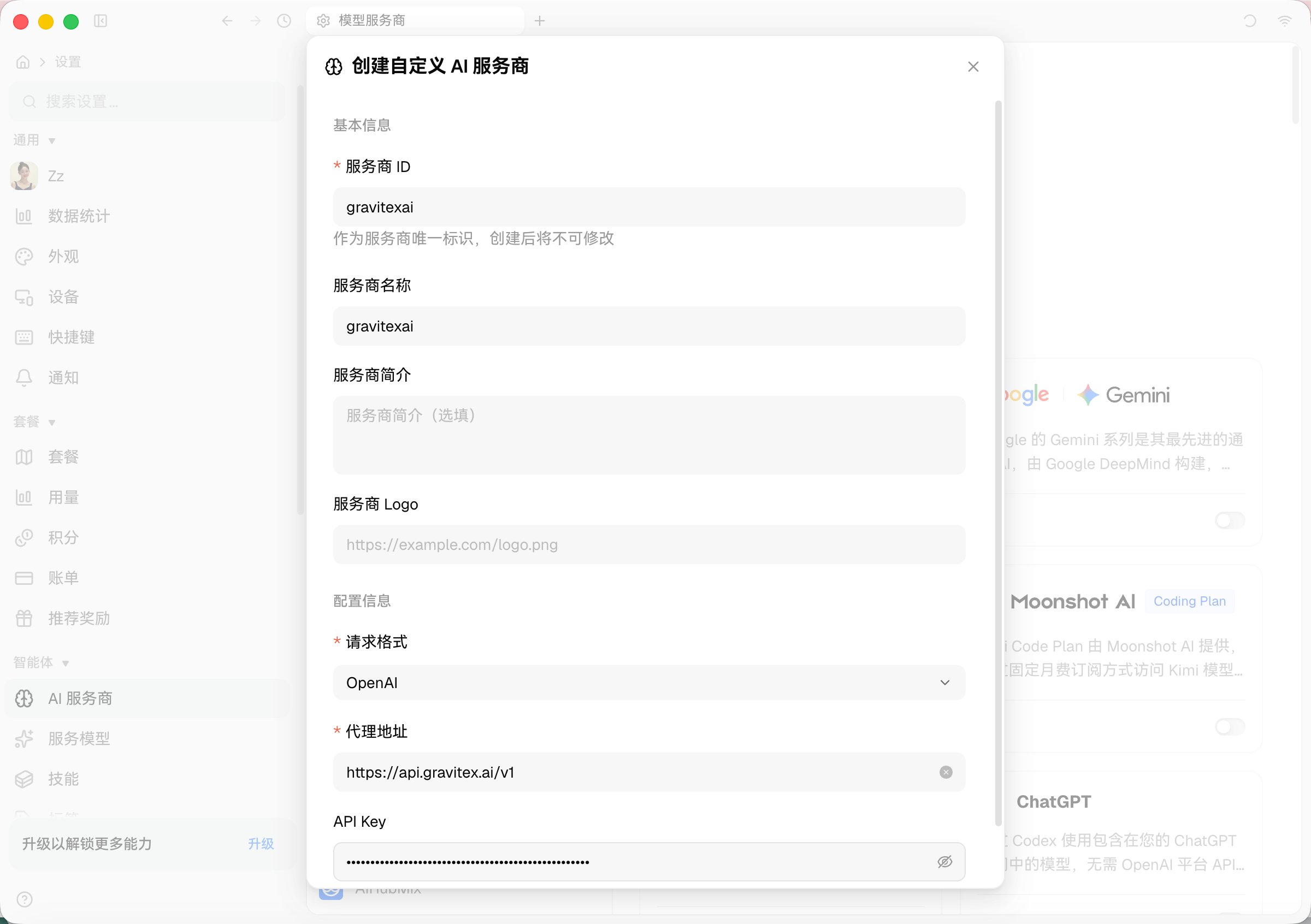
Step 4: Create a custom AI provider
Click the Create button in the bottom-right corner to save.
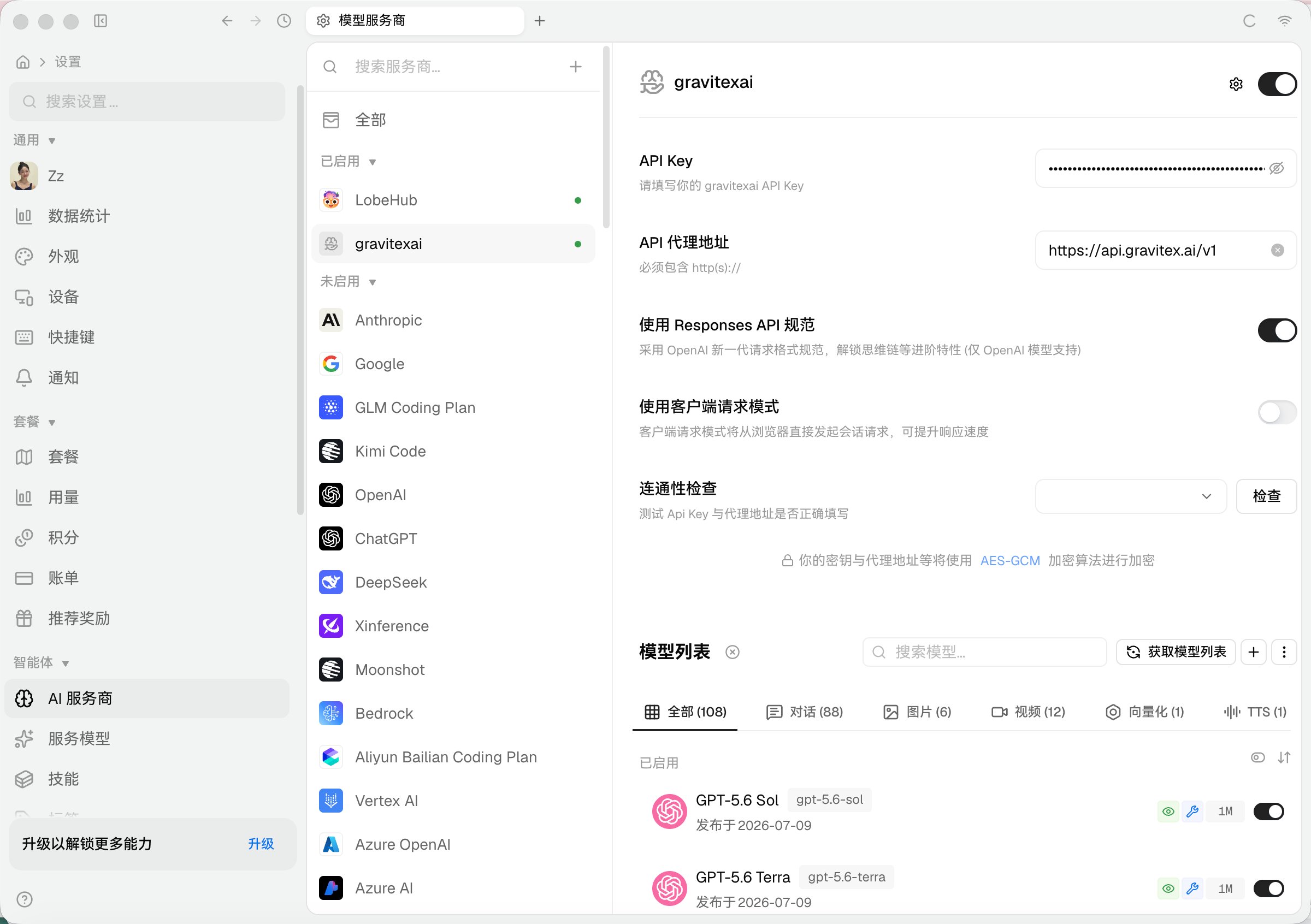
Step 5. Verify connectivity
After successful creation, you’ll be redirected to the provider details page. You can:- Fill in API Key and Proxy URL: Confirm or modify the settings again
- Enable advanced options (optional):
- Use Responses API spec: Enable to use the new OpenAI request format (only supported by OpenAI models)
- Use client request mode: Browser sends requests directly, which can improve response speed
- Connectivity check: Select a model from the dropdown and click the Check button to test connectivity
- Get model list: Click the Get Model List button to automatically fetch all models provided by GravitexAI
Step 6. Select a model and start chatting
From the model dropdown in the chat interface, select the model you want to use (e.g.,claude-opus-5, gpt-5.6-luna, deepseek-v4-pro) and start chatting.
View popular model recommendations
View the latest model recommendations, performance comparisons, and scenario-based usage suggestions covering text creation, coding, quick responses, image generation, video generation, and more.
Why are specific models not listed here?AI models iterate very quickly. To ensure you get the most accurate model recommendation information, we maintain the latest model list, performance data, and usage suggestions on the Model Recommendations page.
3. One-stop access to 100+ models
LobeHub has built-in official channels for multiple providers, requiring individual API keys. By connecting to GravitexAI, you only need to create one custom provider to cover all models:4. LobeHub features
Plugin system
LobeHub provides a rich plugin marketplace (Settings → Plugins). Recommended plugins to enable:- Web Search: Let the model access the internet in real time
- Code Interpreter: Run Python code and create data visualizations in conversations
- Chart Generation: Automatically generate flowcharts and mind maps
- Image Generation: Generate images through models like
gpt-image-2,gemini-3-pro-image
Local knowledge base (RAG)
LobeHub supports uploading files to build a local vector database:- Go to the Knowledge Base page and create a new knowledge base
- Upload PDF, Markdown, Word, Excel, TXT, and other files
- The system automatically slices and vectorizes the content
- When chatting, enable the knowledge base and the model will answer based on your private materials
Multimodal conversation
Support uploading images for visual understanding, image recognition, and OCR:- Recommended vision models:
gemini-3.6-flash,claude-opus-5,gpt-5.6-terra - Drag images directly into the chat box and the model will automatically recognize them
Agent Market
LobeHub includes rich preset agents (translation, writing, coding, interviews, etc.). You can also:- Enable community-shared agents with one click in the Agent Market
- Create custom agents: define personas, prompts, opening messages, knowledge bases, and plugins
Chat management and export
- Multi-branch conversations, message editing, and regeneration
- Chat export: Markdown, PNG, JSON
- Global search of chat history
5. Advanced configuration
Network proxy and self-hosting
If you need to use a proxy or self-host LobeHub:- Desktop: Settings → Network → Configure HTTP/HTTPS proxy
- Self-hosted (Docker): Inject GravitexAI configuration via environment variables:
- Client request mode: When enabled, the browser connects directly to the API (ensure the browser can access GravitexAI)
Keyboard shortcuts
6. Mobile
LobeHub desktop supports Windows / macOS / Linux. For mobile, access thelobechat.com web version via browser (responsive design) — no separate app installation required.
7. Troubleshooting
Connection failed / connectivity check fails
Connection failed / connectivity check fails
Model list is empty
Model list is empty
- Click the Get Model List button to manually fetch
- Wait 1-2 seconds and refresh the page
- Confirm the API Key status is normal in the GravitexAI Console
Slow responses or stream disconnection
Slow responses or stream disconnection
- Switch to a faster model (e.g.,
gemini-3.6-flash,claude-haiku-4-5,deepseek-v4-flash) - Disable unnecessary plugins
- Check network latency
- Reduce context length (close long old conversations)
Does data sync between web and desktop versions?
Does data sync between web and desktop versions?
When logged in with the same LobeHub account, some configurations and sessions can sync. We recommend regularly exporting local data for backup.
What is the relationship between LobeChat and LobeHub?
What is the relationship between LobeChat and LobeHub?
LobeChat is the open-source project name, and LobeHub is the product / cloud platform name. Both share the same underlying code. Desktop and self-hosted versions are typically built based on the LobeChat repository.
Why can't I call models after self-hosting?
Why can't I call models after self-hosting?
Check if the API Key is correct, if the Base URL is reachable, if server outbound access is restricted, and if DNS resolution is normal within the container.
8. Best practices
Model selection strategy
Use different models for different tasks, select by complexity tier:- Daily chat / simple Q&A:
gemini-3.1-flash-lite,claude-haiku-4-5,deepseek-v4-flash - Complex reasoning / long document analysis:
claude-opus-5,gpt-5.6-sol,deepseek-v4-pro - Coding:
claude-opus-5,gpt-5.6-sol,claude-sonnet-5 - Image understanding:
gemini-3.6-flash,claude-opus-5,gpt-5.6-terra - Image generation:
gpt-image-2,gemini-3-pro-image
Context management
- Regularly clean up unused old conversations
- Break complex tasks into multiple short conversations
- Use the Fork Conversation feature to explore different answers
Security and privacy
- Do not share API Keys in public
- Rotate keys regularly
- For sensitive conversations, consider self-hosting LobeHub with fully local data storage
Self-hosting recommendations
- Use Docker + PostgreSQL in production — do not use the built-in database
- Consider Cloudflare as a reverse proxy
- Manage keys centrally through environment variables for multi-instance deployment
9. Comparison of three approaches
More help: Contact bd@gravitex.ai or call 13603055233 for technical support.