
For Codex Desktop setup on macOS and Windows, see Codex Desktop。
1. Overview
magpie is an open-source local model gateway and Agent configuration manager. Reuse provider settings across clients and translate between Chat Completions, Responses, and Anthropic Messages. This guide uses WorkBuddy: it sends Chat Completions requests to local magpie, which converts and forwards them to GravitexAI according to the model and upstream settings.If your model works directly in WorkBuddy, use the direct connection guide. Use magpie when protocol conversion is needed. Image connectors are covered in WorkBuddy-Image Generation.
2. Prerequisites
- WorkBuddy installed and launched at least once.
- A key from the GravitexAI Console.
- Available model IDs and supported routes confirmed in the Model Catalog.
- WorkBuddy and magpie on the same computer. The gateway uses port
3425by default.
3. Install magpie
- macOS
- Windows
Use the official installer:Or download an Apple Silicon/Intel package from magpie. Open the app and verify:If the command is missing, reopen the terminal or add ~/.local/bin to your shell PATH.
This guide uses only a GravitexAI API key. Importing Claude, ChatGPT, or other subscription credentials is unnecessary.
4. Configure the GravitexAI provider
Step 1: Add three protocol endpoints
On macOS, replace the placeholder key and run:
Alternatively, edit GravitexAI on the Providers page. In Base URL, enter the OpenAI compatible, OpenAI Responses, and Anthropic compatible endpoints, add your key, and click Save. The Chinese-interface screenshot shows the Responses URL.
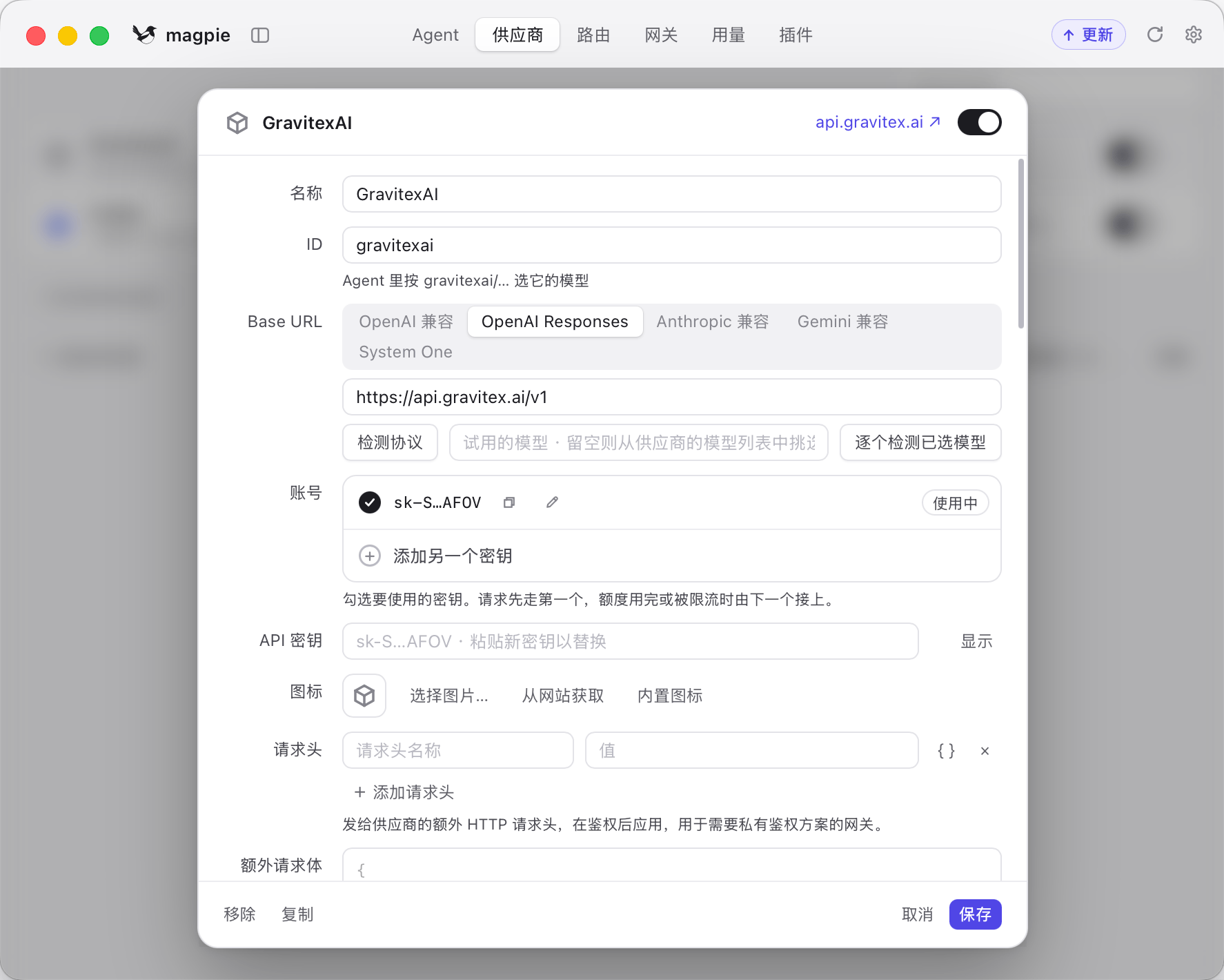
The screenshot uses provider ID gravitexai, while the commands use gravitex. Use your actual ID consistently. With the screenshot’s ID, model names are
gravitexai/model-id.Step 2: Extend an existing provider
If gravitex already exists, add the missing routes instead of creating it again:For GPT models needing both tools and reasoning, configure Responses. If you see
Function tools with reasoning_effort are not supported, check this route before disabling reasoning.Step 3: Test and select models
5. WorkBuddy example
Step 1: Identify the client and configuration directory
Runmagpie ls to confirm the correct client is detected.
The following uses WorkBuddy China. If WORKBUDDY_CONFIG_DIR is set, use that directory. On Windows, ~ means the current user’s home.
Step 2: Quit and back up
Fully quit WorkBuddy: Cmd+Q on macOS, or exit from the Windows tray and check that the process stops.- macOS
- Windows PowerShell
Step 3: Select a model and connect
Choose one available model: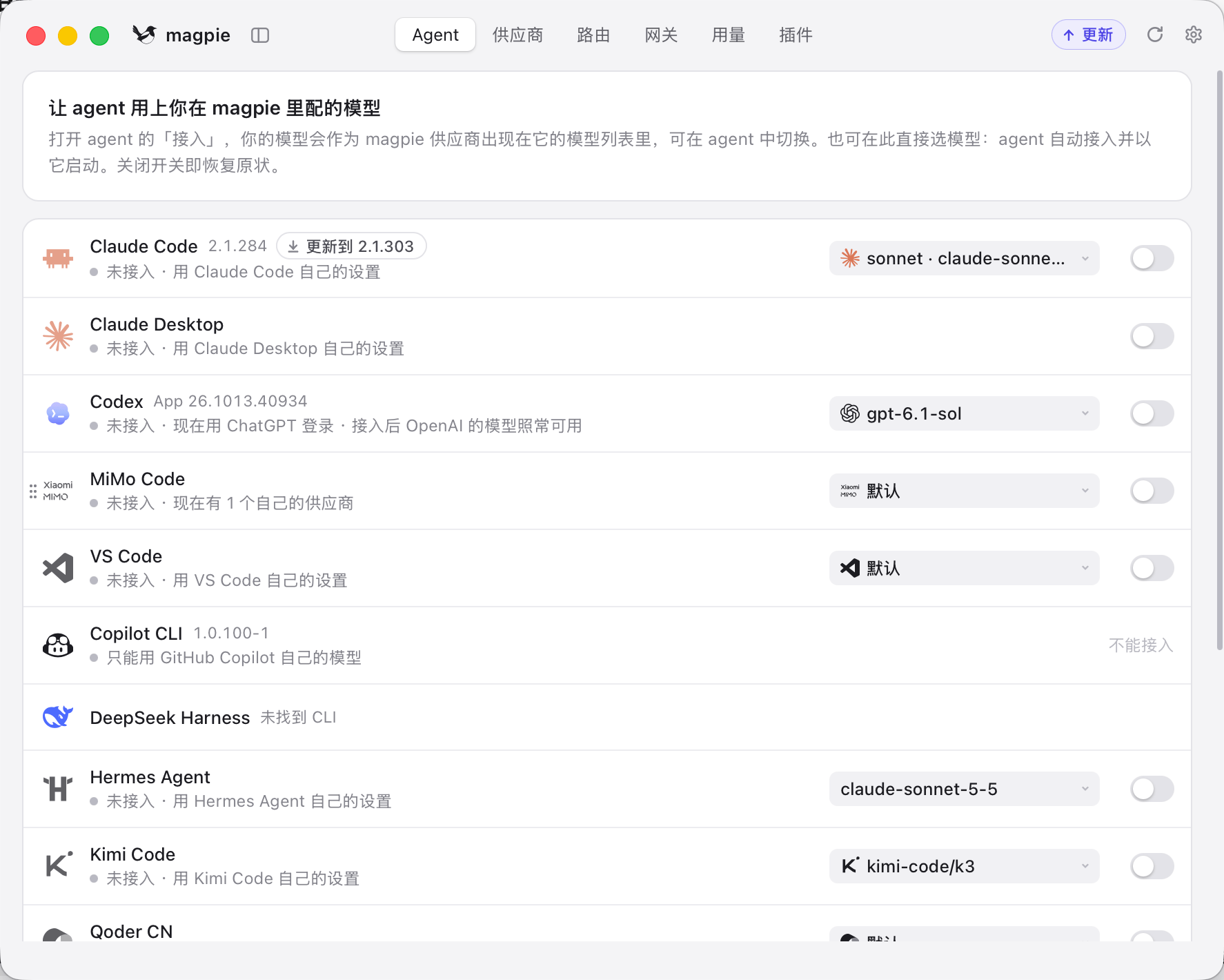
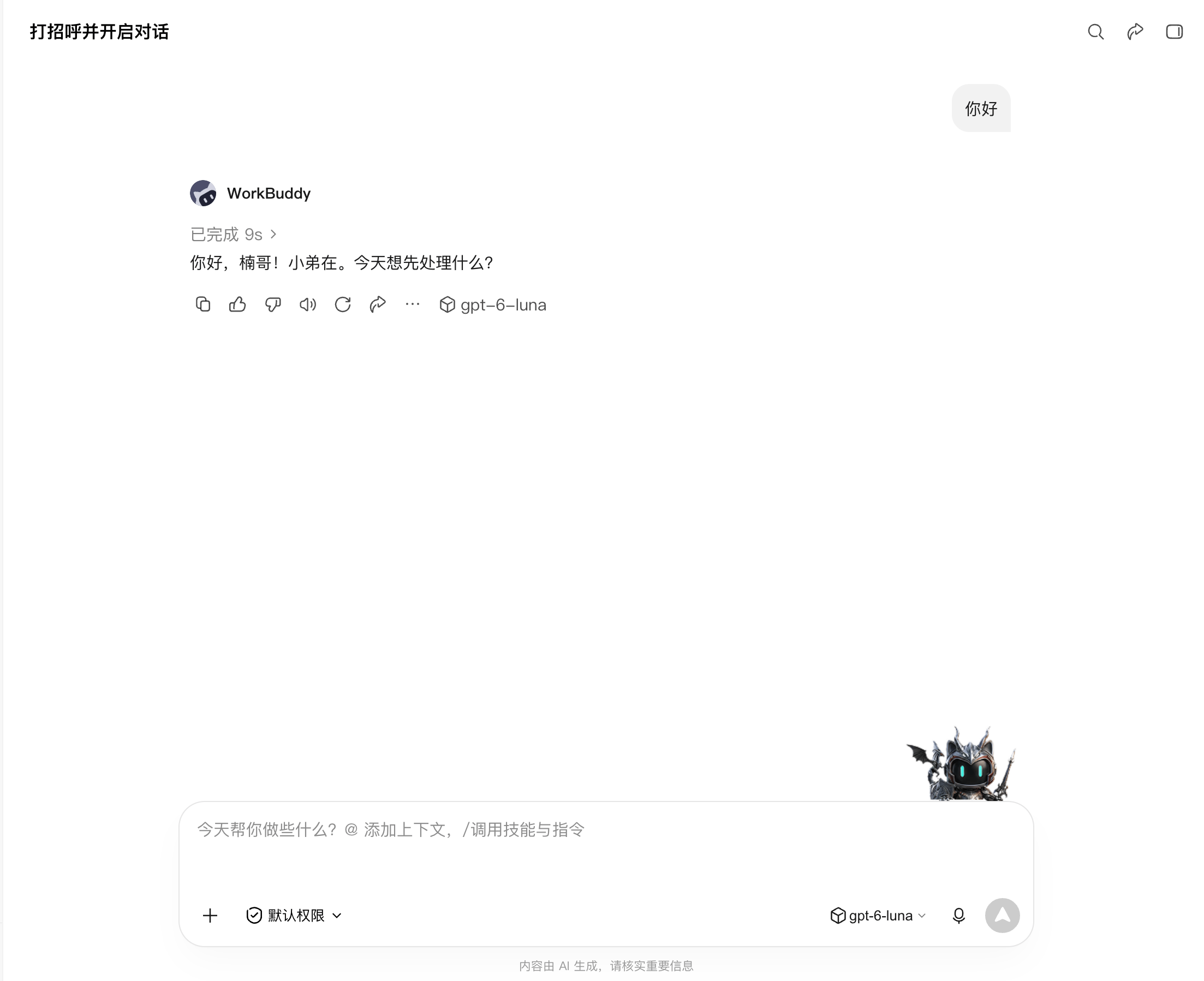
Step 4: Reopen WorkBuddy and verify
- Keep magpie running.
- Reopen WorkBuddy.
- Select a magpie
gravitex/…model in the model picker. - Create a task and send a short message to confirm a reply.
- Use a test folder for a simple file/tool task to check tool calls and reasoning.
6. Verification and troubleshooting
Check the local gateway
- macOS
- Windows PowerShell
Check tools and reasoning
If chat works but tools return 400, check whether the error mentions tools and reasoning_effort. Confirm responses=https://api.gravitex.ai/v1 and model support for Responses. A model appearing in the list is insufficient: verify both a reply and a tool task. If a reasoning model returns HTTP 200 with empty text, check whether its output budget is too small.WorkBuddy model list did not change
WorkBuddy model list did not change
Fully quit and reopen WorkBuddy. Check that you connected workbuddy (China), rather than the international edition or CodeBuddy Code. Use magpie ls to confirm the client and directory.
magpie models cannot connect
magpie models cannot connect
Check that magpie is running and port 3425 is listening. Ensure a proxy is not intercepting 127.0.0.1. Both the local gateway and upstream GravitexAI must be reachable.
Claude returns 404
Claude returns 404
Set anthropic=https://api.gravitex.ai without /v1. Configuring only url= does not establish the native Messages route.
GPT tools plus reasoning returns 400
GPT tools plus reasoning returns 400
Add responses=https://api.gravitex.ai/v1 and check model/account support. Avoid forwarding the combination to an incompatible Chat Completions route.
401 / 403
401 / 403
Distinguish gateway credentials from the GravitexAI upstream key. Update an upstream key with magpie provider key gravitex sk-new-api-key and retest. Manual local requests require the gateway’s credential, not the upstream key.
A model is missing
A model is missing
Confirm account access, then run magpie provider models gravitex +model-id. Reconnect WorkBuddy and restart the client if necessary.