
1. Prerequisites
This guide covers the Codex desktop interface on macOS and Windows. Install the client for your system and confirm that its Codex interface opens. Installation paths and UI labels may differ across distributions. For terminal usage, see the Codex CLI guide.- An installed application with a working Codex interface.
- A GravitexAI account with sufficient balance.
- An API key whose group supports your target GPT model and the Responses API.
2. Test your key and model
Replace the placeholder key below.gpt-6.1-sol is an example: use a model available to your key’s group in the model catalog.
- macOS
- Windows PowerShell
This test incurs a small amount of API usage. It verifies basic access; test desktop tool calls separately below.
3. Configure the provider
Both systems use the same TOML configuration:
If
CODEX_HOME is set, edit config.toml in that directory. On Windows, press Win + R and enter %USERPROFILE%\.codex to open the default folder. These instructions target the native Windows client; the WSL ~/.codex directory is normally separate.
Back up the existing file before editing:
- macOS
- Windows PowerShell
Static headers store your key in plaintext on this device. The provider also supports
env_key, but apps opened from Finder or Launchpad typically do not inherit temporary terminal exports. Verify that the application process can read the variable before using that approach. On Windows, $env:VARIABLE also affects only the current PowerShell session and its child processes; an application opened from Start does not automatically inherit those temporary values.- macOS: use Command + Q.
- Windows: use the application’s Quit or Exit command, including its system tray menu if it is still running there. If necessary, save your work and end the corresponding application and remaining Codex processes in Task Manager, then reopen from the Start menu.
4. Connect through CC Switch
On macOS or Windows, validate your API key and back up the Codex configuration first.- Follow the CC Switch guide, open the Codex page and add a GravitexAI provider.
-
Enter your key, Base URL
https://api.gravitex.ai/v1and a verified GPT model ID, such asgpt-6.1-sol. Select Responses if a protocol option is shown.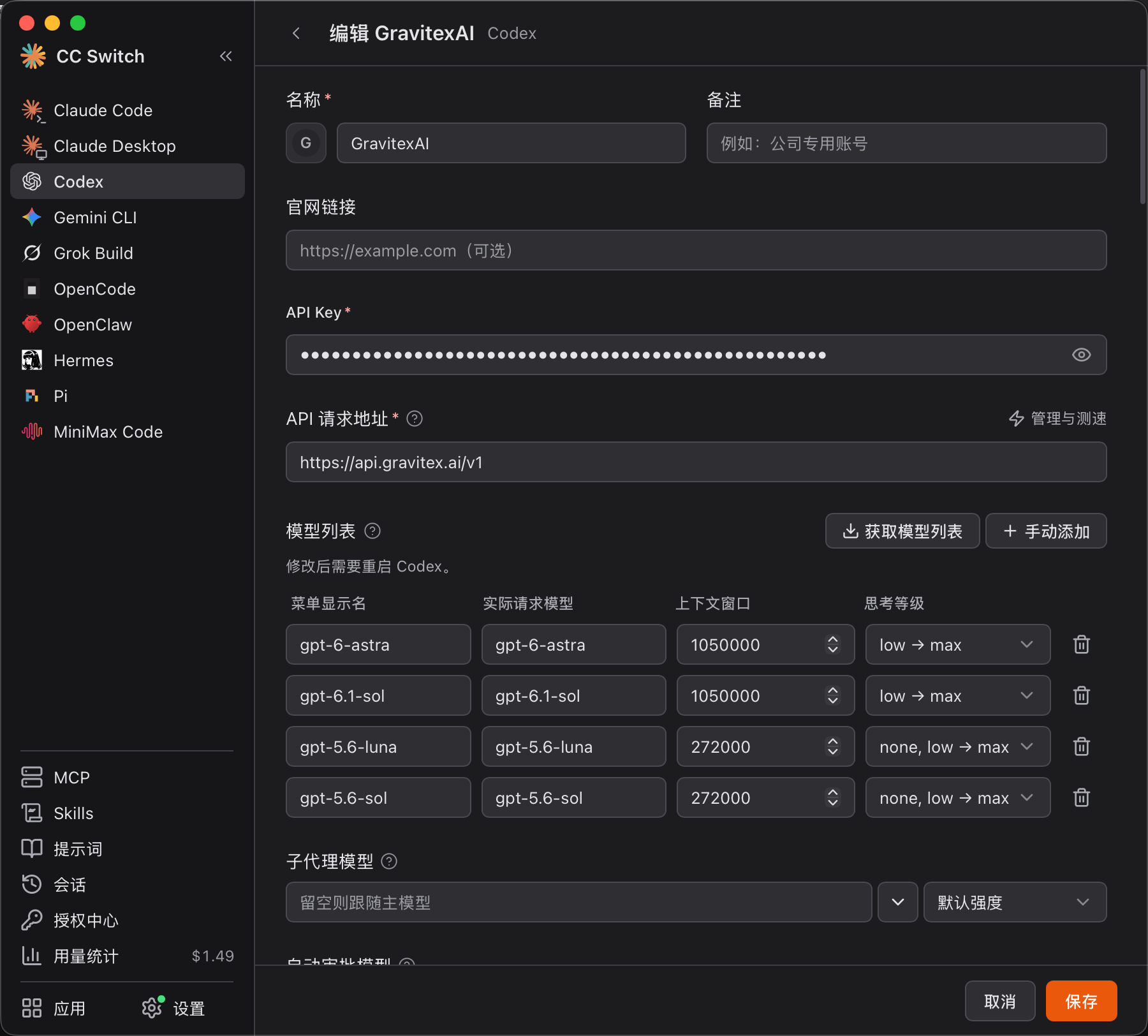
-
Save and switch to this provider. Confirm that CC Switch updates the same user configuration directory used by the desktop app, including any
CODEX_HOMEoverride. - Fully quit and reopen Codex Desktop, then verify chat and tools below.
This procedure uses provider switching. Local routing or aggregation may require CC Switch to remain running. Restart Codex after aggregated model lists change. To revert, switch back to the previous provider or restore your backup while Codex is closed.
5. Connect through Magpie
The request path is Codex Desktop → local Magpie → GravitexAI. Keep the gateway running on either operating system.-
Follow the Magpie guide to install it and add provider
gravitexwith your GravitexAI key and Responses base URLhttps://api.gravitex.ai/v1.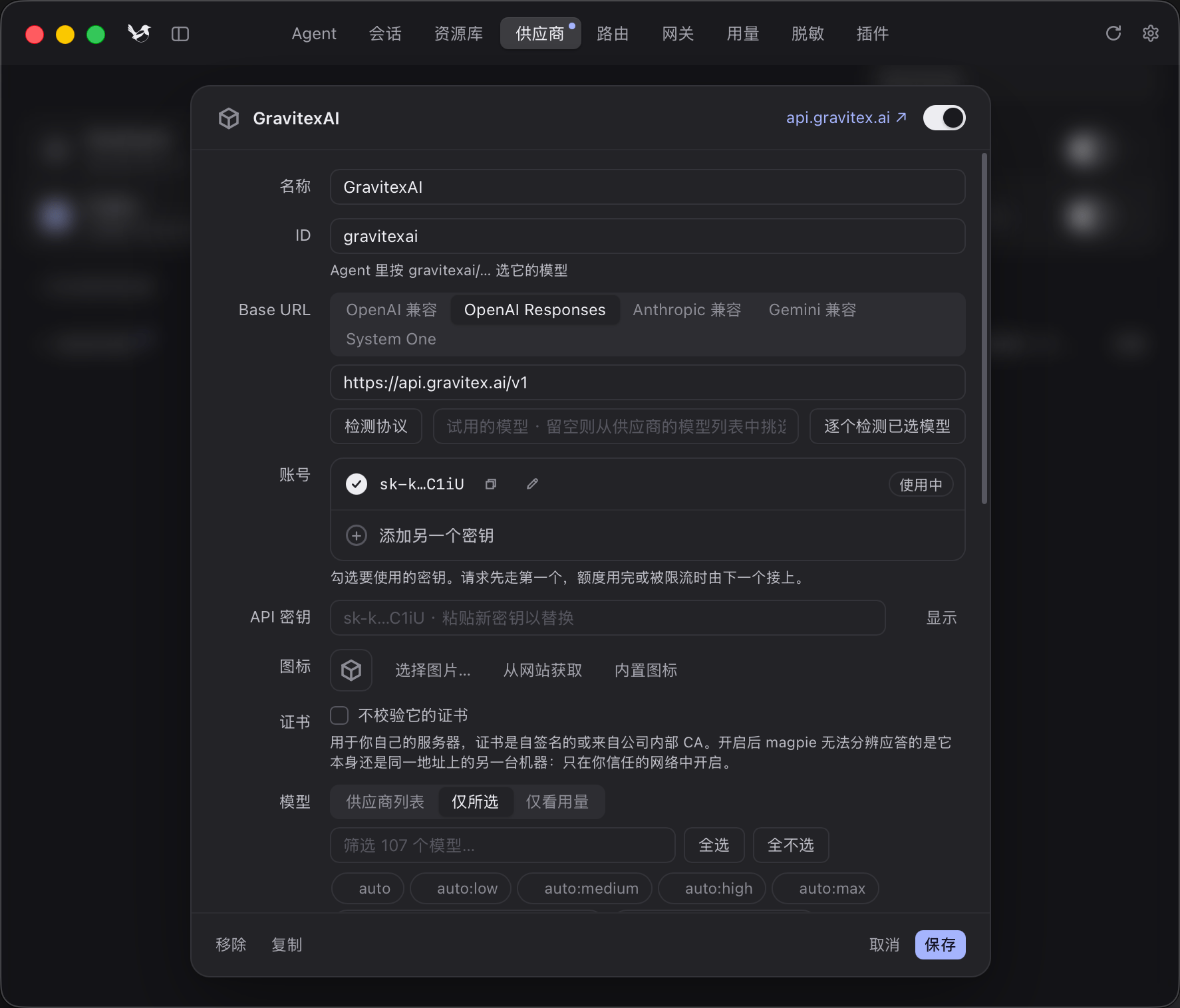
gravitexai; the commands below usegravitex. If you use the screenshot’s ID, replace it in the commands, for examplemagpie codex gravitexai/gpt-6.1-sol. - Fully quit Codex Desktop and back up its configuration.
- Run the commands below, replacing the provider and model IDs with your own available values.
- macOS
- Windows PowerShell
- Alternatively, enable Codex on Magpie’s Agent page and choose the GravitexAI model. Check that it manages the desktop app’s actual Codex directory.
- Keep Magpie running, reopen Codex Desktop and verify chat and tools. For connection failures, check gateway port
3425(default), localhost proxy handling and upstream permissions.
6. Verify the desktop connection
- Open a local project and create a chat. Check the model or provider selection. Some versions may show
Custom; the label alone does not confirm routing. - Send
helloand confirm a response. - Ask “List the files in the current directory.” Confirm that a file or terminal tool runs and its result is used in the reply. Grant local permissions when prompted.
- Check the corresponding request, model and usage in the GravitexAI console.
7. Troubleshooting
8. Adjustments and key handling
- To switch models, update top-level
model, verify access and restart. - Set
model_reasoning_efforttolow,mediumorhighas supported by the model. Higher effort usually uses more time and tokens; it does not guarantee better results. - Restore your backup to undo changes. To use the official provider, set top-level
model_provider = "openai", choose an available official model, restart and sign in as needed. - Keep keys out of repositories and shared screenshots. Revoke and replace exposed keys.
- Cloud tasks, plugins and other account-dependent features vary by client, account and provider support.