
1. Overview
GitHub Copilot App is GitHub’s desktop coding Agent. Add a local project or GitHub repository and use natural-language instructions for coding tasks. BYOK (bring your own provider) lets you select GravitexAI GPT or Claude models.Applies to GitHub Copilot App 1.1.x (October 2026). BYOK is in Public Preview, so interface wording may change. The screenshots use the English interface.
2. System requirements
- macOS or Windows.
- Git installed.
- Access to GitHub for sign-in and to the GravitexAI API.
3. Prerequisites
- A GitHub account for signing in.
- An API key (
sk-xxxxxxxxxx) from the GravitexAI Console.
A paid GitHub Copilot subscription is not required when using only your own model provider.
4. Quick start
Step 1: Install the client
- macOS
- Windows
Install with Homebrew:Or download a package for your processor:Open the DMG, drag GitHub Copilot to Applications, and launch it.
Step 2: Sign in
Click Sign in to GitHub and authorize in your browser.- Without a Copilot subscription: choose continue with your own model provider during onboarding, enter the values from step 4, and click Save and continue.
- With a subscription: enter the main interface and add a provider through Settings.
Step 3: Open provider settings
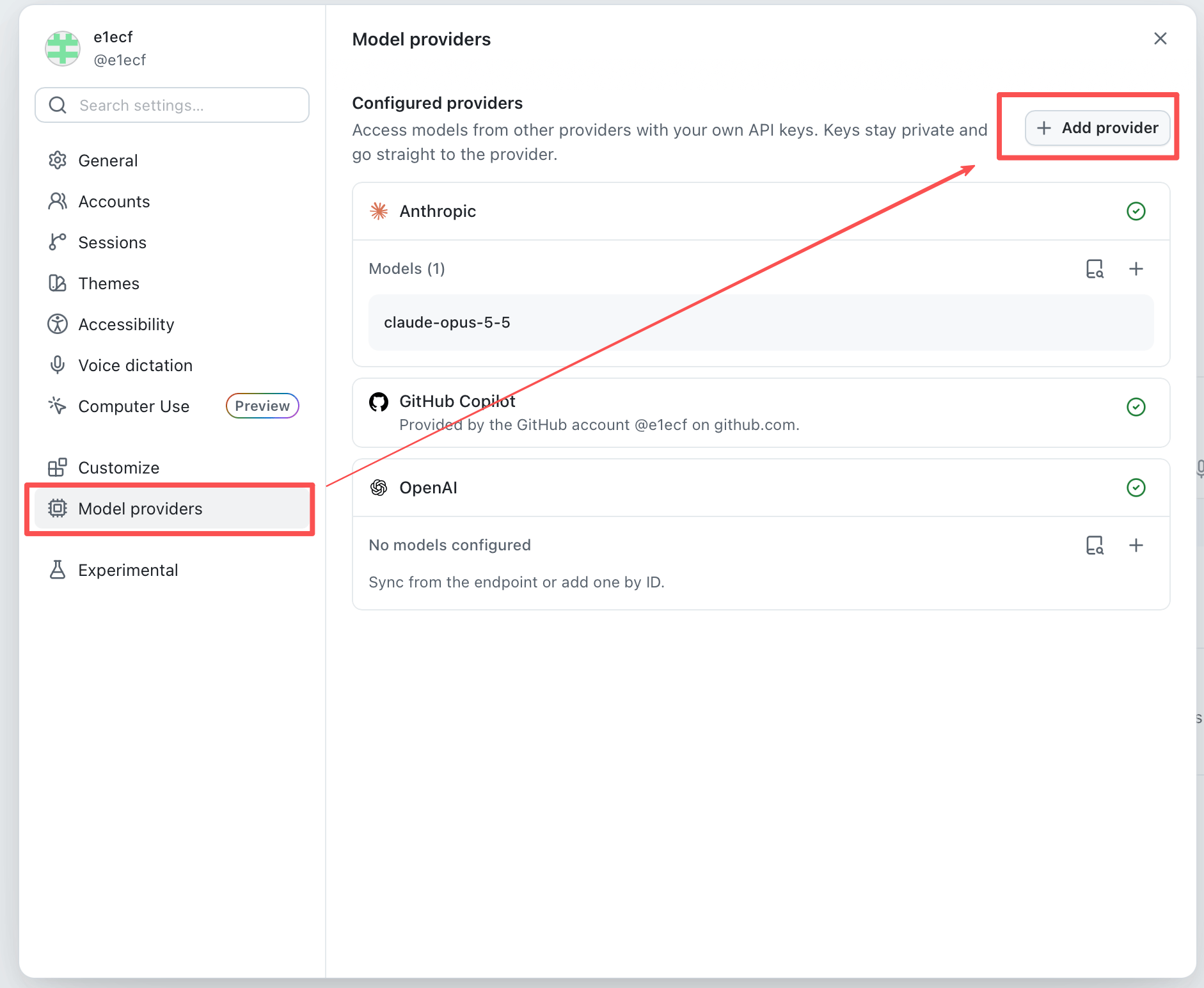
Select Model providers on the left, then Add provider.
Step 4: Enter GravitexAI connection details
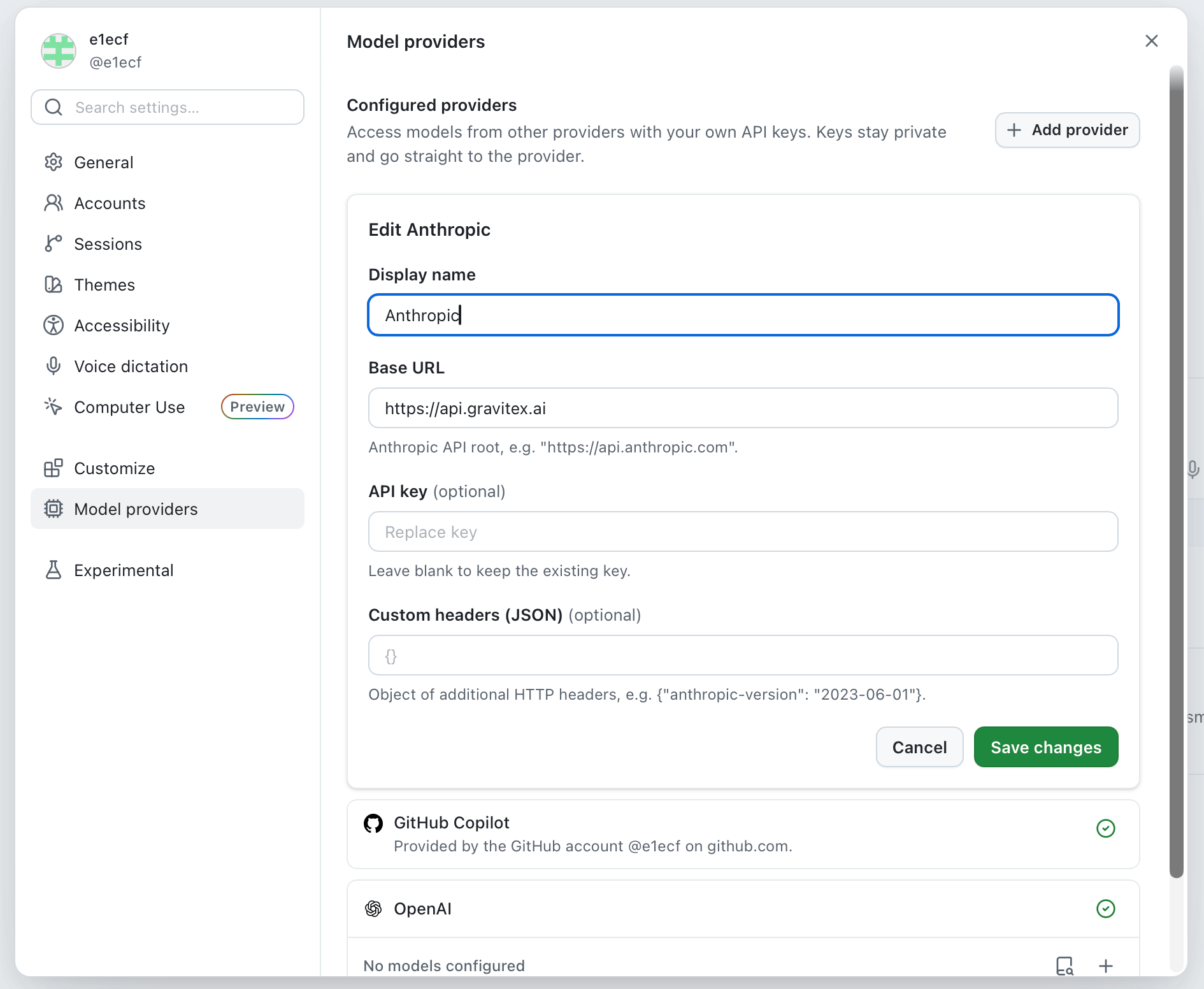
Add GPT or Claude as needed. To use both, create two separate providers; the same GravitexAI API key can be used for each.
Click Add provider to save a new provider, or Save changes when editing one.
The example uses the display name
Anthropic; you can rename it Gravitex Claude for easier identification. Leave Custom headers (JSON) empty unless specifically needed.
Step 5: Add models
Select models from the catalog after saving, or enter model IDs manually.Step 6: Add a project and select a model
-
Click + beside Projects to add a project:
- Create a New session.
- Open the model picker below the composer and select a model under Gravitex GPT or Gravitex Claude. Adjust Reasoning effort if available.
- Send a test message and confirm a normal response.
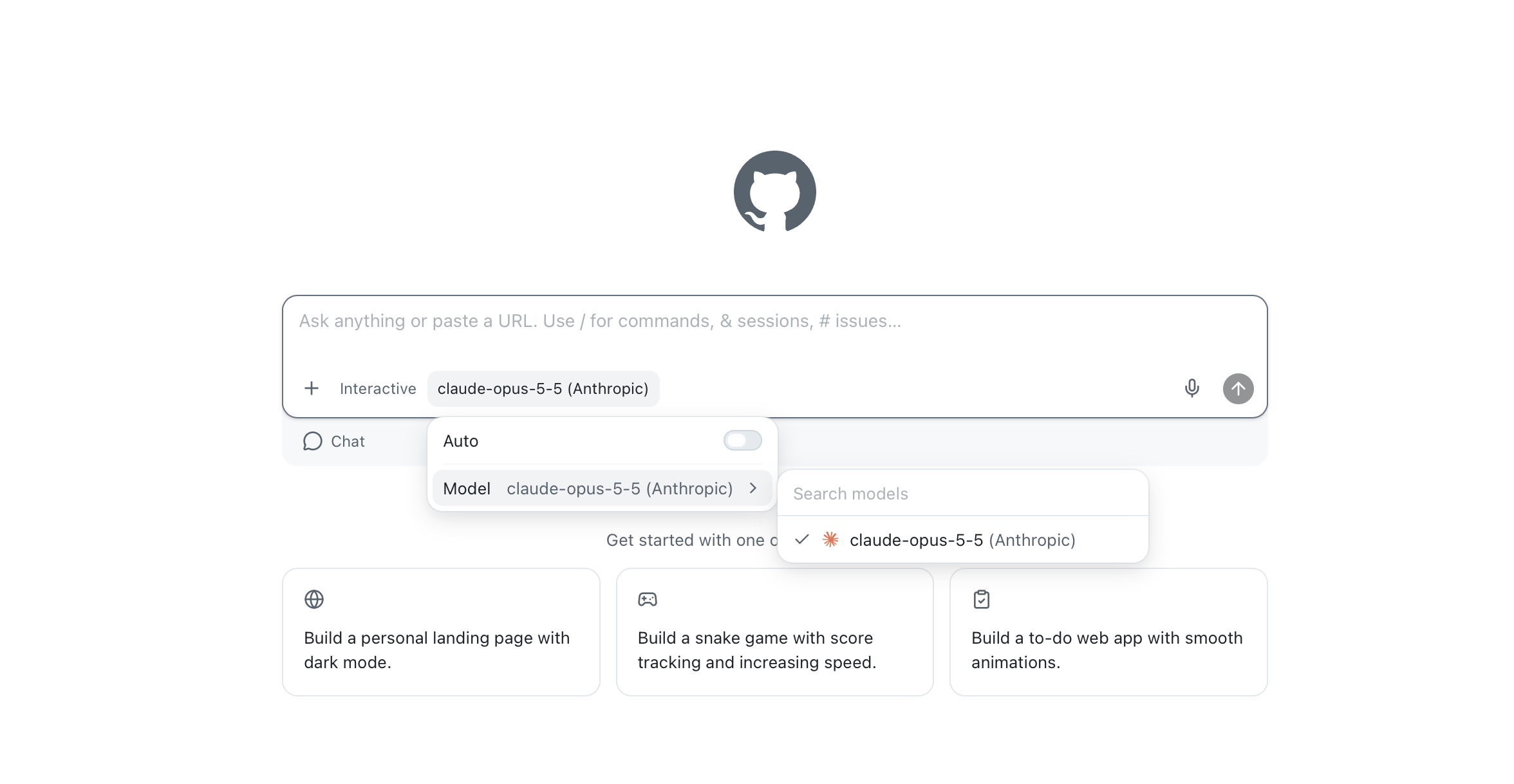
The screenshot keeps the default provider name
Anthropic. If you changed Display name, your chosen name appears beside the model instead.5. Session modes
6. Success checks
- A provider is saved in Model providers with at least one compatible model.
- The configured model appears and can be selected in a new session.
- Messages receive replies without
invalid api key,endpoint_not_found, or model-availability errors.
Custom-provider usage is billed to GravitexAI and does not consume Copilot allowance. Rate limits do not automatically switch these sessions to Copilot’s Auto model.
7. Troubleshooting
Claude returns 404 / endpoint_not_found
Claude returns 404 / endpoint_not_found
Use Anthropic with https://api.gravitex.ai, without /v1. A path such as /v1/v1/messages means /v1 was duplicated. Do not configure Claude as an OpenAI-compatible Responses provider.
GPT returns 404
GPT returns 404
Use Any OpenAI-compatible HTTP endpoint with https://api.gravitex.ai/v1. Choose Responses when a format option is available.
Invalid API key for this provider
Invalid API key for this provider
Edit the provider in Model providers, enter the complete key without extra spaces, and save. Check key validity in the GravitexAI Console.
The provider does not expose a /models endpoint
The provider does not expose a /models endpoint
For
Provider doesn't expose a /models endpoint at this base URL, verify the type and URL: GPT uses https://api.gravitex.ai/v1; Claude uses https://api.gravitex.ai. If catalog browsing still fails, try entering a model ID manually.The catalog asks for an API key first
The catalog asks for an API key first
For
Add an API key for this provider before browsing the catalog, save the provider’s key before opening its catalog.The model picker does not show GravitexAI models
The model picker does not show GravitexAI models
Check that the provider is saved and models are selected or manually added. Display names are labels only; look under Anthropic if that default name was retained. Restart the app if needed.
Where is the API key stored?
Where is the API key stored?
In the system credential store: macOS Keychain or Windows Credential Manager. Do not expose keys in public screenshots, chats, or repositories.
Optional API checks
Use these requests to distinguish client configuration problems from API problems. Replace the placeholder key and use a model available to your account.In Windows PowerShell, use
curl.exe and replace each trailing \ with a backtick `.