> ## Documentation Index
> Fetch the complete documentation index at: https://docs.gravitex.ai/llms.txt
> Use this file to discover all available pages before exploring further.
# Kilo Code 확장 (VS Code)
> Kilo Code for VS Code 확장 설치 및 설정 가이드
## 1단계: Kilo Code 확장 설치
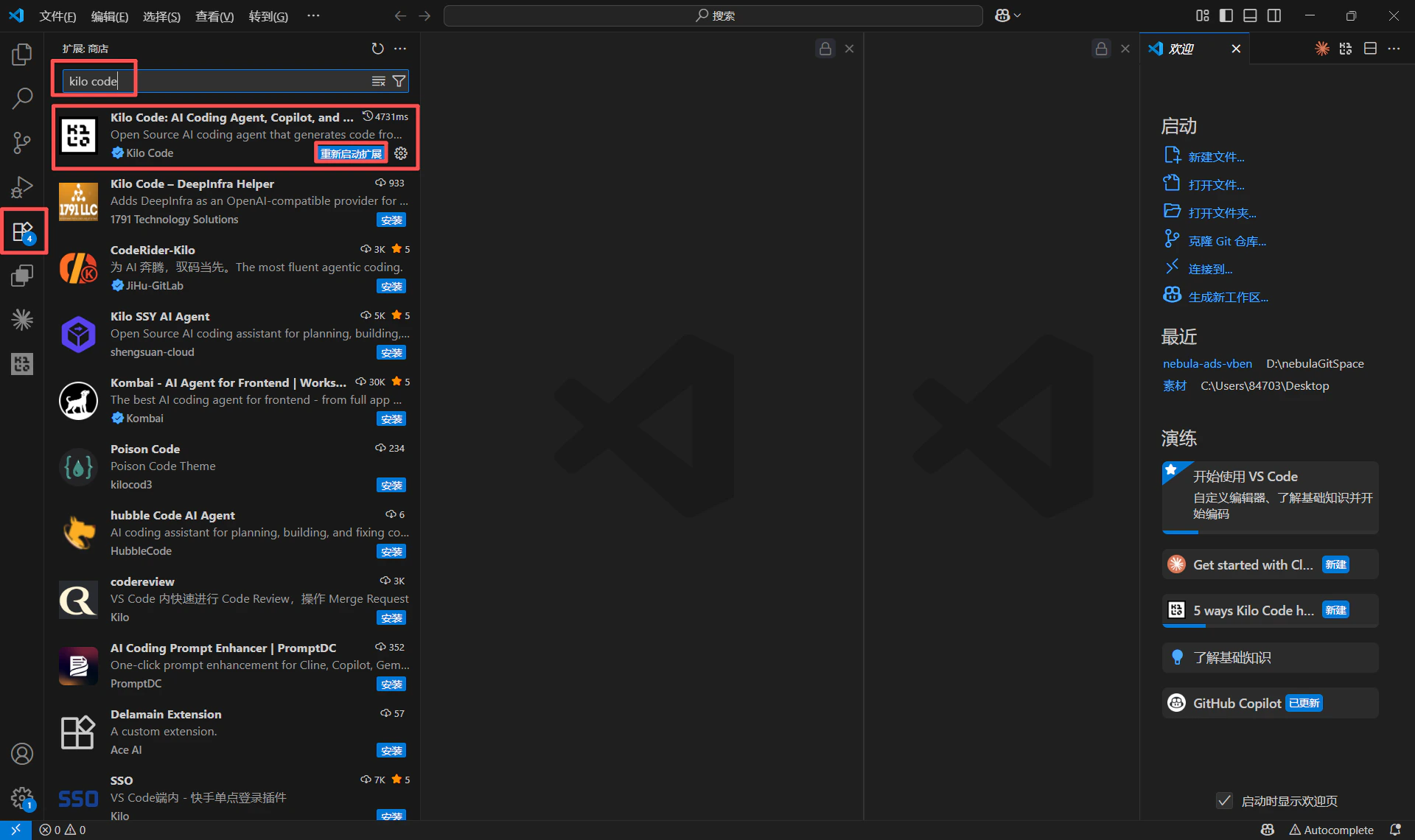
1. VS Code 편집기를 열고 왼쪽 "Extensions" 패널로 이동합니다 (단축키: Ctrl+Shift+X).
2. Marketplace 검색창에 "Kilo Code"를 입력하여 공식 확장을 찾습니다.
3. "Install" 버튼을 클릭하여 설치를 완료합니다.
 ## 2단계: API Provider 설정
### 2.1 설정 패널 열기
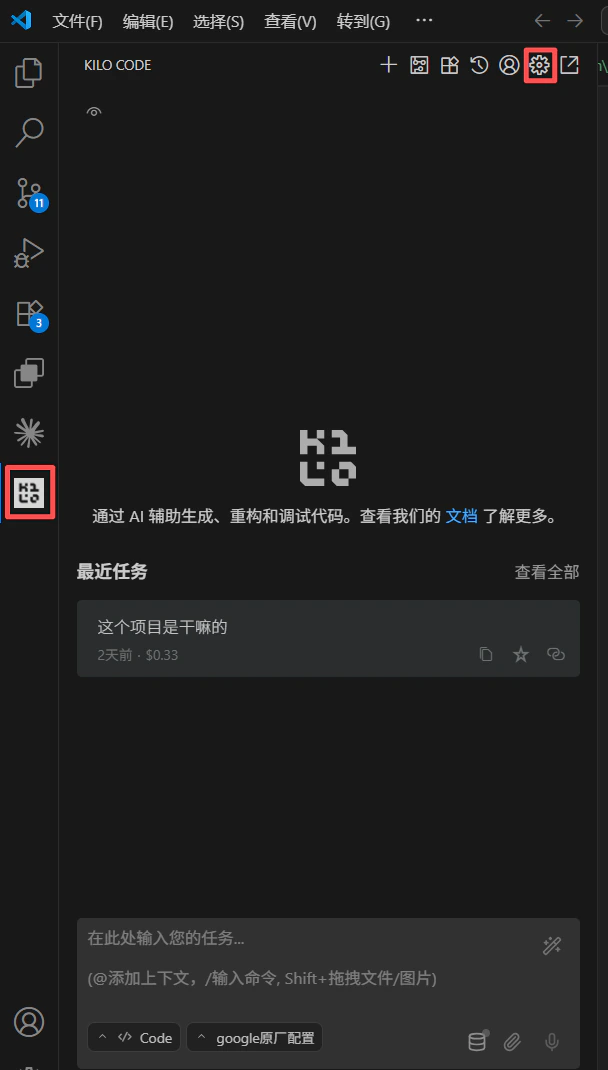
1. 설치 후 왼쪽 활동 표시줄에서 Kilo Code 아이콘을 클릭하여 확장 패널을 엽니다.
2. 상단 도구 모음의 "Settings" 톱니바퀴 아이콘을 클릭하여 설정 페이지로 이동합니다.
## 2단계: API Provider 설정
### 2.1 설정 패널 열기
1. 설치 후 왼쪽 활동 표시줄에서 Kilo Code 아이콘을 클릭하여 확장 패널을 엽니다.
2. 상단 도구 모음의 "Settings" 톱니바퀴 아이콘을 클릭하여 설정 페이지로 이동합니다.
 ### 2.2 커스텀 Provider 설정
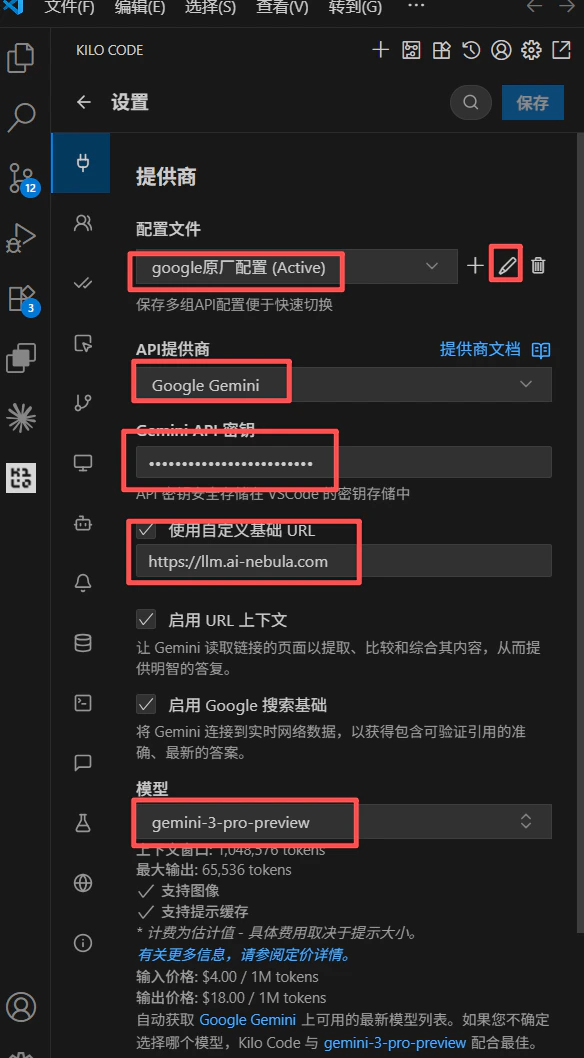
설정 패널의 "Provider" 섹션에서 다음을 구성합니다:
1. **Profile**: 기본값 `default (Active)` 유지.
2. **API Provider**: 드롭다운에서 "Google Gemini" 선택.
3. **API Key**: API 키 입력 (sk-xxxxx).
4. **Model**: 사용할 모델 이름 입력.
5. **Base URL**: `https://api.gravitex.ai` 입력.
6. **코딩 추천**: `gemini-3-pro-preview`.
### 2.2 커스텀 Provider 설정
설정 패널의 "Provider" 섹션에서 다음을 구성합니다:
1. **Profile**: 기본값 `default (Active)` 유지.
2. **API Provider**: 드롭다운에서 "Google Gemini" 선택.
3. **API Key**: API 키 입력 (sk-xxxxx).
4. **Model**: 사용할 모델 이름 입력.
5. **Base URL**: `https://api.gravitex.ai` 입력.
6. **코딩 추천**: `gemini-3-pro-preview`.
 ## 3단계: 연결 확인
1. 설정 완료 후 아무 코드 파일이나 엽니다.
2. 코드 일부를 선택하거나 커서를 빈 영역에 놓은 뒤, Kilo Code 아이콘을 클릭하거나 단축키 `Ctrl+I` (Windows) / `Cmd+I` (macOS)로 **Inline Chat** 입력창을 엽니다.
3. 테스트 메시지를 입력합니다 (예: "Explain this code" 또는 "Hello"). 응답이 오면 설정이 성공한 것입니다.
## 3단계: 연결 확인
1. 설정 완료 후 아무 코드 파일이나 엽니다.
2. 코드 일부를 선택하거나 커서를 빈 영역에 놓은 뒤, Kilo Code 아이콘을 클릭하거나 단축키 `Ctrl+I` (Windows) / `Cmd+I` (macOS)로 **Inline Chat** 입력창을 엽니다.
3. 테스트 메시지를 입력합니다 (예: "Explain this code" 또는 "Hello"). 응답이 오면 설정이 성공한 것입니다.