> ## Documentation Index
> Fetch the complete documentation index at: https://docs.gravitex.ai/llms.txt
> Use this file to discover all available pages before exploring further.
# WorkBuddy
> WorkBuddy Client Integration Guide
## 1. Overview
WorkBuddy is Tencent's AI Agent productivity product built around **"describe the request, run the task, deliver complete results"**. Unlike traditional chat AI that only gives advice or text replies, WorkBuddy understands natural-language instructions, decomposes tasks, plans steps, and executes them. It supports multimodal work such as documents, spreadsheets, PPT, and data analysis, can read authorized local folders for batch processing, and delivers reviewable outcomes (document generation, PPT design, coding assistance, data analysis, and more).
WorkBuddy ships with mainstream models such as Hunyuan, GLM, MiniMax, Kimi, and DeepSeek (via Tencent Cloud Token Plan), and also lets you connect any third-party model under **Model Settings**. With GravitexAI you get:
| Capability | Description |
| ------------------- | ----------------------------------------------------------------------------------------------------- |
| One key, all models | One API key unlocks GPT, Claude, Gemini, DeepSeek, Doubao, Qwen, Kimi, MiniMax, and more in WorkBuddy |
| Keys stored locally | Config (including API Key) is saved only in local `workbuddy/models.json`, not uploaded to the cloud |
| GUI one-click setup | Settings → Model → Custom — fill in endpoint, key, and model name; no config file editing |
| Pay-as-you-go | Custom model usage is billed directly by GravitexAI and does not consume WorkBuddy credits/plans |
## 2. System Requirements
* Windows 10 or later (Windows 7/8/8.1 not supported)
* macOS 12 (Monterey) or later
Systems that do not meet the requirements above cannot launch WorkBuddy.
## 3. Prerequisites
* WorkBuddy is installed on your machine
* You have created an API Key in the [GravitexAI console](https://maas.gravitex.ai/#/api-keys) (format `sk-xxxxxxxxxx`)
## 4. Quick Start
### Step 1: Install WorkBuddy
WorkBuddy provides **Windows / macOS** desktop clients. Download the installer from the official site and double-click to install — no CLI required:
| Platform | How to get it |
| -------------- | ------------------------------------------------------------------------------------------------------------------------------ |
| Official site | [`www.workbuddy.cn`](https://www.workbuddy.cn/) — click Download for your platform |
| Windows | Official [Windows Install Guide](https://www.workbuddy.cn/docs/workbuddy/From-Beginner-to-Expert-Guide/Installation-Win-Guide) |
| macOS | Official [Mac Install Guide](https://www.workbuddy.cn/docs/workbuddy/From-Beginner-to-Expert-Guide/Installation-Mac-Guide) |
| Older versions | [Download History](https://www.workbuddy.cn/docs/workbuddy/Download-History) |
After install, open WorkBuddy, sign in, and start tasks from the new-task bar in one sentence, or follow the official Quick Start guides.
### Step 2: Get a GravitexAI API Key
1. Open the [GravitexAI console](https://maas.gravitex.ai/#/keys)
2. Click **Create Token**, name it, and save
3. Copy the key starting with `sk-`
### Step 3: Open Custom Model in WorkBuddy
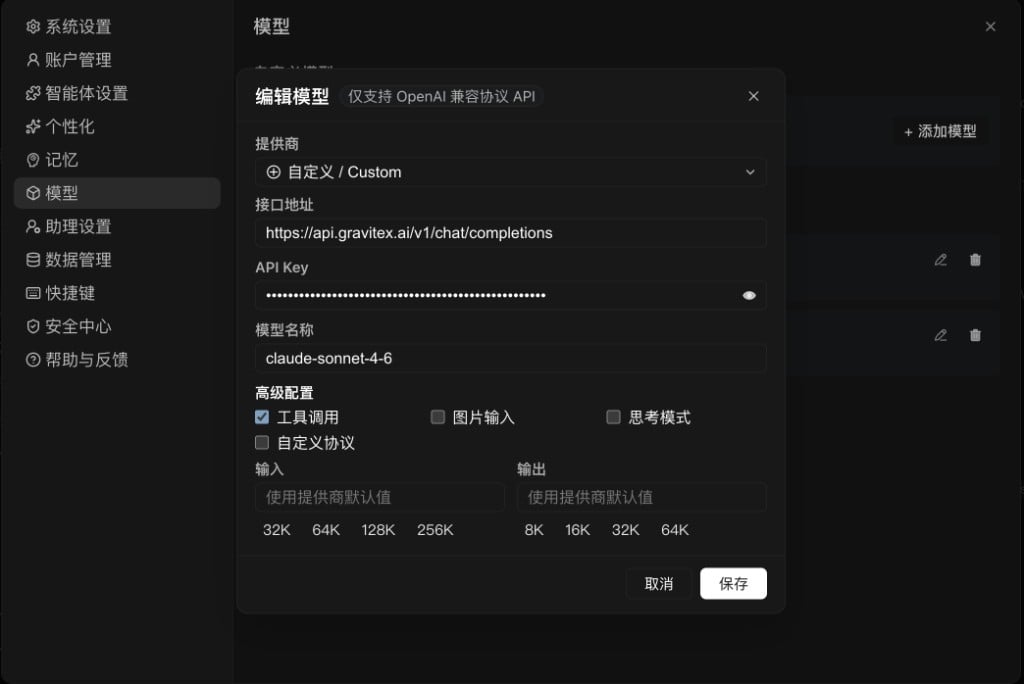
In WorkBuddy, click your avatar (bottom left) → Settings → Model → **Add Model**, then fill in:
| Field | Value | Notes |
| -------------- | ----------------------------------------------------------------------------------------------- | ----------------------------------------------------------------- |
| **Provider** | `Custom` | Choose the last "Custom model" option |
| **API URL** | `https://api.gravitex.ai/v1/chat/completions` | **Must include `/v1/chat/completions`** |
| **API Key** | e.g. `sk-...` | Paste the GravitexAI token from the previous step |
| **Model name** | Model ID such as `claude-sonnet-5`, `gpt-5.5`, `deepseek-v4-pro`, `kimi-k3`, `gemini-3.6-flash` | Use a [canonical model ID](https://maas.gravitex.ai/#/api-models) |
| **Advanced** | Manually enable capabilities your model supports | See below |
Use the full endpoint `https://api.gravitex.ai/v1/chat/completions` (including `/chat/completions`, as shown in the screenshot). Using only `https://api.gravitex.ai` or `https://api.gravitex.ai/v1` will fail.
 ### Step 4: Advanced settings
For standard providers such as Tencent Cloud Token Plan, tool calling / image input flags are filled automatically. For **Custom** + GravitexAI they are **not** auto-detected — enable them based on the model's real capabilities:
* Match checkboxes to the **actual capabilities** of the model ID you entered; when unsure, **enable fewer rather than more** — the `claude-sonnet-4-6` example above only enables Tool Calling
* Only enable **Image Input** / **Thinking Mode** after confirming the model supports them
* Mismatched flags (e.g. tool calling on a model that does not support tools) may cause errors
### Step 5: Input / Output limits
Use Input / Output to set context length and max output tokens. Leave blank for provider defaults, or pick presets such as 32K/64K/128K/256K (input) and 8K/16K/32K/64K (output). Click **Save**, then select the model under the custom group in the chat UI.
* WorkBuddy's model dialog **only supports OpenAI-compatible APIs** (labeled at the top of the dialog).
* GravitexAI provides a standard **OpenAI-compatible API**. Choose **Custom** to access the full model matrix (GPT / Claude / Gemini / DeepSeek / Zhipu / Kimi, and more).
### Step 6: Switch models
Back in the editor, open the model dropdown — your added models appear in the list. Select one to start chatting.
## 5. Feature Cheat Sheet
| Feature | Description |
| ------------------------- | ---------------------------------------------------------------------------------------------- |
| Natural-language tasks | Describe needs in one sentence in the new-task bar |
| Autonomous planning | Decomposes, plans, and executes; delivers reviewable results |
| Multimodal work | Documents / spreadsheets / PPT / data analysis, and more |
| Local files | Read authorized folders for batch organize, rename, convert |
| Multi-platform assistants | WeChat, WeCom, Feishu, DingTalk, QQ, Yuanbao bots, and more |
| Skills & connectors | Skill marketplace (Agent Browser, Web Search, etc.) + Tencent Docs / knowledge base connectors |
## 6. FAQ
No. Official docs state model config (including API Key) is stored only in local `workbuddy/models.json` and is not uploaded. WorkBuddy acts as a relay to your GravitexAI endpoint; except for necessary transmission, security audit, troubleshooting, and legal retention, WorkBuddy does not read or store conversation content.
No. Custom model costs (tokens, subscriptions, etc.) are billed directly by GravitexAI and do not use WorkBuddy credits or plans. Monitor your GravitexAI balance and usage to avoid unexpected charges.
WorkBuddy's custom model dialog currently supports **OpenAI-compatible APIs only**. Use GravitexAI's OpenAI-compatible endpoint `https://api.gravitex.ai/v1/chat/completions`. Anthropic native endpoints are not supported yet.
Standard providers fill these automatically; **Custom** + GravitexAI does not. Enable based on the model ID's real capabilities — when unsure, enable fewer options. The `claude-sonnet-4-6` screenshot only enables Tool Calling. Mismatched flags may cause errors.
Use the GravitexAI model ID, e.g. `claude-sonnet-5`, `gpt-5.5`, `deepseek-v4-pro`, `gemini-3.6-flash`, `kimi-k3` — see the [model catalog](https://maas.gravitex.ai/#/api-models). To switch models, only change this field and save; endpoint and API Key stay the same.
1. Confirm the API key starts with `sk-` and has no extra spaces
2. Confirm the endpoint spelling, especially `/v1/chat/completions`
3. In the [GravitexAI console](https://maas.gravitex.ai/#/keys), check the token is enabled and balance is sufficient
4. Insufficient balance can also return 401
## 7. Related Resources
* WorkBuddy website: [www.workbuddy.cn](https://www.workbuddy.cn)
* Official docs: [Overview](https://www.workbuddy.cn/docs/workbuddy/Overview)
* Model configuration: [Function-Description/Model](https://www.workbuddy.cn/docs/workbuddy/From-Beginner-to-Expert-Guide/Function-Description/Model)
* Install guides: [Windows](https://www.workbuddy.cn/docs/workbuddy/From-Beginner-to-Expert-Guide/Installation-Win-Guide) / [Mac](https://www.workbuddy.cn/docs/workbuddy/From-Beginner-to-Expert-Guide/Installation-Mac-Guide)
* API keys: [https://maas.gravitex.ai/#/api-keys](https://maas.gravitex.ai/#/api-keys)
* Model catalog: [https://maas.gravitex.ai/#/api-models](https://maas.gravitex.ai/#/api-models)
### Step 4: Advanced settings
For standard providers such as Tencent Cloud Token Plan, tool calling / image input flags are filled automatically. For **Custom** + GravitexAI they are **not** auto-detected — enable them based on the model's real capabilities:
* Match checkboxes to the **actual capabilities** of the model ID you entered; when unsure, **enable fewer rather than more** — the `claude-sonnet-4-6` example above only enables Tool Calling
* Only enable **Image Input** / **Thinking Mode** after confirming the model supports them
* Mismatched flags (e.g. tool calling on a model that does not support tools) may cause errors
### Step 5: Input / Output limits
Use Input / Output to set context length and max output tokens. Leave blank for provider defaults, or pick presets such as 32K/64K/128K/256K (input) and 8K/16K/32K/64K (output). Click **Save**, then select the model under the custom group in the chat UI.
* WorkBuddy's model dialog **only supports OpenAI-compatible APIs** (labeled at the top of the dialog).
* GravitexAI provides a standard **OpenAI-compatible API**. Choose **Custom** to access the full model matrix (GPT / Claude / Gemini / DeepSeek / Zhipu / Kimi, and more).
### Step 6: Switch models
Back in the editor, open the model dropdown — your added models appear in the list. Select one to start chatting.
## 5. Feature Cheat Sheet
| Feature | Description |
| ------------------------- | ---------------------------------------------------------------------------------------------- |
| Natural-language tasks | Describe needs in one sentence in the new-task bar |
| Autonomous planning | Decomposes, plans, and executes; delivers reviewable results |
| Multimodal work | Documents / spreadsheets / PPT / data analysis, and more |
| Local files | Read authorized folders for batch organize, rename, convert |
| Multi-platform assistants | WeChat, WeCom, Feishu, DingTalk, QQ, Yuanbao bots, and more |
| Skills & connectors | Skill marketplace (Agent Browser, Web Search, etc.) + Tencent Docs / knowledge base connectors |
## 6. FAQ
No. Official docs state model config (including API Key) is stored only in local `workbuddy/models.json` and is not uploaded. WorkBuddy acts as a relay to your GravitexAI endpoint; except for necessary transmission, security audit, troubleshooting, and legal retention, WorkBuddy does not read or store conversation content.
No. Custom model costs (tokens, subscriptions, etc.) are billed directly by GravitexAI and do not use WorkBuddy credits or plans. Monitor your GravitexAI balance and usage to avoid unexpected charges.
WorkBuddy's custom model dialog currently supports **OpenAI-compatible APIs only**. Use GravitexAI's OpenAI-compatible endpoint `https://api.gravitex.ai/v1/chat/completions`. Anthropic native endpoints are not supported yet.
Standard providers fill these automatically; **Custom** + GravitexAI does not. Enable based on the model ID's real capabilities — when unsure, enable fewer options. The `claude-sonnet-4-6` screenshot only enables Tool Calling. Mismatched flags may cause errors.
Use the GravitexAI model ID, e.g. `claude-sonnet-5`, `gpt-5.5`, `deepseek-v4-pro`, `gemini-3.6-flash`, `kimi-k3` — see the [model catalog](https://maas.gravitex.ai/#/api-models). To switch models, only change this field and save; endpoint and API Key stay the same.
1. Confirm the API key starts with `sk-` and has no extra spaces
2. Confirm the endpoint spelling, especially `/v1/chat/completions`
3. In the [GravitexAI console](https://maas.gravitex.ai/#/keys), check the token is enabled and balance is sufficient
4. Insufficient balance can also return 401
## 7. Related Resources
* WorkBuddy website: [www.workbuddy.cn](https://www.workbuddy.cn)
* Official docs: [Overview](https://www.workbuddy.cn/docs/workbuddy/Overview)
* Model configuration: [Function-Description/Model](https://www.workbuddy.cn/docs/workbuddy/From-Beginner-to-Expert-Guide/Function-Description/Model)
* Install guides: [Windows](https://www.workbuddy.cn/docs/workbuddy/From-Beginner-to-Expert-Guide/Installation-Win-Guide) / [Mac](https://www.workbuddy.cn/docs/workbuddy/From-Beginner-to-Expert-Guide/Installation-Mac-Guide)
* API keys: [https://maas.gravitex.ai/#/api-keys](https://maas.gravitex.ai/#/api-keys)
* Model catalog: [https://maas.gravitex.ai/#/api-models](https://maas.gravitex.ai/#/api-models)