> ## Documentation Index
> Fetch the complete documentation index at: https://docs.gravitex.ai/llms.txt
> Use this file to discover all available pages before exploring further.
# QClaw
> QClaw Client Integration Guide
## 1. Overview
QClaw (nicknamed "Little Lobster AI") is a local AI Agent assistant built by Tencent PC Manager on top of the open-source OpenClaw ecosystem, built around the idea of **"anytime, anywhere — one WeChat message gets it done"**: no programming or environment setup required — once installed, you can use natural language to have your computer organize files, process spreadsheets, edit documents, generate code, and more. After linking WeChat / QQ via QR code, you can send instructions remotely from your phone even when away from your computer; all tasks run locally and your data never leaves your machine.
QClaw ships with domestic models such as Kimi, GLM, MiniMax, and DeepSeek, and also supports connecting any third-party model service speaking the OpenAI-compatible protocol under **Model Settings**. With GravitexAI you get:
| Capability | Description |
| ------------------- | -------------------------------------------------------------------------------------------------------------------- |
| One key, all models | One API key unlocks GPT, Claude, Gemini, DeepSeek, Kimi, MiniMax, and more in QClaw |
| GUI one-click setup | Chat box → Model settings → Custom model — fill in the endpoint, protocol, key, and model ID; no config file editing |
| Data stays local | Tasks run on your own computer; model requests go directly from QClaw to the GravitexAI endpoint you configured |
| Pay-as-you-go | Custom model usage is billed directly by GravitexAI and is independent of QClaw's built-in models |
## 2. Requirements
* A Windows or macOS desktop system (see the official download page for detailed version requirements)
* A stable internet connection (for model API calls and WeChat remote commands)
## 3. Prerequisites
* QClaw installed on your computer (download from the official site [qclaw.qq.com](https://qclaw.qq.com/))
* An API key (format `sk-xxxxxxxxxx`) created in the [GravitexAI Console](https://maas.gravitex.ai/#/api-keys)
## 4. Quick Start
### Step 1: Install QClaw
Visit the official site [qclaw.qq.com](https://qclaw.qq.com/), download the Windows or macOS installer, and double-click to install — no command line needed. After installation, open QClaw and follow the prompts to log in and link WeChat via QR code for remote commands.
### Step 2: Get a GravitexAI API Key
1. Open the [GravitexAI Console](https://maas.gravitex.ai/#/api-keys)
2. Click "Create Token", name it, and save
3. Copy the key starting with `sk-`
### Step 3: Open the custom model entry
Launch QClaw and, below the chat box:
1. Select the **Cloud models** (云端模型) tab
2. Click the model selector on the right (the dropdown showing the current model name, e.g. `Auto`)
3. At the bottom of the model list, click "**Custom model**" (自定义大模型)
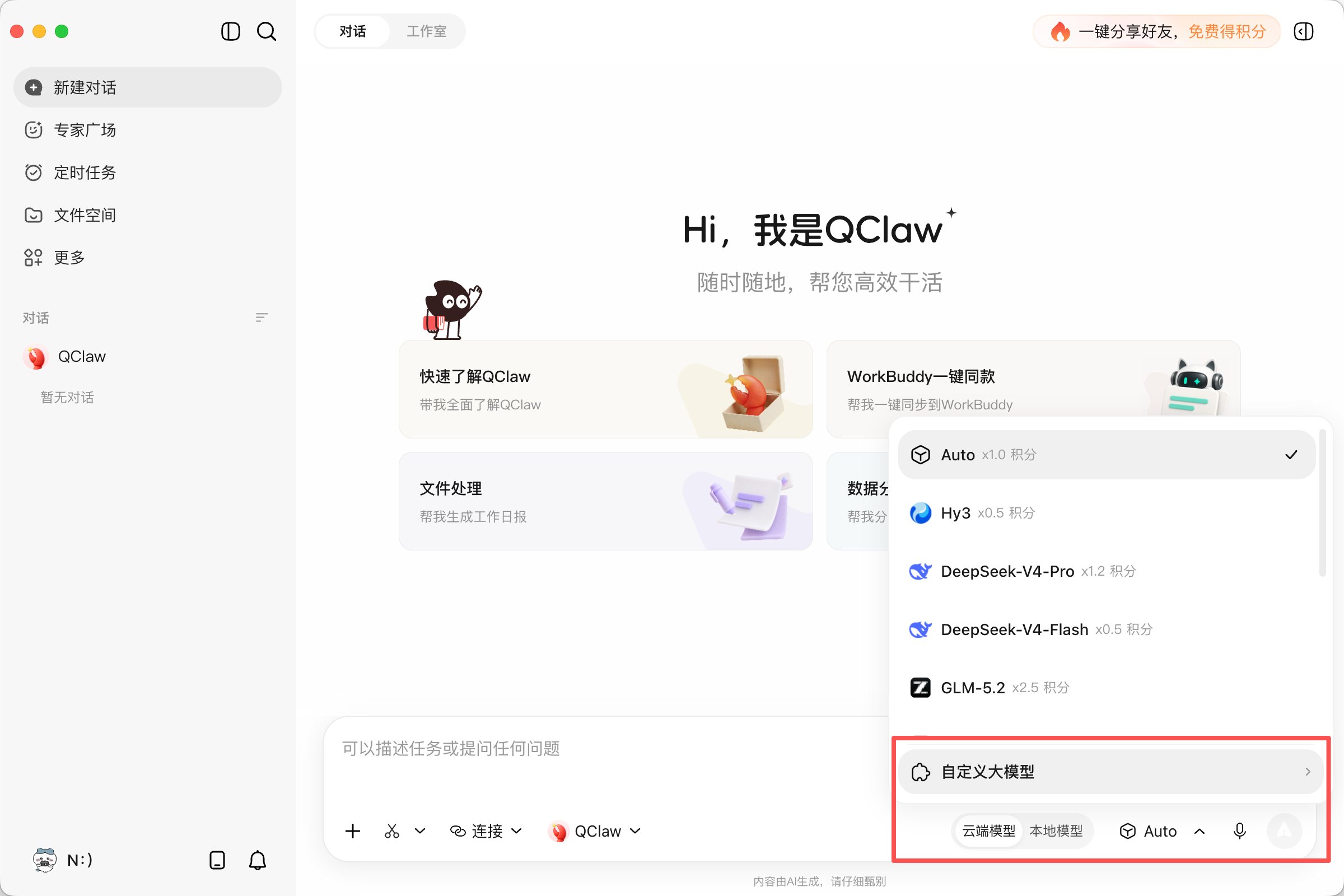 In the **Model API** tab that opens, click "Custom configuration".
### Step 4: Fill in the GravitexAI connection details
Fill in the fields below and click "OK", then wait for the configuration to take effect:
| Field | Value | Notes |
| ---------------- | ---------------------------------------------------------------------------------------------------- | ------------------------------------------------------------------------------------------------------------------------------------------ |
| **API endpoint** | OpenAI-compatible: `https://api.gravitex.ai/v1`
In the **Model API** tab that opens, click "Custom configuration".
### Step 4: Fill in the GravitexAI connection details
Fill in the fields below and click "OK", then wait for the configuration to take effect:
| Field | Value | Notes |
| ---------------- | ---------------------------------------------------------------------------------------------------- | ------------------------------------------------------------------------------------------------------------------------------------------ |
| **API endpoint** | OpenAI-compatible: `https://api.gravitex.ai/v1`
Anthropic-compatible: `https://api.gravitex.ai` | The OpenAI protocol **must include `/v1`**; the Anthropic protocol **must not** |
| **API protocol** | `Anthropic-compatible` for Claude-family models
`OpenAI-compatible` for all other models | Choose from the dropdown — must match the model type |
| **API Key** | e.g. `sk-...` | Paste the GravitexAI token from Step 2 |
| **Model name** | A custom display name, e.g. `GPT-6 Astra` | Display only — fill in anything you like |
| **Model ID** | e.g. `claude-sonnet-5`, `gpt-5.5`, `deepseek-v4-pro`, `gemini-3.6-flash`, `kimi-k3` | **Determines the model actually called** — must exactly match an ID in the [GravitexAI Model Plaza](https://maas.gravitex.ai/#/api-models) |
| **Capabilities** | Check "Image input" / "Reasoning mode" according to the model's real capabilities | When in doubt, leave unchecked — mismatched capabilities may cause request errors |
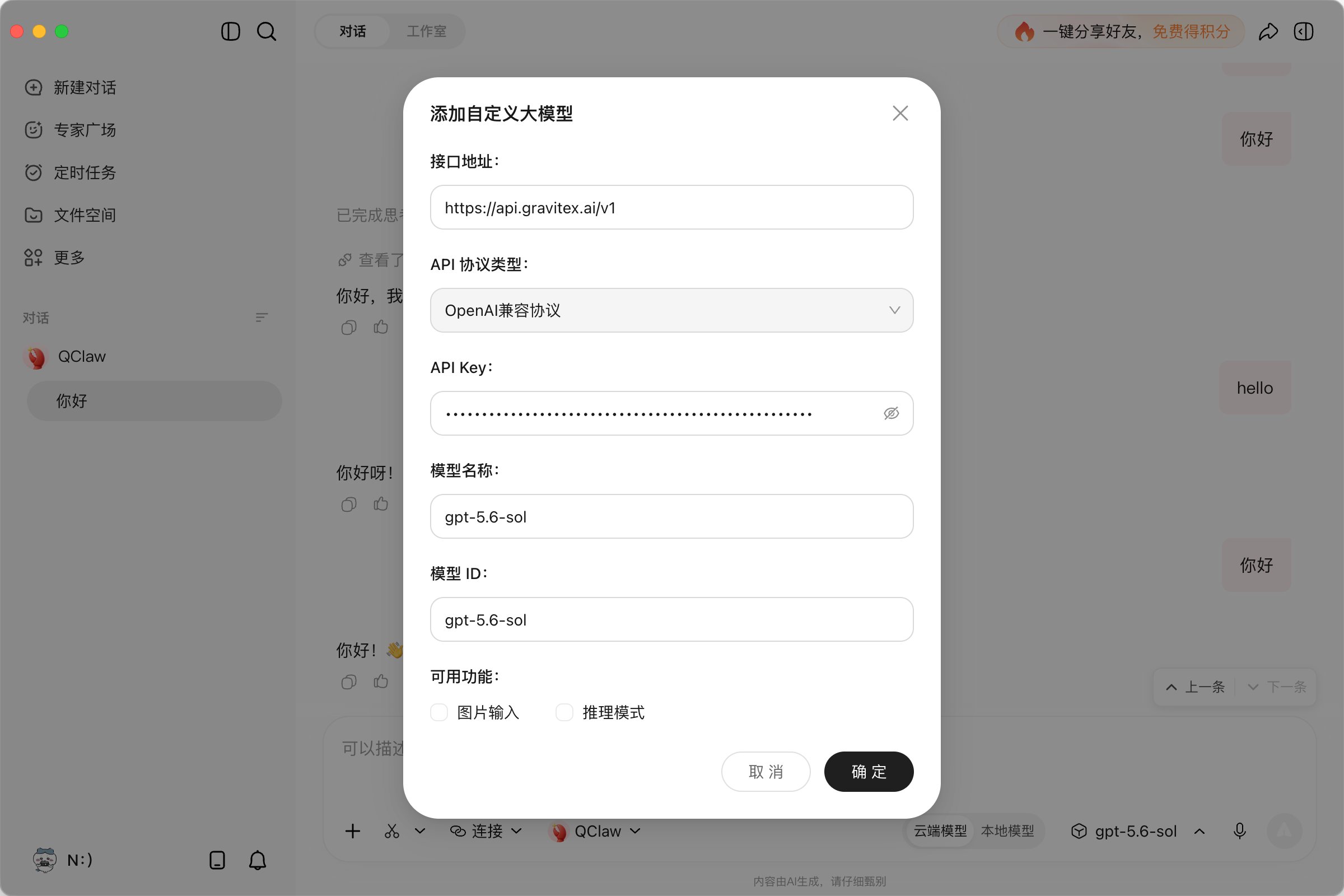 Each model must be configured **individually** — endpoint, API key, and model name — and saved separately. To add multiple models, repeat the "Custom configuration" step for each one.
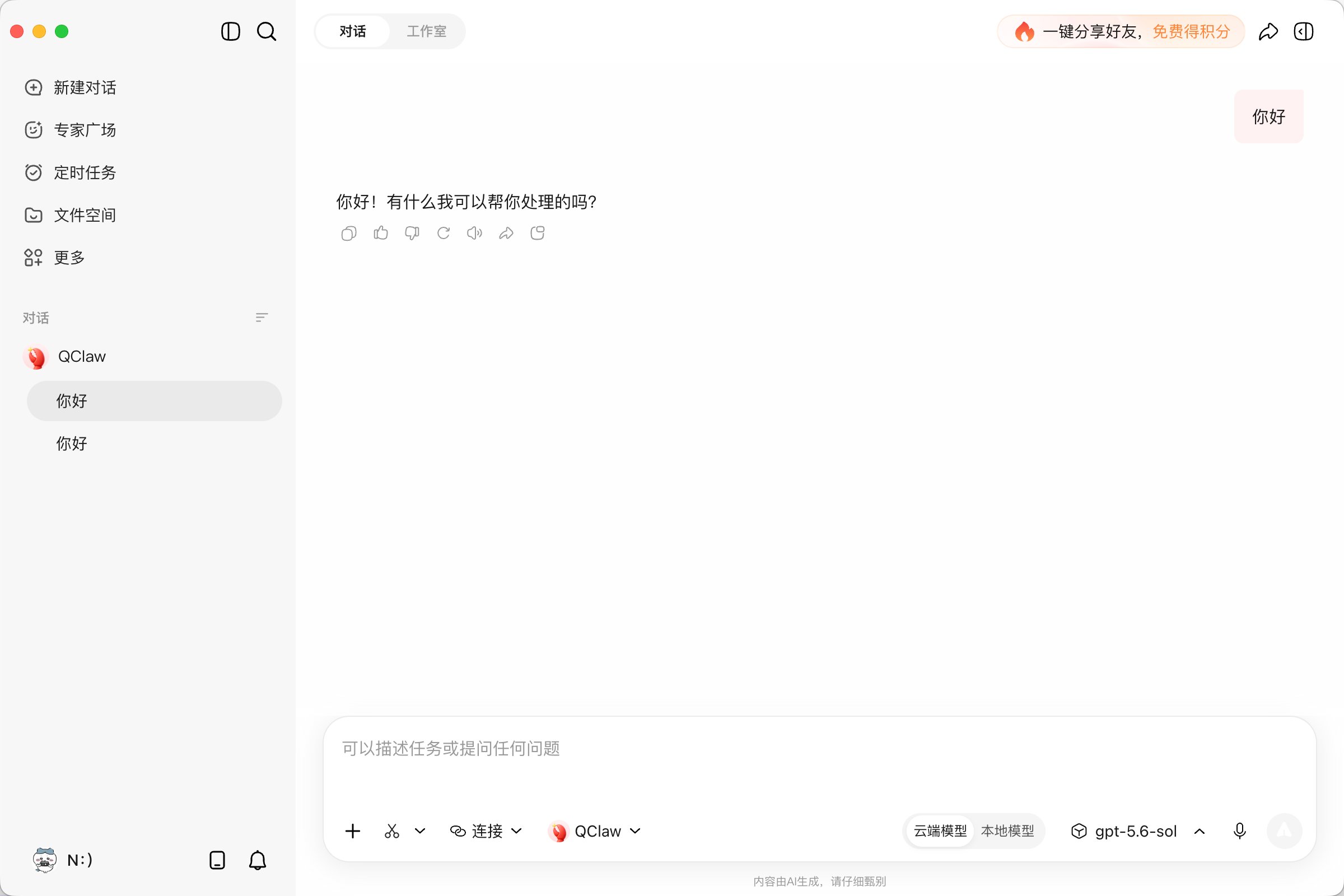
### Step 5: Switch to the custom model
Return to the chat view and switch to the custom model you just configured in the model selector (as shown — select `gpt-5.6-sol` from the model dropdown at the bottom-right of the chat box), then start chatting or running tasks:
Each model must be configured **individually** — endpoint, API key, and model name — and saved separately. To add multiple models, repeat the "Custom configuration" step for each one.
### Step 5: Switch to the custom model
Return to the chat view and switch to the custom model you just configured in the model selector (as shown — select `gpt-5.6-sol` from the model dropdown at the bottom-right of the chat box), then start chatting or running tasks:
 ## 5. Feature Quick Reference
| Feature | Description |
| --------------------------- | ----------------------------------------------------------------------------------------------------------------------- |
| WeChat / QQ remote commands | After linking via QR code, send instructions from your phone anytime and have your computer execute them remotely |
| Local task execution | File organization, spreadsheet processing, document editing, code generation — all done locally |
| Multi-model switching | One-click switching between built-in domestic models and custom models |
| Lobster Guard protection | Real-time interception of high-risk scripts, accidental file deletion, and abnormal network access, with a security log |
| Skill ecosystem | 5000+ skills and an "Expert Plaza" for zero-config professional agent capabilities |
| Connectors | Direct integration with Tencent Docs, Tencent Meeting, Kingsoft Docs, Notion, email, and more |
## 6. FAQ
It depends on the protocol: for the OpenAI-compatible protocol, enter `https://api.gravitex.ai/v1` (**must include `/v1`**); for the Anthropic-compatible protocol, enter `https://api.gravitex.ai` (**no `/v1`**). If the configuration screen asks for the full request path, append it as prompted — e.g. `https://api.gravitex.ai/v1/chat/completions` for the OpenAI protocol.
For Claude-family models (e.g. `claude-sonnet-5`), set "API protocol" to `Anthropic-compatible` and the endpoint to `https://api.gravitex.ai` (**no `/v1`**). All other models — GPT, DeepSeek, Gemini, Kimi, etc. — use `OpenAI-compatible` with `https://api.gravitex.ai/v1`.
1. Confirm the API key starts with `sk-`, is copied completely, and has no extra spaces
2. Confirm the endpoint is spelled correctly (`https://api.gravitex.ai/v1`)
3. In the [GravitexAI Console](https://maas.gravitex.ai/#/api-keys), check that the token is enabled and your balance is sufficient (insufficient balance also returns 401)
4. If needed, disable the old key and create a new one
The full error looks like `Invalid 'max_output_tokens': integer below minimum value. Expected a value >= 16, but got 1 instead.` — the request's max output tokens was set to a value that is too small (e.g. 1), while the upstream API requires at least 16. Fix: check whether this custom model's configuration has a "max output" setting — leave it empty (use the default) or set a reasonable value (e.g. `8192`), save, and retry. If no such option exists in the UI, delete the model and add it again without entering overly small values.
Confirm the **Model ID** field exactly matches a model ID listed in the [GravitexAI Model Plaza](https://maas.gravitex.ai/#/api-models), including capitalization and spelling — copy the ID directly from the plaza to avoid typos. The "Model name" field is display-only and doesn't affect requests.
QClaw requires each model to be configured and saved individually. Repeat the "Custom configuration" step on the Model API tab for each model — the endpoint and API key can be reused.
All custom model usage (token consumption, etc.) is billed directly by GravitexAI and is independent of QClaw's built-in model quotas. Keep an eye on your GravitexAI balance and usage to avoid unexpected charges.
No. QClaw is a local AI Agent — tasks run on your own computer and data never leaves your machine. With GravitexAI connected, QClaw only acts as the communication link, sending requests directly to the endpoint you configured; responses come straight back from the model.
## 7. Related Resources
* QClaw official site: [qclaw.qq.com](https://qclaw.qq.com/)
* API key management: [https://maas.gravitex.ai/#/api-keys](https://maas.gravitex.ai/#/api-keys)
* Model plaza: [https://maas.gravitex.ai/#/api-models](https://maas.gravitex.ai/#/api-models)
## 5. Feature Quick Reference
| Feature | Description |
| --------------------------- | ----------------------------------------------------------------------------------------------------------------------- |
| WeChat / QQ remote commands | After linking via QR code, send instructions from your phone anytime and have your computer execute them remotely |
| Local task execution | File organization, spreadsheet processing, document editing, code generation — all done locally |
| Multi-model switching | One-click switching between built-in domestic models and custom models |
| Lobster Guard protection | Real-time interception of high-risk scripts, accidental file deletion, and abnormal network access, with a security log |
| Skill ecosystem | 5000+ skills and an "Expert Plaza" for zero-config professional agent capabilities |
| Connectors | Direct integration with Tencent Docs, Tencent Meeting, Kingsoft Docs, Notion, email, and more |
## 6. FAQ
It depends on the protocol: for the OpenAI-compatible protocol, enter `https://api.gravitex.ai/v1` (**must include `/v1`**); for the Anthropic-compatible protocol, enter `https://api.gravitex.ai` (**no `/v1`**). If the configuration screen asks for the full request path, append it as prompted — e.g. `https://api.gravitex.ai/v1/chat/completions` for the OpenAI protocol.
For Claude-family models (e.g. `claude-sonnet-5`), set "API protocol" to `Anthropic-compatible` and the endpoint to `https://api.gravitex.ai` (**no `/v1`**). All other models — GPT, DeepSeek, Gemini, Kimi, etc. — use `OpenAI-compatible` with `https://api.gravitex.ai/v1`.
1. Confirm the API key starts with `sk-`, is copied completely, and has no extra spaces
2. Confirm the endpoint is spelled correctly (`https://api.gravitex.ai/v1`)
3. In the [GravitexAI Console](https://maas.gravitex.ai/#/api-keys), check that the token is enabled and your balance is sufficient (insufficient balance also returns 401)
4. If needed, disable the old key and create a new one
The full error looks like `Invalid 'max_output_tokens': integer below minimum value. Expected a value >= 16, but got 1 instead.` — the request's max output tokens was set to a value that is too small (e.g. 1), while the upstream API requires at least 16. Fix: check whether this custom model's configuration has a "max output" setting — leave it empty (use the default) or set a reasonable value (e.g. `8192`), save, and retry. If no such option exists in the UI, delete the model and add it again without entering overly small values.
Confirm the **Model ID** field exactly matches a model ID listed in the [GravitexAI Model Plaza](https://maas.gravitex.ai/#/api-models), including capitalization and spelling — copy the ID directly from the plaza to avoid typos. The "Model name" field is display-only and doesn't affect requests.
QClaw requires each model to be configured and saved individually. Repeat the "Custom configuration" step on the Model API tab for each model — the endpoint and API key can be reused.
All custom model usage (token consumption, etc.) is billed directly by GravitexAI and is independent of QClaw's built-in model quotas. Keep an eye on your GravitexAI balance and usage to avoid unexpected charges.
No. QClaw is a local AI Agent — tasks run on your own computer and data never leaves your machine. With GravitexAI connected, QClaw only acts as the communication link, sending requests directly to the endpoint you configured; responses come straight back from the model.
## 7. Related Resources
* QClaw official site: [qclaw.qq.com](https://qclaw.qq.com/)
* API key management: [https://maas.gravitex.ai/#/api-keys](https://maas.gravitex.ai/#/api-keys)
* Model plaza: [https://maas.gravitex.ai/#/api-models](https://maas.gravitex.ai/#/api-models)