> ## Documentation Index
> Fetch the complete documentation index at: https://docs.gravitex.ai/llms.txt
> Use this file to discover all available pages before exploring further.
# Hermes Agent Desktop App
> Hermes Agent Desktop App integration guide — Connect Gravitex gateway via Custom Endpoints
After connecting the Gravitex gateway in the Hermes Agent Desktop App, you can directly call the model services provided by Gravitex within Hermes.
**Download:** [https://hermes-agent.nousresearch.com/](https://hermes-agent.nousresearch.com/)
**Prerequisites:** Hermes Agent Desktop App is installed and a Gravitex API Key has been obtained.
## 1. Configuration Steps
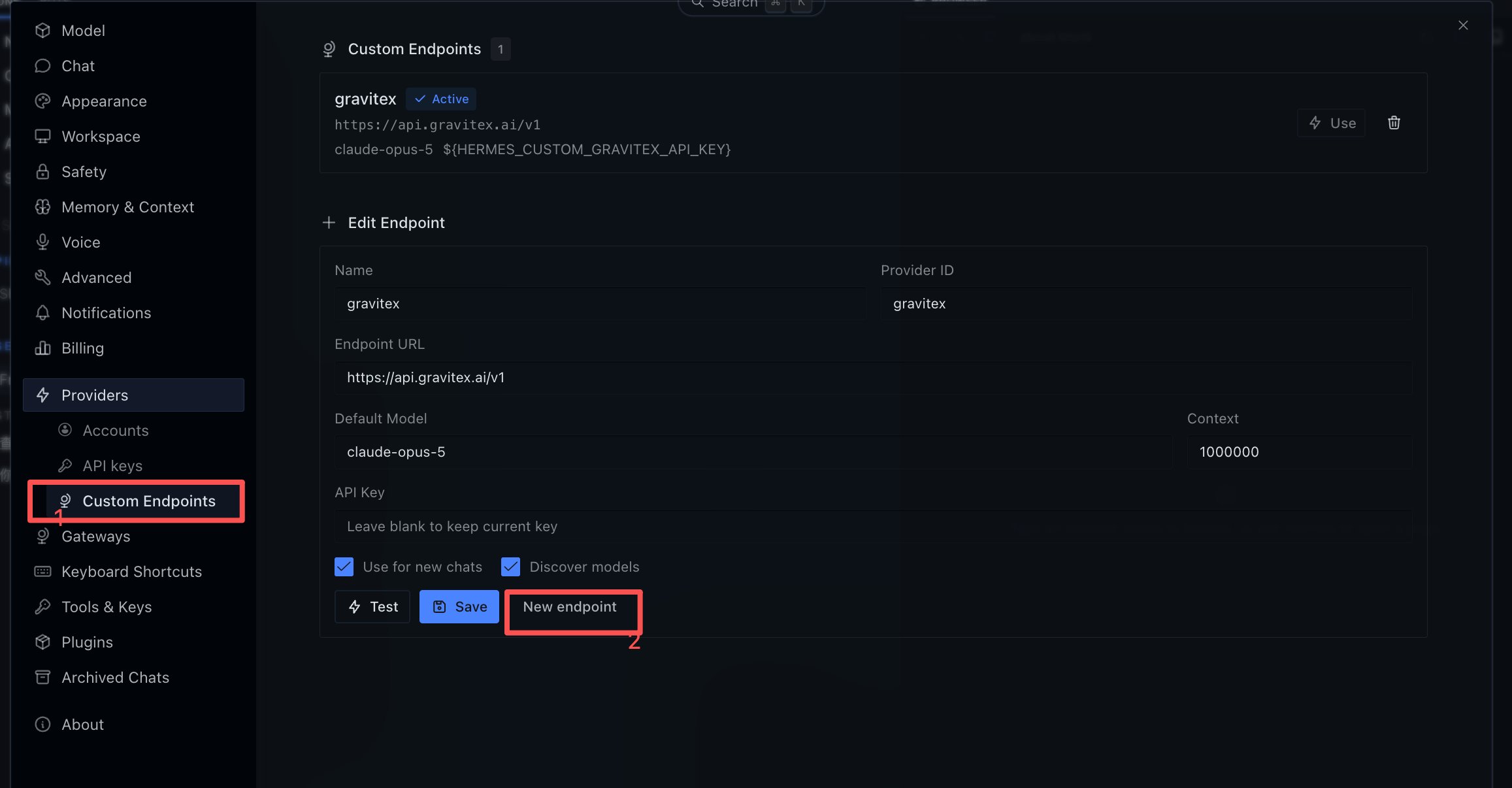
### Step 1: Open Custom Endpoints
Go to **Providers → Custom Endpoints** in the left menu, then click **New endpoint** at the bottom to create one.
 ### Step 2: Fill in Gravitex Gateway Information
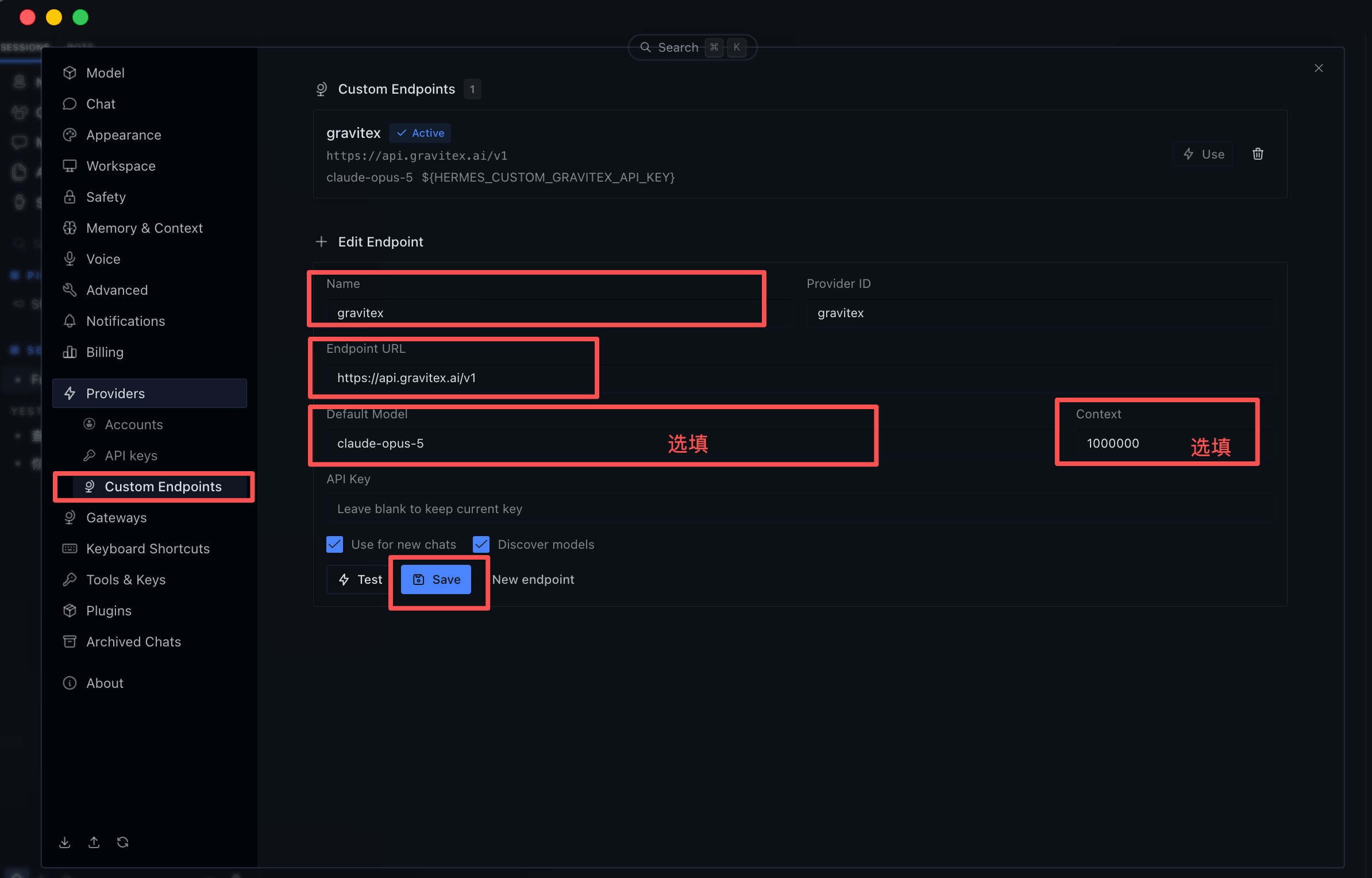
In the **Edit Endpoint** form, fill in the following:
| Field | Value |
| ------------------------------- | ------------------------------------------------------------------------- |
| **Name** | `gravitex` |
| **Provider ID** | `gravitex` |
| **Endpoint URL** | `https://api.gravitex.ai/v1` |
| **API Key** | Paste your Gravitex API Key (leave blank to keep the currently saved key) |
| **Default Model** / **Context** | Optional; leave blank to auto-discover via Discover models below |
Check **Use for new chats** and **Discover models**, click **Test** to confirm connectivity, then click **Save** to save.
### Step 2: Fill in Gravitex Gateway Information
In the **Edit Endpoint** form, fill in the following:
| Field | Value |
| ------------------------------- | ------------------------------------------------------------------------- |
| **Name** | `gravitex` |
| **Provider ID** | `gravitex` |
| **Endpoint URL** | `https://api.gravitex.ai/v1` |
| **API Key** | Paste your Gravitex API Key (leave blank to keep the currently saved key) |
| **Default Model** / **Context** | Optional; leave blank to auto-discover via Discover models below |
Check **Use for new chats** and **Discover models**, click **Test** to confirm connectivity, then click **Save** to save.
 ### Step 3: Confirm Gateway Connection Mode
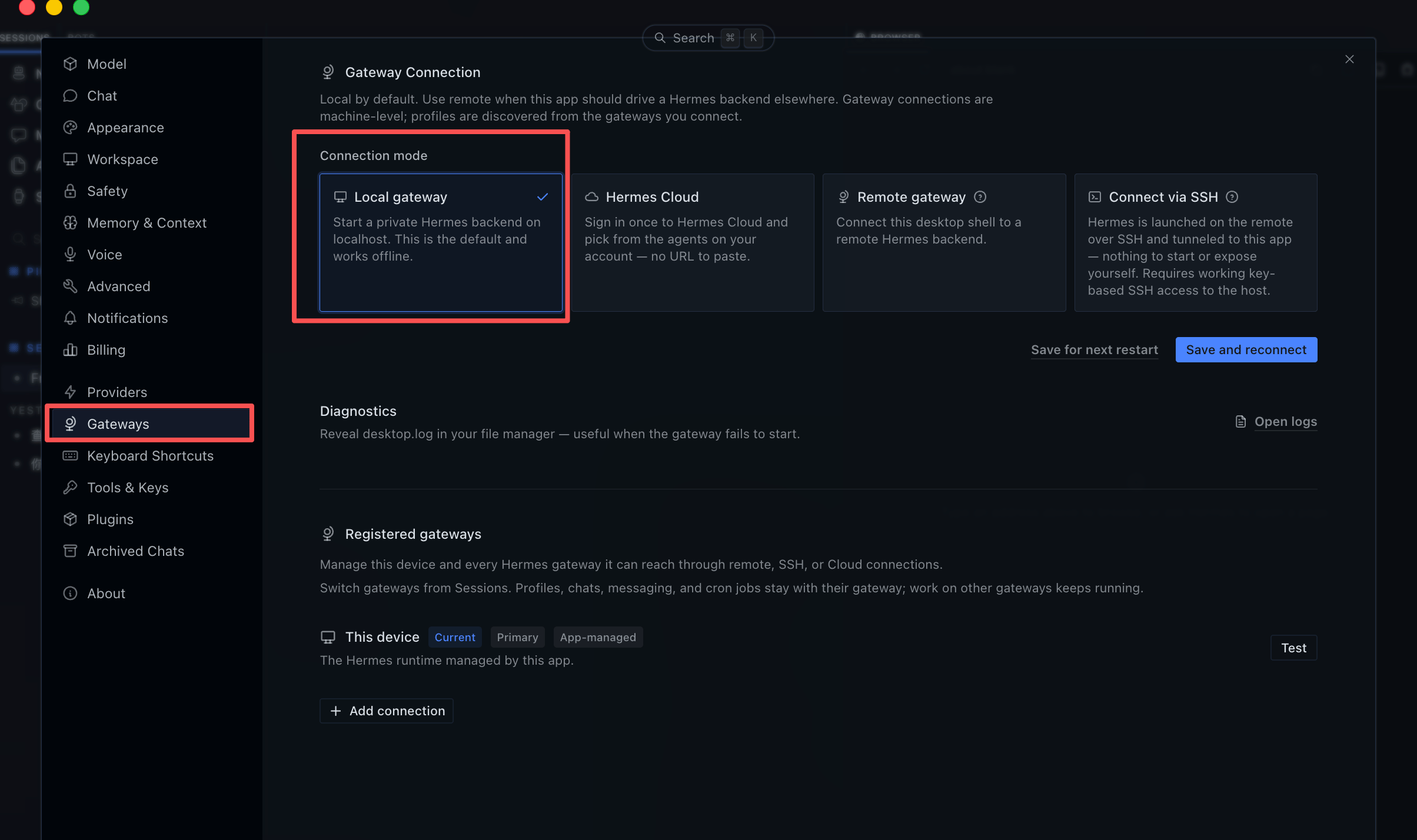
Go to **Gateways** in the left menu and check **Connection mode**. The default is **Local gateway** (runs locally, supports offline). You generally do not need to change this for Gravitex integration; only switch to Hermes Cloud / Remote gateway / Connect via SSH when you need the Hermes backend to run remotely or in the cloud.
### Step 3: Confirm Gateway Connection Mode
Go to **Gateways** in the left menu and check **Connection mode**. The default is **Local gateway** (runs locally, supports offline). You generally do not need to change this for Gravitex integration; only switch to Hermes Cloud / Remote gateway / Connect via SSH when you need the Hermes backend to run remotely or in the cloud.
 ### Step 4: Select gravitex in Model
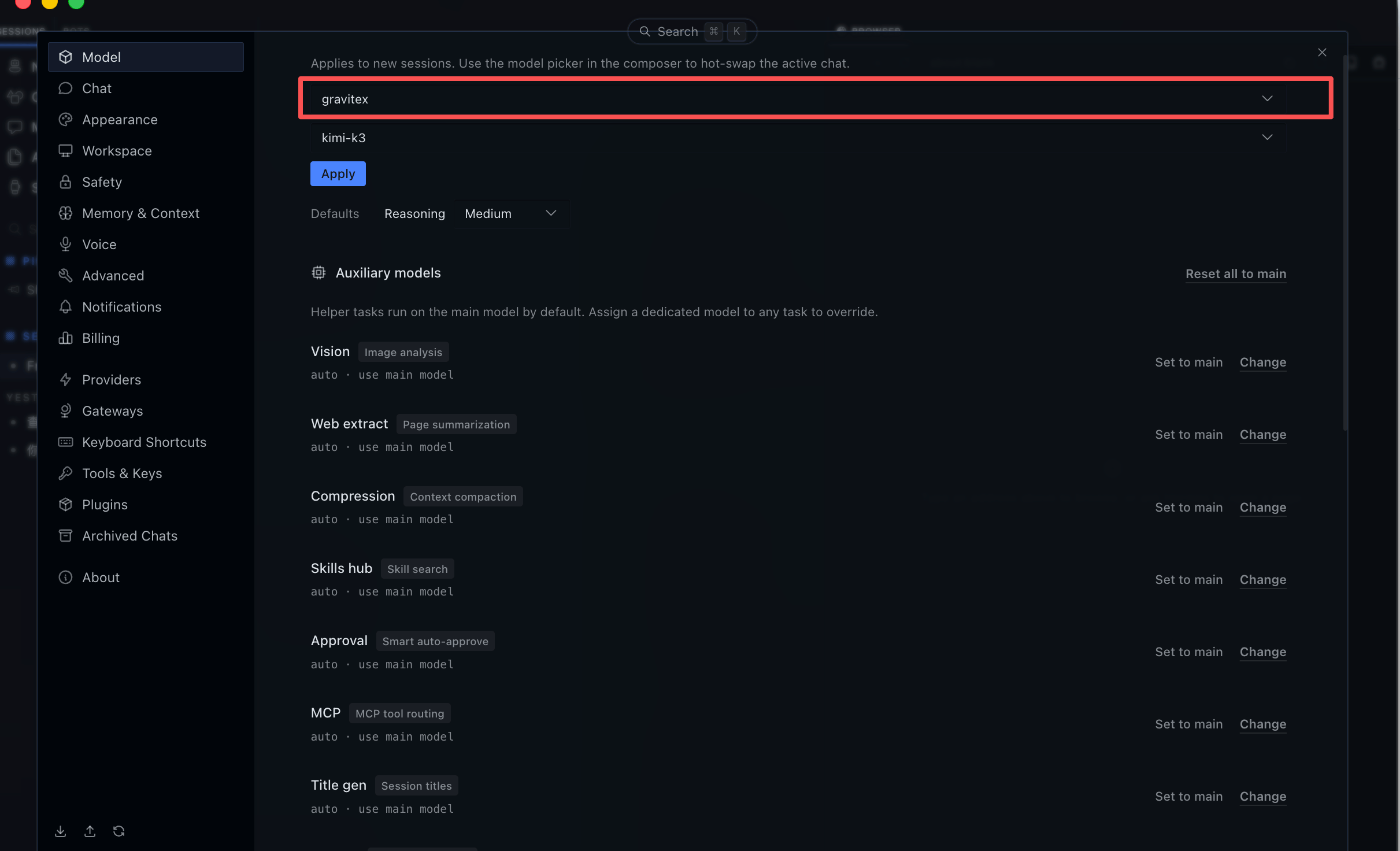
Go to **Model** in the left menu, select `gravitex` (configured in Step 2) from the model dropdown, and click **Apply**. To assign separate models for auxiliary tasks such as Vision, Web extract, Compression, Skills hub, Approval, MCP, Title gen, etc., click **Change** next to each item under **Auxiliary models**; by default they all follow the main model (`auto · use main model`).
### Step 4: Select gravitex in Model
Go to **Model** in the left menu, select `gravitex` (configured in Step 2) from the model dropdown, and click **Apply**. To assign separate models for auxiliary tasks such as Vision, Web extract, Compression, Skills hub, Approval, MCP, Title gen, etc., click **Change** next to each item under **Auxiliary models**; by default they all follow the main model (`auto · use main model`).
 ### Step 5: Send a Test Message
Go back to the **Chat** page and send a message to confirm you can receive a normal response from the gravitex gateway.
## 2. Verify Success
* `gravitex` is visible and can be successfully selected in the Model selector, with no errors after clicking **Apply**.
* Messages sent in Chat receive normal replies without `invalid api key` / `endpoint unavailable` / `model_not_found` errors.
## 3. Troubleshooting
| Symptom | Cause | Solution |
| ------------------------------------- | -------------------------------------------------------------------------------- | ------------------------------------------------------------------------------------------------------------------------ |
| Invalid API key / 401 | API Key is incorrect, expired, or disabled | Regenerate a key, paste it into the API Key field, and save (leaving blank will not clear it — the old key is preserved) |
| Endpoint unavailable / Cannot connect | Endpoint URL is incorrect or network is unreachable | Verify the Endpoint URL is `https://api.gravitex.ai/v1` and check that the domain is accessible from your network |
| model\_not\_found | The model ID filled in Default Model is not supported | Check **Discover models** to automatically fetch the available model list, or verify the model ID spelling |
| gravitex not found in Model list | Custom Endpoint was not saved, or **Use for new chats** was not checked | Confirm **Save** was clicked and **Use for new chats** is checked |
| No response after sending a message | Wrong Gateway Connection mode (e.g., switched to an unconfigured Remote gateway) | Confirm Connection mode is **Local gateway** (default, works offline); do not switch unless necessary |
| Save button has no effect | Required fields like Name / Endpoint URL are empty | Check that all required fields are filled and try again |
## 4. Security Notes
* **API Key is equivalent to a password** — do not include it in public documentation, chat records, screenshots, or code repositories.
* Custom Endpoint details may display key information in the form of environment variables (e.g., `${HERMES_CUSTOM_GRAVITEX_API_KEY}`). Do not share screenshots in public environments.
* If your key has been leaked in chats, logs, or screenshots, immediately revoke and regenerate it in the Gravitex console.
### Step 5: Send a Test Message
Go back to the **Chat** page and send a message to confirm you can receive a normal response from the gravitex gateway.
## 2. Verify Success
* `gravitex` is visible and can be successfully selected in the Model selector, with no errors after clicking **Apply**.
* Messages sent in Chat receive normal replies without `invalid api key` / `endpoint unavailable` / `model_not_found` errors.
## 3. Troubleshooting
| Symptom | Cause | Solution |
| ------------------------------------- | -------------------------------------------------------------------------------- | ------------------------------------------------------------------------------------------------------------------------ |
| Invalid API key / 401 | API Key is incorrect, expired, or disabled | Regenerate a key, paste it into the API Key field, and save (leaving blank will not clear it — the old key is preserved) |
| Endpoint unavailable / Cannot connect | Endpoint URL is incorrect or network is unreachable | Verify the Endpoint URL is `https://api.gravitex.ai/v1` and check that the domain is accessible from your network |
| model\_not\_found | The model ID filled in Default Model is not supported | Check **Discover models** to automatically fetch the available model list, or verify the model ID spelling |
| gravitex not found in Model list | Custom Endpoint was not saved, or **Use for new chats** was not checked | Confirm **Save** was clicked and **Use for new chats** is checked |
| No response after sending a message | Wrong Gateway Connection mode (e.g., switched to an unconfigured Remote gateway) | Confirm Connection mode is **Local gateway** (default, works offline); do not switch unless necessary |
| Save button has no effect | Required fields like Name / Endpoint URL are empty | Check that all required fields are filled and try again |
## 4. Security Notes
* **API Key is equivalent to a password** — do not include it in public documentation, chat records, screenshots, or code repositories.
* Custom Endpoint details may display key information in the form of environment variables (e.g., `${HERMES_CUSTOM_GRAVITEX_API_KEY}`). Do not share screenshots in public environments.
* If your key has been leaked in chats, logs, or screenshots, immediately revoke and regenerate it in the Gravitex console.