> ## Documentation Index
> Fetch the complete documentation index at: https://docs.gravitex.ai/llms.txt
> Use this file to discover all available pages before exploring further.
# DeepSeek Harness
> DeepSeek Harness Integration Guide
## 1. Overview
DeepSeek Harness (CLI command `dsh`) is DeepSeek's official open-source agent harness, positioned as **"Model + Harness = Agent"** — it ships no models of its own; instead it gives a large model the "hands" to operate files, terminals, the web, and external services, so the model can decompose tasks, read files, edit code, run commands, and deliver results autonomously in your workspace. Built on an "everything-is-a-plugin" architecture, the model is just one replaceable capability, so any OpenAI-compatible or Anthropic-compatible model service can be plugged in.
DeepSeek Harness offers a **Web UI** (default `http://127.0.0.1:3080`), a CLI, and an SDK. With GravitexAI you get:
| Capability | Description |
| ---------------------- | ----------------------------------------------------------------------------------------------------------------------------------------------------------------------------------------- |
| One key, all models | One API key unlocks GPT, Claude, Gemini, DeepSeek, Kimi, MiniMax, and more in DeepSeek Harness |
| Keys stored locally | API keys are saved only in `$DSH_HOME/.credentials.yaml` (default `~/.dsh/` on macOS/Linux, `%USERPROFILE%\.dsh\` on Windows); settings files hold credential references, never plaintext |
| GUI one-click setup | Settings → Models → Add custom provider — fill in the endpoint, protocol, key, and models; no manual config editing |
| Multi-protocol support | Works with OpenAI Completions, OpenAI Responses, and the Anthropic-native protocol; create one provider per protocol |
| Pay-as-you-go | Custom provider usage is billed directly by GravitexAI |
## 2. Requirements
* [Node.js](https://nodejs.org/) installed (LTS recommended)
* macOS / Linux / Windows; the Web UI is accessed from a browser
DeepSeek Harness is currently in Developer Preview and iterating rapidly — expect compatibility-breaking changes. Check the official release notes before upgrading.
## 3. Prerequisites
* Node.js installed on your machine
* An API key (format `sk-xxxxxxxxxx`) created in the [GravitexAI Console](https://maas.gravitex.ai/#/api-keys)
## 4. Quick Start
### Step 1: Install and launch DeepSeek Harness
No global install needed — start the Web UI via `npx`:
```bash theme={null}
npx @deepseek-ai/dsh web
```
This starts the Web UI at `http://127.0.0.1:3080` and opens it in your browser; pass `--no-open` to skip opening the browser. Config and data are stored in the `$DSH_HOME` directory by default (`~/.dsh/` on macOS/Linux, `%USERPROFILE%\.dsh\` on Windows).
### Step 2: Get a GravitexAI API Key
1. Open the [GravitexAI Console](https://maas.gravitex.ai/#/api-keys)
2. Click "Create Token", name it, and save
3. Copy the key starting with `sk-`
### Step 3: Add a custom provider
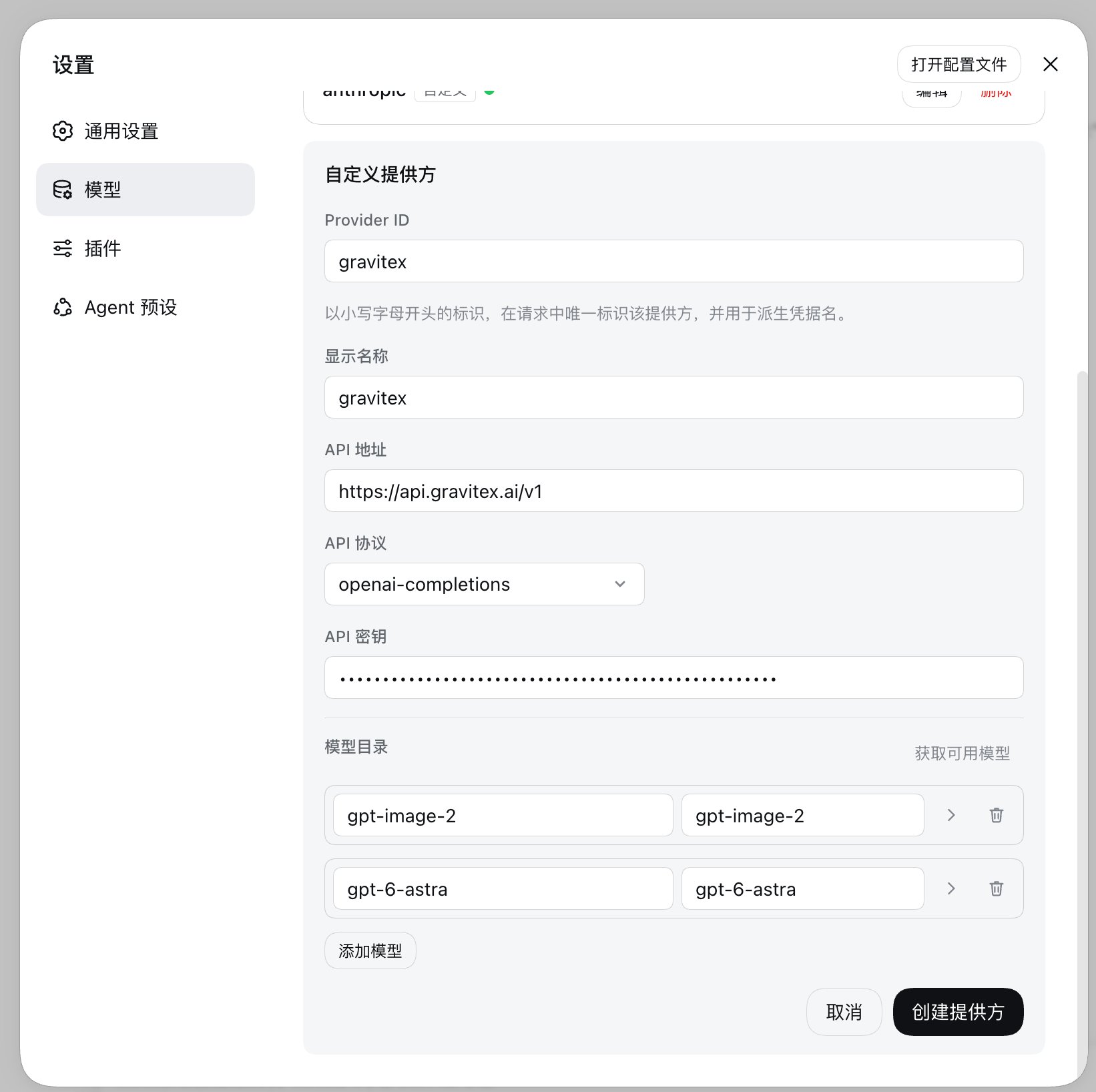
In the Web UI, go to **Settings → Models**, choose **Add a custom provider**, and fill in:
| Field | Value | Notes |
| ---------------- | ---------------------------- | ------------------------------------------------------------------------------------------------------------------------------------------------------- |
| **Provider ID** | `gravitex` | Lowercase; **permanent once created** (requests, sessions, and credential references all use it) — to rename, add a new provider and delete the old one |
| **Display name** | `GravitexAI` | Editable anytime |
| **Base URL** | `https://api.gravitex.ai/v1` | OpenAI-compatible endpoint; **must include `/v1`** |
| **API protocol** | `openai-completions` | **OpenAI-family models (e.g. `gpt-5.5`) require `openai-responses`**; all other models use `openai-completions` |
| **API Key** | e.g. `sk-...` | Paste the GravitexAI token from Step 2 |
| **Models** | At least one model ID | See the next step |
Each provider uses exactly one protocol. **OpenAI-family models (e.g. `gpt-5.5`) must use the `openai-responses` protocol**, while models such as DeepSeek, Gemini, and Kimi use `openai-completions`. **For Claude-family models, the Anthropic-native protocol (`anthropic-messages`) is recommended, with Base URL `https://api.gravitex.ai` (no `/v1`)**. Create one provider per protocol (e.g. `gravitex`, `gravitex-openai`, `gravitex-anthropic`; see "Advanced Configuration" below).
The completed form looks like this:
 ### Step 4: Add models
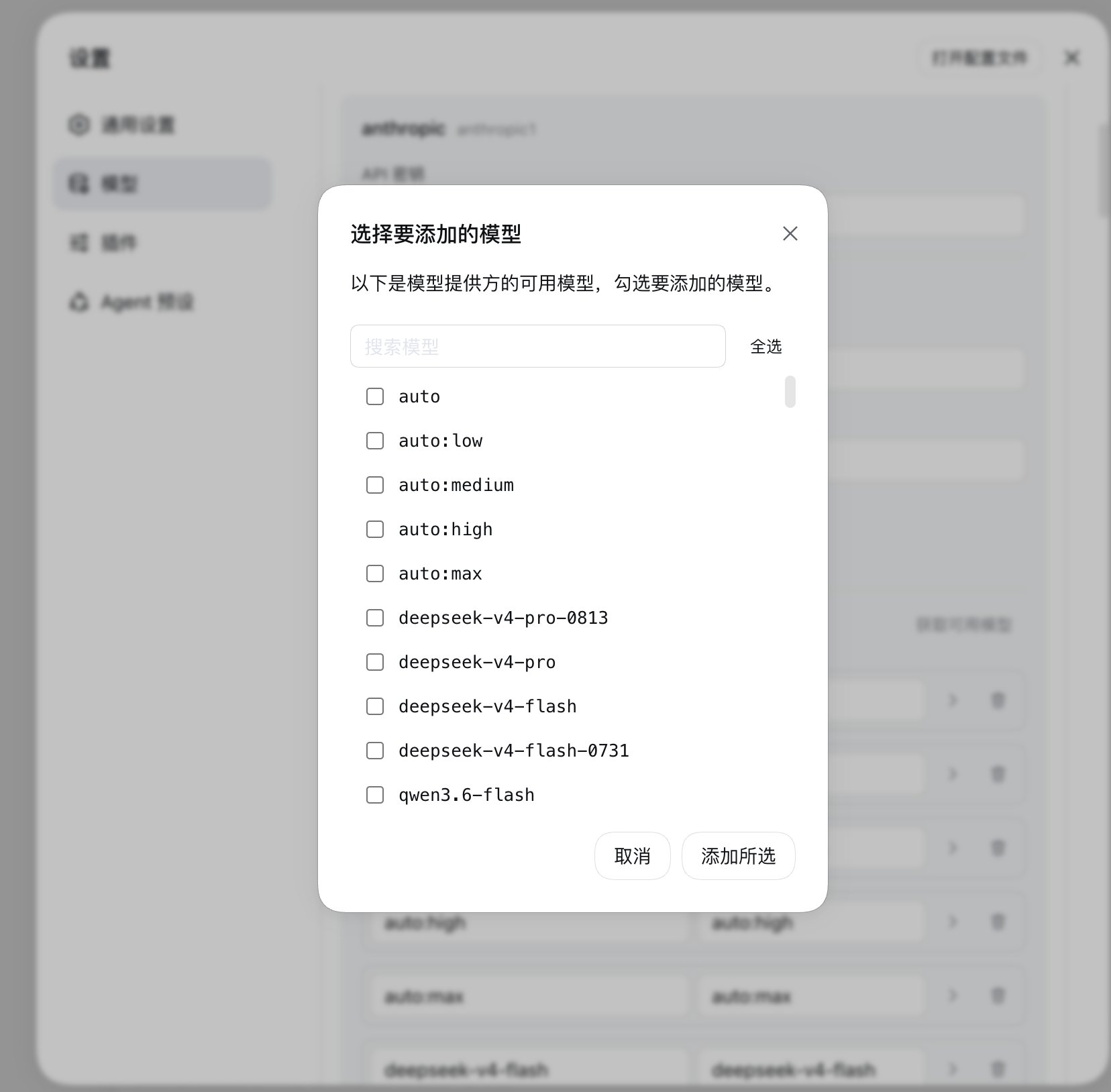
In the provider form's model catalog, click **Fetch available models** — DeepSeek Harness calls the gateway's `GET /models` endpoint and lists what it offers; search, check the models you want, and click **Add selected**:
### Step 4: Add models
In the provider form's model catalog, click **Fetch available models** — DeepSeek Harness calls the gateway's `GET /models` endpoint and lists what it offers; search, check the models you want, and click **Add selected**:
 If discovery fails or the list is empty, typing model IDs manually works exactly the same. Make sure each model matches its provider's protocol, e.g.:
| Model ID | Description | Protocol |
| ------------------ | ----------------------- | --------------------------------------------------------- |
| `deepseek-v4-pro` | DeepSeek flagship model | `openai-completions` |
| `claude-sonnet-5` | Claude family | `anthropic-messages` (recommended) / `openai-completions` |
| `gpt-5.5` | GPT family | `openai-responses` |
| `gemini-3.6-flash` | Gemini family | `openai-completions` |
| `kimi-k3` | Kimi family | `openai-completions` |
See the [GravitexAI Model Plaza](https://maas.gravitex.ai/#/api-models) for the full list of model IDs.
### Step 5: Select a model and start
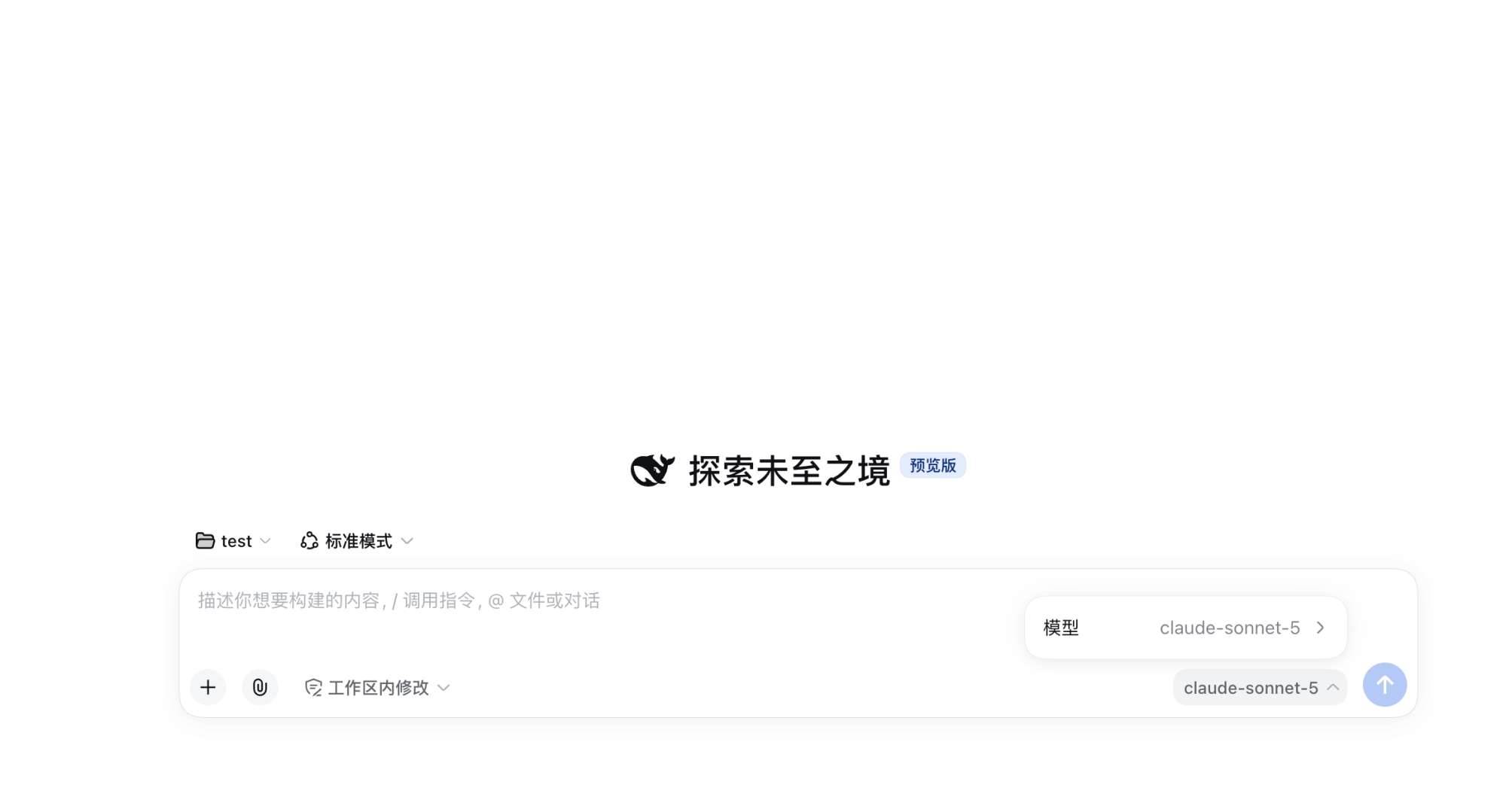
After saving the provider, its models appear in the session's model selector — pick one and start your task. Selecting a model also makes it the default for new sessions; **model changes take effect on the next request — no restart needed**:
If discovery fails or the list is empty, typing model IDs manually works exactly the same. Make sure each model matches its provider's protocol, e.g.:
| Model ID | Description | Protocol |
| ------------------ | ----------------------- | --------------------------------------------------------- |
| `deepseek-v4-pro` | DeepSeek flagship model | `openai-completions` |
| `claude-sonnet-5` | Claude family | `anthropic-messages` (recommended) / `openai-completions` |
| `gpt-5.5` | GPT family | `openai-responses` |
| `gemini-3.6-flash` | Gemini family | `openai-completions` |
| `kimi-k3` | Kimi family | `openai-completions` |
See the [GravitexAI Model Plaza](https://maas.gravitex.ai/#/api-models) for the full list of model IDs.
### Step 5: Select a model and start
After saving the provider, its models appear in the session's model selector — pick one and start your task. Selecting a model also makes it the default for new sessions; **model changes take effect on the next request — no restart needed**:
 ## 5. Feature Quick Reference
| Feature | Description |
| ------------------------ | -------------------------------------------------------------------------------------------- |
| Agent task execution | The model reads/writes files, runs terminal commands, and delivers results in your workspace |
| Everything is a plugin | Models, tools, and runtime capabilities are all plugins — extend and swap as needed |
| Multiple interfaces | Web UI (`dsh web`), CLI, and SDK |
| Multi-provider switching | Switch providers/models anytime in the model selector; effective on the next request |
| Local credential storage | Keys live in `$DSH_HOME/.credentials.yaml`; settings store only credential references |
## 6. Advanced Configuration (Optional)
Once you've finished the setup above in the Web UI, you can usually skip this section. The Models page only exposes basic fields (key, endpoint, protocol, model IDs, context window, etc.). Everything else — reasoning effort, image input, request compatibility switches — is edited directly in `$DSH_HOME/settings.yaml` (default `~/.dsh/settings.yaml` on macOS/Linux, `%USERPROFILE%\.dsh\settings.yaml` on Windows; when the browser and server are on the same machine, you can also click **Open config file** at the top of the Settings page). **Changes apply on the next request — no restart needed.**
**About the API key**: `apiKeyEnv: GRAVITEX_API_KEY` in the examples below means the key is read from an environment variable. Before hand-writing the config, set it in your terminal:
```bash macOS / Linux theme={null}
export GRAVITEX_API_KEY="sk-xxxxxxxxxx"
```
```powershell Windows PowerShell theme={null}
$env:GRAVITEX_API_KEY="sk-xxxxxxxxxx"
```
The commands above only apply to the current terminal session. On Windows, use `setx GRAVITEX_API_KEY "sk-xxxxxxxxxx"` to persist it (open a new terminal afterwards); on macOS/Linux, add the `export` line to `~/.zshrc` or `~/.bashrc`.
If you already saved a provider's key in the Web UI, `settings.yaml` contains an auto-generated credential reference. When adding extra config on top of that, **keep the reference as-is — do not replace it with `apiKeyEnv`**. The `apiKeyEnv` style is for fully hand-written configs where the key comes from an environment variable.
### Complete reference configuration
Below is a complete `settings.yaml` example with all three providers — copy it and trim to your needs:
```yaml theme={null}
llm-pi-ai:
providers:
# Provider 1: openai-completions — DeepSeek / Gemini / Kimi models
gravitex:
apiKeyEnv: GRAVITEX_API_KEY
api: openai-completions
baseURL: https://api.gravitex.ai/v1
models:
- id: deepseek-v4-pro
compat:
thinkingFormat: deepseek # Required to toggle thinking correctly on DeepSeek models
reasoningEfforts: # Adds a reasoning-level menu to the model selector
off:
high: high
max: max
- id: gemini-3.6-flash
input: [text, image] # Vision models must declare image input, or attached images are rejected before sending
- id: kimi-k3
# Provider 2: openai-responses — GPT-family models
gravitex-openai:
apiKeyEnv: GRAVITEX_API_KEY
api: openai-responses
baseURL: https://api.gravitex.ai/v1
models:
- id: gpt-5.5
# Provider 3: anthropic-messages — Claude-family models (recommended)
gravitex-anthropic:
apiKeyEnv: GRAVITEX_API_KEY
api: anthropic-messages
baseURL: https://api.gravitex.ai # Note: no /v1 for the Anthropic protocol
models:
- id: claude-sonnet-5
```
### Field reference
| Field | Purpose | When you need it |
| ------------------------------------- | ------------------------------------------------------------------------ | ----------------------------------------------------------------------------------------------------------------- |
| `apiKeyEnv` | Reads the key from the named environment variable | For fully hand-written configs; if the key was saved via the Web UI, keep the auto-generated credential reference |
| `input` | Declares the model's input modalities (`text` / `image`) | For manually entered vision models — they are treated as text-only by default |
| `reasoningEfforts` | Declares reasoning levels; a level menu appears in the model selector | When you want to switch reasoning strength manually; an empty `off` sends no reasoning parameter |
| `compat.thinkingFormat: deepseek` | Makes `off` truly disable thinking and other levels explicitly enable it | For DeepSeek models behind an OpenAI-compatible gateway |
| `compat.supportsDeveloperRole: false` | Sends system prompts with a regular role | When the key and URL are correct but the gateway rejects reasoning-model requests |
| `compat.maxTokensField: max_tokens` | Sends the output limit as `max_tokens` | When the gateway doesn't accept the `max_completion_tokens` field |
The last two `compat` fields can also be set at the **provider level**, applying to every model under that provider:
```yaml theme={null}
gravitex:
apiKeyEnv: GRAVITEX_API_KEY
api: openai-completions
baseURL: https://api.gravitex.ai/v1
compat:
supportsDeveloperRole: false
maxTokensField: max_tokens
models:
- id: deepseek-v4-pro
```
## 7. FAQ
The current provider resolved no credential. Check according to how you configured it: if you used the Web UI, re-save the API key on the Models page; if you hand-wrote the config with `apiKeyEnv`, make sure the environment variable is set (e.g. `export GRAVITEX_API_KEY="sk-..."`) and visible to the terminal that launches `dsh`. Don't paste keys into the chat to work around it.
The model ID isn't recognized by the current provider. Check that the model has been added to the provider's model list, and that its capitalization and spelling exactly match the [GravitexAI Model Plaza](https://maas.gravitex.ai/#/api-models).
Confirm the provider holding that model uses the `openai-responses` protocol. GPT-family models cannot live under an `openai-completions` provider — create a separate `openai-responses` provider (e.g. `gravitex-openai`) and add the model there.
A 401 means the key or endpoint doesn't match — confirm the Base URL is `https://api.gravitex.ai/v1` and the key starts with `sk-` with no extra spaces. If the list is empty or discovery fails, just type model IDs manually; it works identically.
The gateway's request shape differs from OpenAI's. Set `compat.supportsDeveloperRole: false` and `compat.maxTokensField: max_tokens` at the provider level in `settings.yaml` (see Section 6) and retry.
An empty `off` sends no reasoning field, so models that think by default keep thinking. Set `compat.thinkingFormat: deepseek` for that model (see the example in Section 6).
Manually entered models are treated as text-only. Add `input: [text, image]` to the model in `settings.yaml`. Conversely, if the provider rejects a request with an image, the declared capability doesn't exist — remove `image` and start a new session.
No. Provider IDs are permanent (requests, saved sessions, and credential references all point to them). To change one, add a new provider and delete the old. Display name, Base URL, protocol, credentials, and model list remain editable.
## 8. Related Resources
* DeepSeek Harness GitHub: [deepseek-ai/deepseek-harness](https://github.com/deepseek-ai/deepseek-harness)
* Official docs: [deepseek-harness.github.io/deepseek-harness](https://deepseek-harness.github.io/deepseek-harness/)
* Official provider configuration guide: [providers guide](https://github.com/deepseek-ai/deepseek-harness/blob/master/docs/user/guide/providers.md)
* Community: [GitHub Discussions](https://github.com/deepseek-ai/deepseek-harness/discussions) / [Discord](https://discord.gg/Ycq5dCaS4)
* API key management: [https://maas.gravitex.ai/#/api-keys](https://maas.gravitex.ai/#/api-keys)
* Model plaza: [https://maas.gravitex.ai/#/api-models](https://maas.gravitex.ai/#/api-models)
## 5. Feature Quick Reference
| Feature | Description |
| ------------------------ | -------------------------------------------------------------------------------------------- |
| Agent task execution | The model reads/writes files, runs terminal commands, and delivers results in your workspace |
| Everything is a plugin | Models, tools, and runtime capabilities are all plugins — extend and swap as needed |
| Multiple interfaces | Web UI (`dsh web`), CLI, and SDK |
| Multi-provider switching | Switch providers/models anytime in the model selector; effective on the next request |
| Local credential storage | Keys live in `$DSH_HOME/.credentials.yaml`; settings store only credential references |
## 6. Advanced Configuration (Optional)
Once you've finished the setup above in the Web UI, you can usually skip this section. The Models page only exposes basic fields (key, endpoint, protocol, model IDs, context window, etc.). Everything else — reasoning effort, image input, request compatibility switches — is edited directly in `$DSH_HOME/settings.yaml` (default `~/.dsh/settings.yaml` on macOS/Linux, `%USERPROFILE%\.dsh\settings.yaml` on Windows; when the browser and server are on the same machine, you can also click **Open config file** at the top of the Settings page). **Changes apply on the next request — no restart needed.**
**About the API key**: `apiKeyEnv: GRAVITEX_API_KEY` in the examples below means the key is read from an environment variable. Before hand-writing the config, set it in your terminal:
```bash macOS / Linux theme={null}
export GRAVITEX_API_KEY="sk-xxxxxxxxxx"
```
```powershell Windows PowerShell theme={null}
$env:GRAVITEX_API_KEY="sk-xxxxxxxxxx"
```
The commands above only apply to the current terminal session. On Windows, use `setx GRAVITEX_API_KEY "sk-xxxxxxxxxx"` to persist it (open a new terminal afterwards); on macOS/Linux, add the `export` line to `~/.zshrc` or `~/.bashrc`.
If you already saved a provider's key in the Web UI, `settings.yaml` contains an auto-generated credential reference. When adding extra config on top of that, **keep the reference as-is — do not replace it with `apiKeyEnv`**. The `apiKeyEnv` style is for fully hand-written configs where the key comes from an environment variable.
### Complete reference configuration
Below is a complete `settings.yaml` example with all three providers — copy it and trim to your needs:
```yaml theme={null}
llm-pi-ai:
providers:
# Provider 1: openai-completions — DeepSeek / Gemini / Kimi models
gravitex:
apiKeyEnv: GRAVITEX_API_KEY
api: openai-completions
baseURL: https://api.gravitex.ai/v1
models:
- id: deepseek-v4-pro
compat:
thinkingFormat: deepseek # Required to toggle thinking correctly on DeepSeek models
reasoningEfforts: # Adds a reasoning-level menu to the model selector
off:
high: high
max: max
- id: gemini-3.6-flash
input: [text, image] # Vision models must declare image input, or attached images are rejected before sending
- id: kimi-k3
# Provider 2: openai-responses — GPT-family models
gravitex-openai:
apiKeyEnv: GRAVITEX_API_KEY
api: openai-responses
baseURL: https://api.gravitex.ai/v1
models:
- id: gpt-5.5
# Provider 3: anthropic-messages — Claude-family models (recommended)
gravitex-anthropic:
apiKeyEnv: GRAVITEX_API_KEY
api: anthropic-messages
baseURL: https://api.gravitex.ai # Note: no /v1 for the Anthropic protocol
models:
- id: claude-sonnet-5
```
### Field reference
| Field | Purpose | When you need it |
| ------------------------------------- | ------------------------------------------------------------------------ | ----------------------------------------------------------------------------------------------------------------- |
| `apiKeyEnv` | Reads the key from the named environment variable | For fully hand-written configs; if the key was saved via the Web UI, keep the auto-generated credential reference |
| `input` | Declares the model's input modalities (`text` / `image`) | For manually entered vision models — they are treated as text-only by default |
| `reasoningEfforts` | Declares reasoning levels; a level menu appears in the model selector | When you want to switch reasoning strength manually; an empty `off` sends no reasoning parameter |
| `compat.thinkingFormat: deepseek` | Makes `off` truly disable thinking and other levels explicitly enable it | For DeepSeek models behind an OpenAI-compatible gateway |
| `compat.supportsDeveloperRole: false` | Sends system prompts with a regular role | When the key and URL are correct but the gateway rejects reasoning-model requests |
| `compat.maxTokensField: max_tokens` | Sends the output limit as `max_tokens` | When the gateway doesn't accept the `max_completion_tokens` field |
The last two `compat` fields can also be set at the **provider level**, applying to every model under that provider:
```yaml theme={null}
gravitex:
apiKeyEnv: GRAVITEX_API_KEY
api: openai-completions
baseURL: https://api.gravitex.ai/v1
compat:
supportsDeveloperRole: false
maxTokensField: max_tokens
models:
- id: deepseek-v4-pro
```
## 7. FAQ
The current provider resolved no credential. Check according to how you configured it: if you used the Web UI, re-save the API key on the Models page; if you hand-wrote the config with `apiKeyEnv`, make sure the environment variable is set (e.g. `export GRAVITEX_API_KEY="sk-..."`) and visible to the terminal that launches `dsh`. Don't paste keys into the chat to work around it.
The model ID isn't recognized by the current provider. Check that the model has been added to the provider's model list, and that its capitalization and spelling exactly match the [GravitexAI Model Plaza](https://maas.gravitex.ai/#/api-models).
Confirm the provider holding that model uses the `openai-responses` protocol. GPT-family models cannot live under an `openai-completions` provider — create a separate `openai-responses` provider (e.g. `gravitex-openai`) and add the model there.
A 401 means the key or endpoint doesn't match — confirm the Base URL is `https://api.gravitex.ai/v1` and the key starts with `sk-` with no extra spaces. If the list is empty or discovery fails, just type model IDs manually; it works identically.
The gateway's request shape differs from OpenAI's. Set `compat.supportsDeveloperRole: false` and `compat.maxTokensField: max_tokens` at the provider level in `settings.yaml` (see Section 6) and retry.
An empty `off` sends no reasoning field, so models that think by default keep thinking. Set `compat.thinkingFormat: deepseek` for that model (see the example in Section 6).
Manually entered models are treated as text-only. Add `input: [text, image]` to the model in `settings.yaml`. Conversely, if the provider rejects a request with an image, the declared capability doesn't exist — remove `image` and start a new session.
No. Provider IDs are permanent (requests, saved sessions, and credential references all point to them). To change one, add a new provider and delete the old. Display name, Base URL, protocol, credentials, and model list remain editable.
## 8. Related Resources
* DeepSeek Harness GitHub: [deepseek-ai/deepseek-harness](https://github.com/deepseek-ai/deepseek-harness)
* Official docs: [deepseek-harness.github.io/deepseek-harness](https://deepseek-harness.github.io/deepseek-harness/)
* Official provider configuration guide: [providers guide](https://github.com/deepseek-ai/deepseek-harness/blob/master/docs/user/guide/providers.md)
* Community: [GitHub Discussions](https://github.com/deepseek-ai/deepseek-harness/discussions) / [Discord](https://discord.gg/Ycq5dCaS4)
* API key management: [https://maas.gravitex.ai/#/api-keys](https://maas.gravitex.ai/#/api-keys)
* Model plaza: [https://maas.gravitex.ai/#/api-models](https://maas.gravitex.ai/#/api-models)