> ## Documentation Index
> Fetch the complete documentation index at: https://docs.gravitex.ai/llms.txt
> Use this file to discover all available pages before exploring further.
# Claude Desktop App
> Claude Desktop App integration guide: native third-party inference/Gateway support
Version: Claude Desktop **2025.6 and above** (native third-party inference/Gateway support, no repackaging or reverse proxy required).
## 1. Configuration Steps
### Step 1: Enable Developer Mode
1. Open Claude Desktop.
2. Top menu bar → Help → Troubleshooting → Enable Developer Mode.
3. After enabling, Claude Desktop will **automatically restart**. The Developer menu will appear in the top menu bar.
### Step 2: Go to Third-Party Inference Configuration
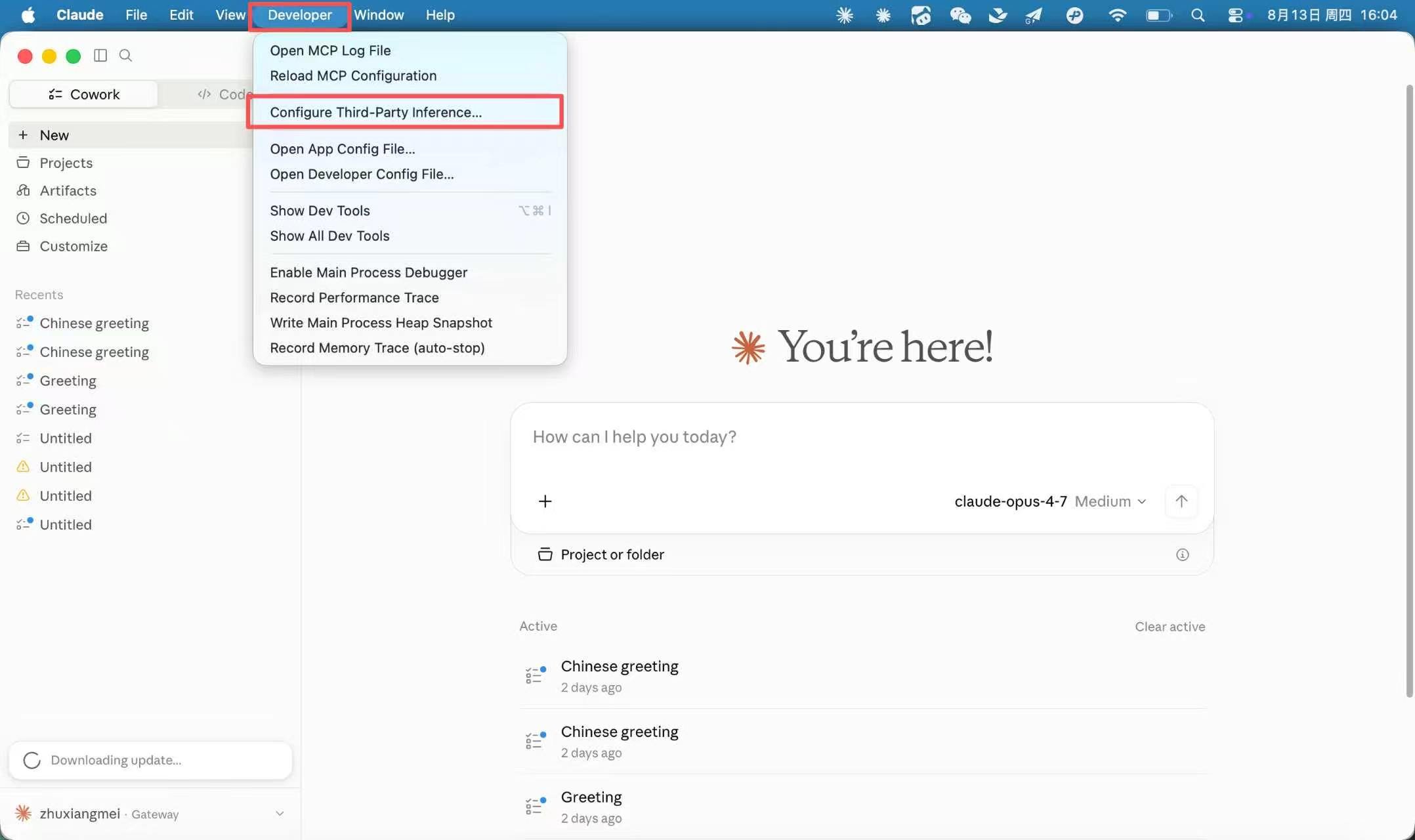
1. Menu bar → Developer → Configure third-party inference.
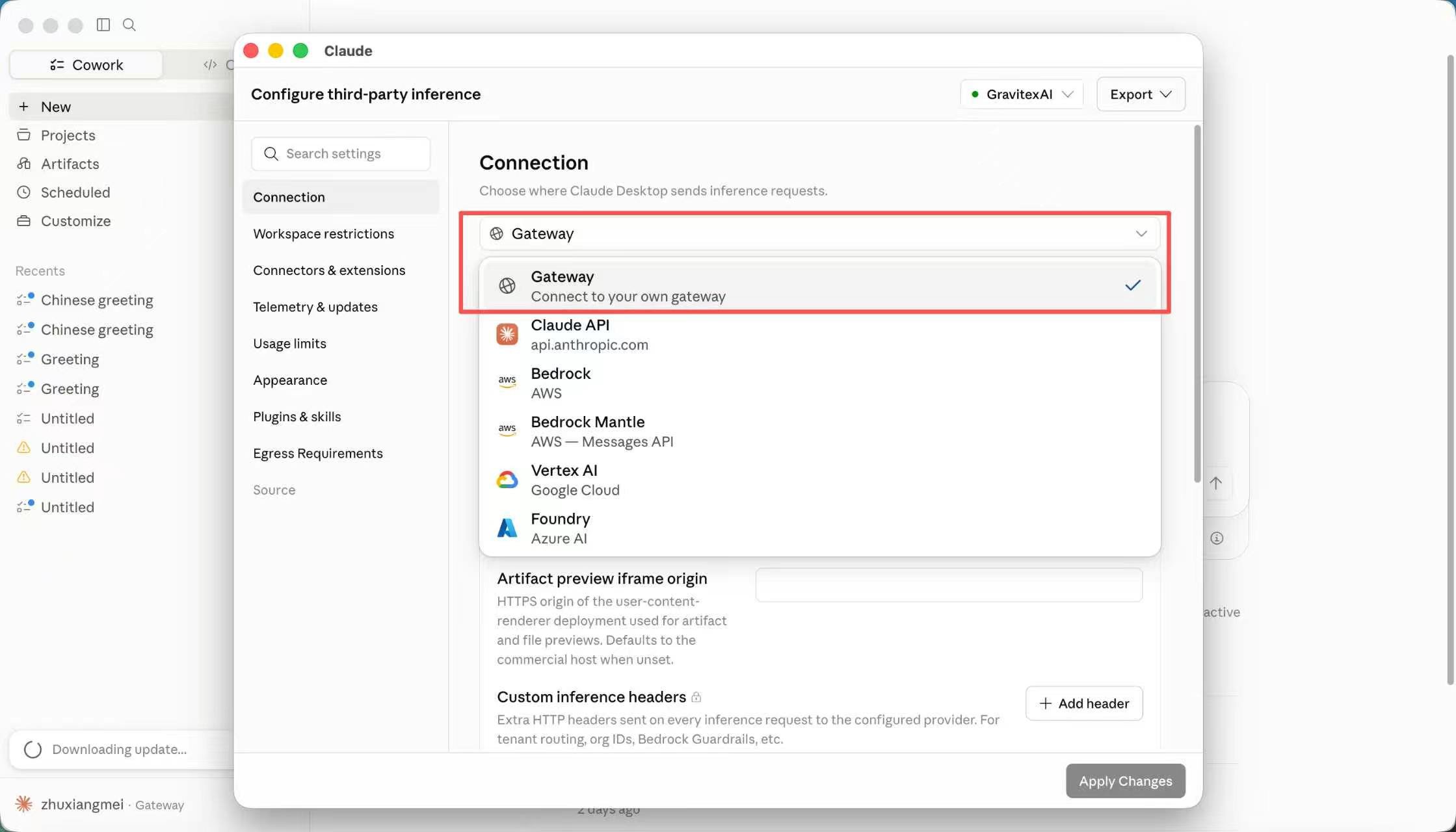
2. In the popup window, select **Gateway** as the connection type.
 ### Step 3: Fill in Gateway Information
| **Field** | **Value** | **Description** |
| --------------------- | ---------------------------------------------------------------------------------- | ---------------------------------------------------- |
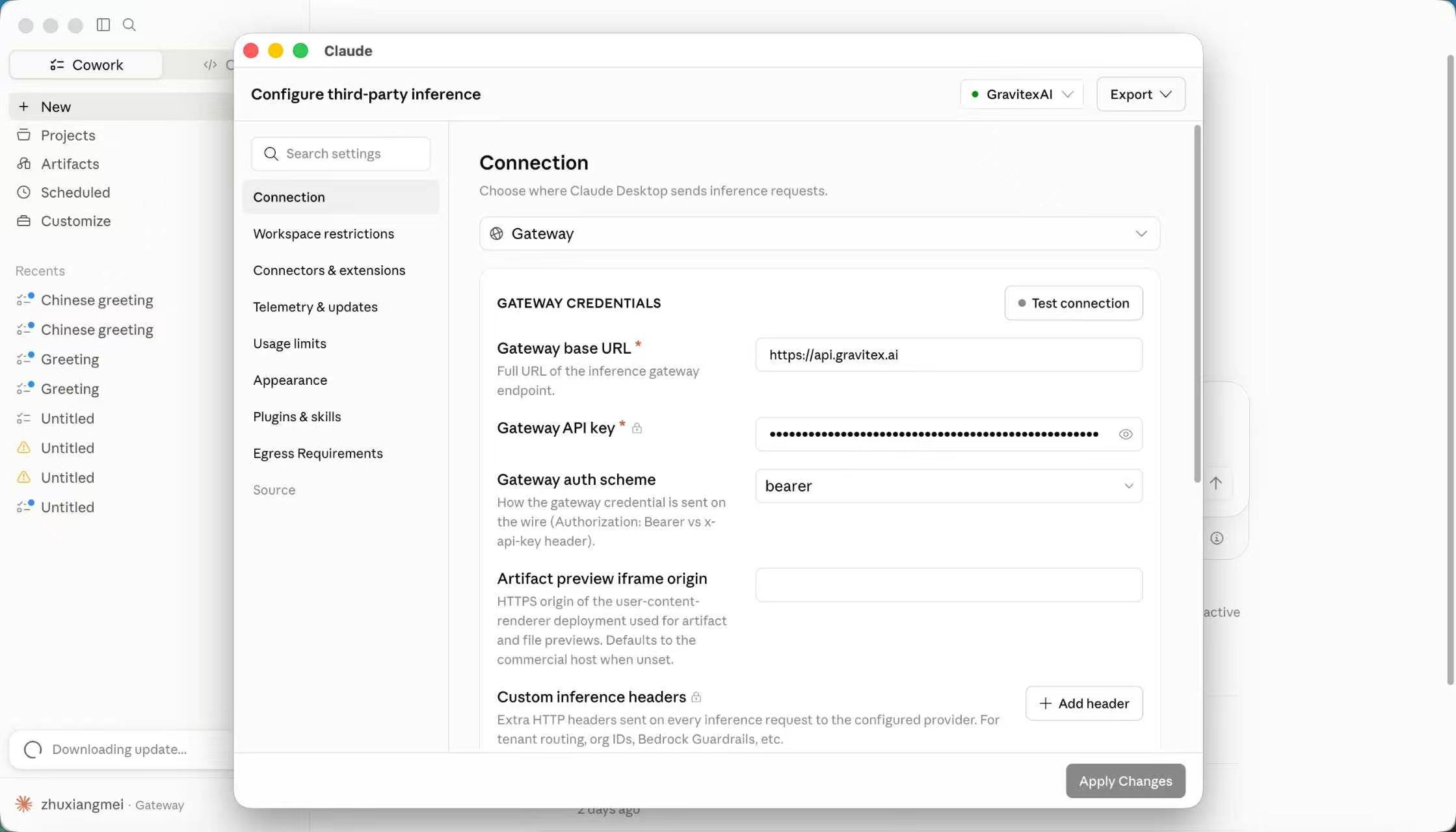
| Gateway base URL | `https://api.gravitex.ai` | See "Filling Rules" below |
| Gateway API key | Copy your API Key from GravitexAI Console - Key Management (format: sk-xxxxxxxxxx) | Stored in plaintext on your machine, do not share |
| Gateway extra headers | Usually leave empty | Unless extra request headers are explicitly required |
### Step 3: Fill in Gateway Information
| **Field** | **Value** | **Description** |
| --------------------- | ---------------------------------------------------------------------------------- | ---------------------------------------------------- |
| Gateway base URL | `https://api.gravitex.ai` | See "Filling Rules" below |
| Gateway API key | Copy your API Key from GravitexAI Console - Key Management (format: sk-xxxxxxxxxx) | Stored in plaintext on your machine, do not share |
| Gateway extra headers | Usually leave empty | Unless extra request headers are explicitly required |
 **Gateway base URL filling rules (most common mistake):**
* `Final request = your base URL + "/v1/messages"`
* If the actual endpoint is `https://api.gravitex.ai/v1/messages`, then **base URL should be `https://api.gravitex.ai`**
* **Do not** add `/v1/messages` suffix yourself, otherwise it will become `.../v1/messages/v1/messages` resulting in 404.
### Step 4: Configure the Model
There are 2 ways to choose from:
**Option 1 (recommended):** Enable **Model discovery**:
* Check "Auto-populate the model picker from `{base URL}`/v1/models at launch".
* Click **Test model discovery** to confirm the supported model list can be fetched.
* The model dropdown will automatically show only supported models, avoiding incorrect model names.
**Option 2:** Manual specification. Click **+ Add** in the Model list and fill in:
| **Field** | **Description** |
| ---------------------------- | -------------------------------------------------------------------------------------------------------------------------------------------------------------------------------------------------------- |
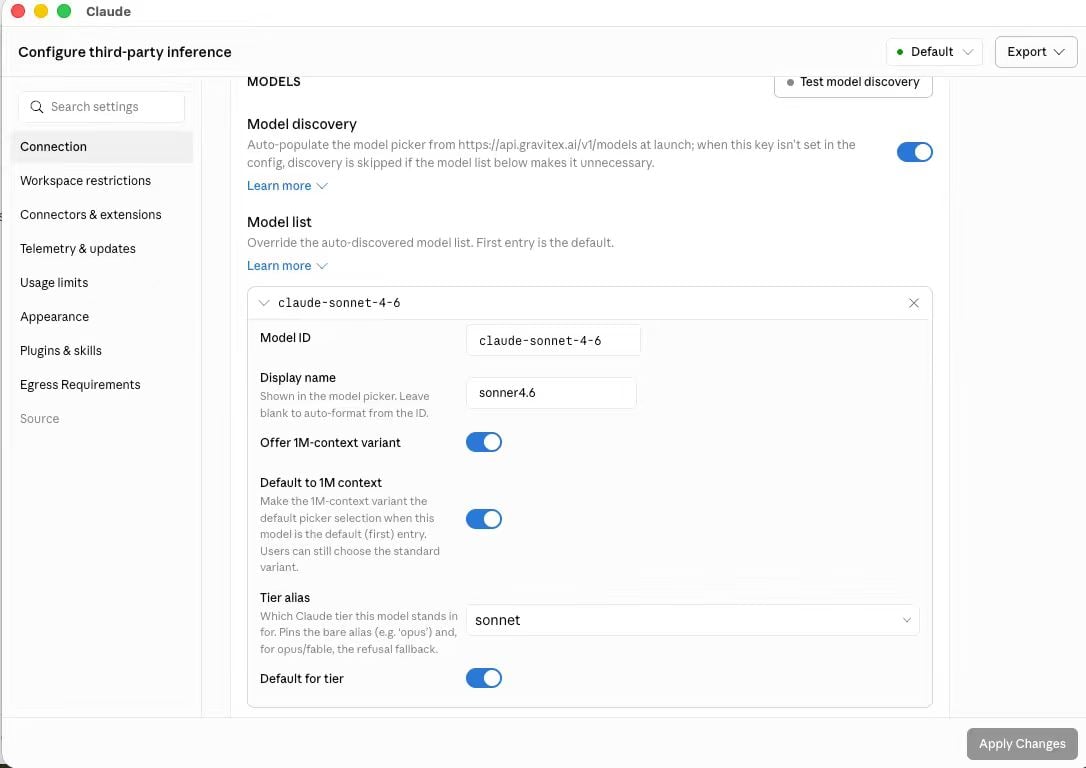
| **Model ID** | Must match the model ID supported by GravitexAI (with version number), e.g., `claude-haiku-4-5-20251001`, `claude-fable-5`. |
| **Display name** | The name shown in the model dropdown, customizable, e.g., `Claude Opus 4.5`. |
| **Offer 1M-context variant** | Enable if the model supports 1M context; keep disabled for regular models. |
| **Tier alias** | **Required.** Select the corresponding Claude tier for this model, e.g., `opus`, `sonnet`, `haiku`, `fable`. Claude Desktop uses these tier aliases to dispatch lightweight/powerful tasks and fallback. |
**Gateway base URL filling rules (most common mistake):**
* `Final request = your base URL + "/v1/messages"`
* If the actual endpoint is `https://api.gravitex.ai/v1/messages`, then **base URL should be `https://api.gravitex.ai`**
* **Do not** add `/v1/messages` suffix yourself, otherwise it will become `.../v1/messages/v1/messages` resulting in 404.
### Step 4: Configure the Model
There are 2 ways to choose from:
**Option 1 (recommended):** Enable **Model discovery**:
* Check "Auto-populate the model picker from `{base URL}`/v1/models at launch".
* Click **Test model discovery** to confirm the supported model list can be fetched.
* The model dropdown will automatically show only supported models, avoiding incorrect model names.
**Option 2:** Manual specification. Click **+ Add** in the Model list and fill in:
| **Field** | **Description** |
| ---------------------------- | -------------------------------------------------------------------------------------------------------------------------------------------------------------------------------------------------------- |
| **Model ID** | Must match the model ID supported by GravitexAI (with version number), e.g., `claude-haiku-4-5-20251001`, `claude-fable-5`. |
| **Display name** | The name shown in the model dropdown, customizable, e.g., `Claude Opus 4.5`. |
| **Offer 1M-context variant** | Enable if the model supports 1M context; keep disabled for regular models. |
| **Tier alias** | **Required.** Select the corresponding Claude tier for this model, e.g., `opus`, `sonnet`, `haiku`, `fable`. Claude Desktop uses these tier aliases to dispatch lightweight/powerful tasks and fallback. |
 **Why is Tier alias important?**
Claude Desktop internally uses opus / sonnet / haiku / fable tier aliases to allocate different types of calls (e.g., lightweight summary tasks may use haiku, complex reasoning uses opus). If you set claude-opus-4-8's Tier alias to opus, the client knows to treat it as the Opus tier; leaving it empty or selecting incorrectly will cause an "Invalid: Model list" error.
📌 The **first item** in the Model list is the **default model**. It's recommended to place your most frequently used model (e.g., Sonnet) at the top.
**Common error: "Invalid: Model list" at the bottom**
Usually caused by one of the following:
* Tier alias not selected;
* Model ID duplicates an existing entry;
* Model ID format not accepted by the client (contains spaces, special characters, etc.).
After fixing, click **Save Changes** first, then **Apply Changes**.
### Step 5: Apply and Restart
1. Click **Apply Changes**.
2. **Completely exit** Claude Desktop (macOS: Claude menu → Quit Claude / Cmd+Q, and use Activity Monitor to confirm no Claude process is running).
3. Reopen Claude Desktop.
4. Send a test message to verify.
## 2. Verify Success
* Claude Desktop starts normally, showing Your Account · Gateway in the bottom left.
* No errors such as `authentication` / `invalid api key` / `gateway unavailable` / `model_not_found` after sending a message.
## 3. Troubleshooting
| **Symptom** | **Cause** | **Solution** |
| ------------------------------------------------- | -------------------------------------------------------------- | ---------------------------------------------------------------------------------------------------------------------------- |
| Invalid API key / 401 | Key error, expired, or disabled | Regenerate Key and refill |
| Gateway unavailable | Address error or network issue | Check base URL and network; confirm domain is accessible |
| 404 ... /v1/messages/v1/messages | base URL has extra suffix | Remove the /v1/messages suffix |
| model\_not\_found: model has no available channel | Model ID not supported | Use Model discovery to fetch the real list; use full version model IDs (e.g., `claude-haiku-4-5-20251001`), not bare aliases |
| Preparing session... stuck for a long time | Model unsupported / backend unresponsive / not fully restarted | Check model ID, test with curl, fully exit and restart |
| Changes not applied after Apply locally | Only closed window but not process | Fully exit Claude process and restart; alternatively export .mobileconfig (macOS) / .reg (Windows) to import |
## 4. Security Notes
* **API Key is equivalent to a password** — do not include it in public documents, screenshots, or code repositories.
* Exported configuration files (.mobileconfig / .reg / .json) may contain plaintext keys. Store them only briefly on trusted devices and delete after use.
* If your Key has been exposed in chats, screenshots, or logs, revoke it immediately and regenerate.
**Why is Tier alias important?**
Claude Desktop internally uses opus / sonnet / haiku / fable tier aliases to allocate different types of calls (e.g., lightweight summary tasks may use haiku, complex reasoning uses opus). If you set claude-opus-4-8's Tier alias to opus, the client knows to treat it as the Opus tier; leaving it empty or selecting incorrectly will cause an "Invalid: Model list" error.
📌 The **first item** in the Model list is the **default model**. It's recommended to place your most frequently used model (e.g., Sonnet) at the top.
**Common error: "Invalid: Model list" at the bottom**
Usually caused by one of the following:
* Tier alias not selected;
* Model ID duplicates an existing entry;
* Model ID format not accepted by the client (contains spaces, special characters, etc.).
After fixing, click **Save Changes** first, then **Apply Changes**.
### Step 5: Apply and Restart
1. Click **Apply Changes**.
2. **Completely exit** Claude Desktop (macOS: Claude menu → Quit Claude / Cmd+Q, and use Activity Monitor to confirm no Claude process is running).
3. Reopen Claude Desktop.
4. Send a test message to verify.
## 2. Verify Success
* Claude Desktop starts normally, showing Your Account · Gateway in the bottom left.
* No errors such as `authentication` / `invalid api key` / `gateway unavailable` / `model_not_found` after sending a message.
## 3. Troubleshooting
| **Symptom** | **Cause** | **Solution** |
| ------------------------------------------------- | -------------------------------------------------------------- | ---------------------------------------------------------------------------------------------------------------------------- |
| Invalid API key / 401 | Key error, expired, or disabled | Regenerate Key and refill |
| Gateway unavailable | Address error or network issue | Check base URL and network; confirm domain is accessible |
| 404 ... /v1/messages/v1/messages | base URL has extra suffix | Remove the /v1/messages suffix |
| model\_not\_found: model has no available channel | Model ID not supported | Use Model discovery to fetch the real list; use full version model IDs (e.g., `claude-haiku-4-5-20251001`), not bare aliases |
| Preparing session... stuck for a long time | Model unsupported / backend unresponsive / not fully restarted | Check model ID, test with curl, fully exit and restart |
| Changes not applied after Apply locally | Only closed window but not process | Fully exit Claude process and restart; alternatively export .mobileconfig (macOS) / .reg (Windows) to import |
## 4. Security Notes
* **API Key is equivalent to a password** — do not include it in public documents, screenshots, or code repositories.
* Exported configuration files (.mobileconfig / .reg / .json) may contain plaintext keys. Store them only briefly on trusted devices and delete after use.
* If your Key has been exposed in chats, screenshots, or logs, revoke it immediately and regenerate.